Amazon contains the richest dataset for e-commerce intelligence on the internet. Product prices, customer reviews, seller rankings, stock availability, and pricing history all live on Amazon's pages. Getting that data into a Google Sheet where you can analyze it, share it with your team, and track changes over time has traditionally required engineering resources most teams simply do not have.
A freelance Amazon arbitrage seller recently shared that she spends 4 hours every Monday morning manually copying product ASINs, prices, and review counts from Amazon into a spreadsheet. By Wednesday, half her data is already stale. She is not alone. Thousands of product researchers, dropshippers, and brand managers face the same grind every week.
This guide will show you how to get Amazon product data into Google Sheets without writing code. Using tools like Lection, you can transform any Amazon search results page or product listing into structured spreadsheet rows in minutes, not hours.
Why Amazon Data Belongs in Google Sheets
Before diving into the how, let us establish the why. Google Sheets is not just a place to store numbers; it is a collaboration and analysis platform that unlocks the value hidden in raw Amazon data.
Real-Time Collaboration
When your Amazon data lives in a shared Google Sheet, your entire team has access. Your procurement lead sees the same supplier prices your sales team sees. No more emailing spreadsheet attachments back and forth, wondering which version is current.
A 3-person dropshipping team we spoke with reduced their weekly sync meetings from 90 minutes to 15 minutes after centralizing their product research in a single Google Sheet that auto-updates from Amazon.
Built-In Analysis Tools
Google Sheets offers pivot tables, conditional formatting, and charting without additional software. Once Amazon prices are in your sheet, you can:
- Highlight products where competitor prices dropped more than 10%
- Build a chart showing average prices by category over time
- Create a pivot table showing your best-margin products by supplier
Integration Ecosystem
Google Sheets connects to everything. Zapier, Make, and n8n can trigger workflows based on your sheet data. When a product price drops below your target, you can automatically get a Slack notification or add a task to Asana.
The Problem: Why Amazon Data is Hard to Get
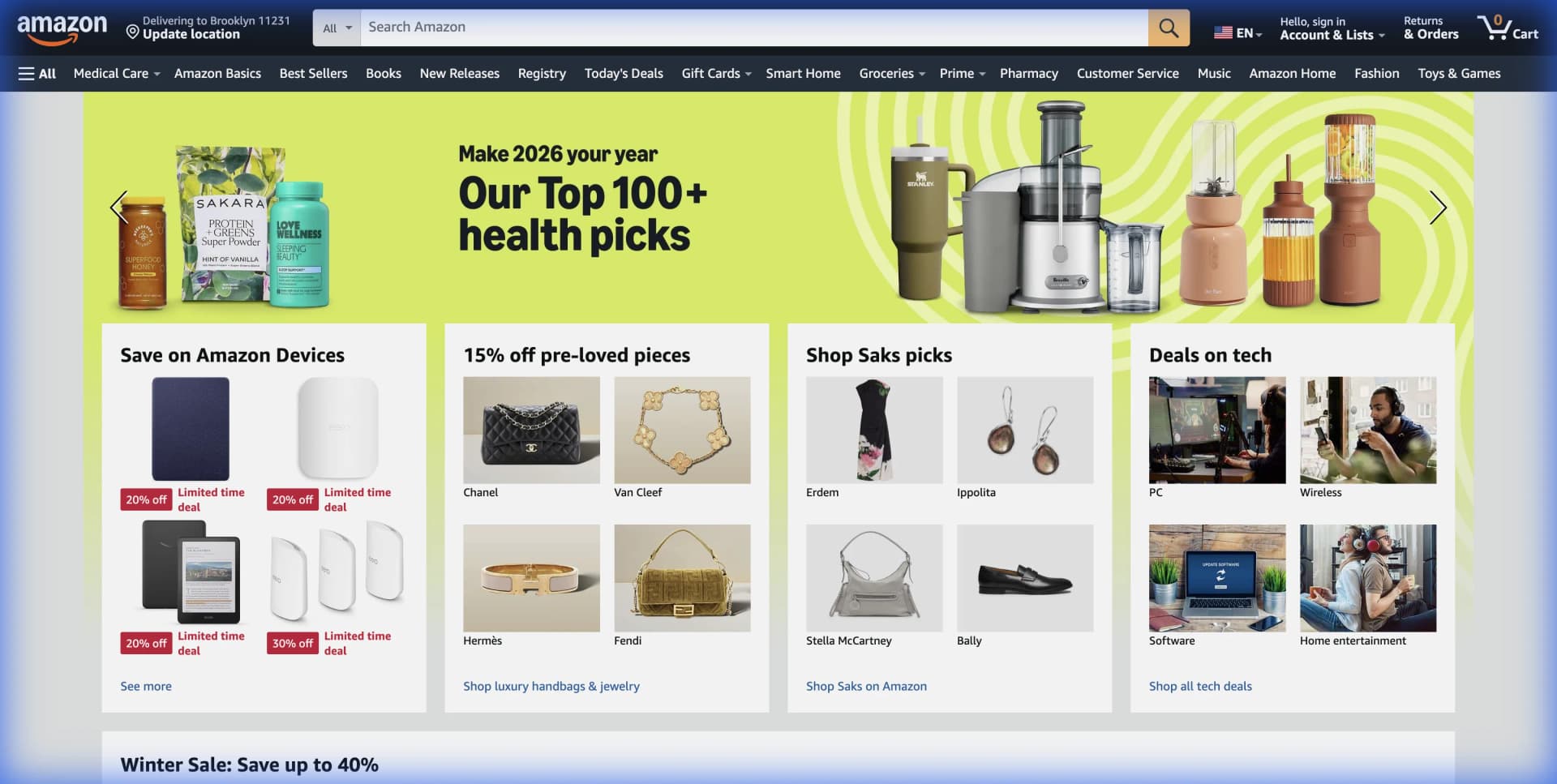
If Amazon data is so valuable, why are people still copying and pasting? Because Amazon actively resists automated data collection.
Amazon's Anti-Scraping Defenses
Amazon deploys multiple layers of protection:
- Rate Limiting: Rapid requests trigger IP blocks and captchas
- Dynamic Layouts: Amazon A/B tests constantly, meaning the HTML structure changes unpredictably
- Bot Detection: Sophisticated fingerprinting identifies non-human traffic patterns
- Personalization: Prices and availability often vary by user, location, and browsing history
A Python developer on Reddit documented spending 40+ hours building an Amazon scraper, only to have it break within two weeks when Amazon changed their page structure.
Traditional Approaches Fall Short
Manual Copy-Paste: At 45 seconds per product (being generous), extracting 200 products takes 2.5 hours of focused work. Repeat this weekly, and you are losing over 10 hours monthly to data entry. That is time you could spend analyzing trends or negotiating with suppliers.
IMPORTXML in Google Sheets: This built-in function sounds promising but fails on Amazon. Amazon's dynamic JavaScript-rendered pages return empty results or trigger IP blocks almost immediately.
Python Scripts: Effective but require maintenance. Every Amazon layout change breaks your selectors. You need proxy rotation, header management, and constant updates.
The Real Cost of Bad Data
The math is worse than it appears. A supply chain manager at a mid-size retailer calculated that one incorrect price entry cost them $3,200 in a single purchase order. When you manually enter thousands of data points, errors are not a matter of if, but when.
The Solution: AI-Native Web Scraping to Google Sheets
Tools like Lection represent a fundamentally different approach to web data extraction. Instead of relying on brittle CSS selectors or XPath expressions, AI-native scrapers visually interpret pages the way a human does.
Here is why this matters for Amazon:
- Adaptive Intelligence: When Amazon changes their layout, the AI adjusts. No code updates required.
- Browser-Native: Lection runs right in Chrome, seeing Amazon exactly as you do (including personalization).
- One-Click Google Sheets Export: Direct integration means no intermediate CSV files or manual uploads.
- Cloud Scraping: Schedule automated extractions that run even when your laptop is closed.
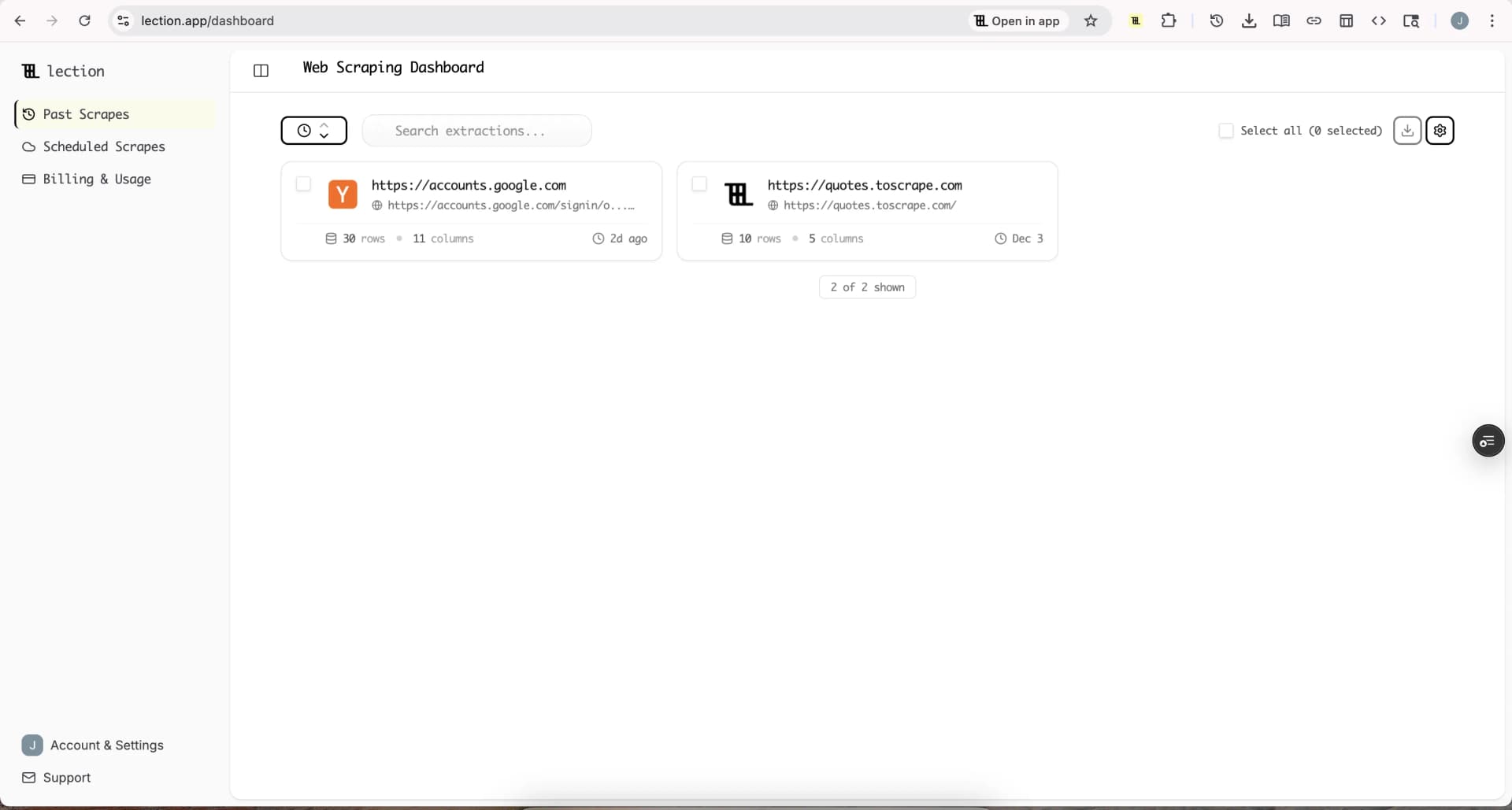
Step-by-Step: Amazon Product Data to Google Sheets
Let us walk through a practical example. Say you want to track the top 100 wireless earbuds on Amazon, including their prices, ratings, and review counts, updated weekly in your Google Sheet.
Step 1: Install the Lection Chrome Extension
Head to the Chrome Web Store and install Lection. Pin it to your browser toolbar for quick access.
The extension is lightweight and installs in seconds. You now have an AI data agent that can transform any webpage into structured data.
Step 2: Navigate to Amazon Search Results
Open Amazon and search for your target products. For this example, search for "wireless earbuds" and sort by "Best Sellers" or "Avg. Customer Review" depending on your research goal.
You should see a grid of products with names, prices, star ratings, and Prime badges.
Step 3: Activate the Lection Agent
Click the Lection icon in your browser toolbar. The sidebar opens, and Lection's AI immediately begins analyzing the page structure.
Amazon's product grids present as repeating patterns. Lection will automatically detect these patterns and highlight the individual product cards for extraction.
Step 4: Configure Your Data Fields
Lection auto-detects the most common fields:
- Product Title: The full product name
- Price: Current selling price (including any deal pricing)
- Star Rating: e.g., 4.5 out of 5 stars
- Review Count: Number of customer reviews
- Product URL: Direct link to the product page
- ASIN: Amazon's unique product identifier
- Prime Eligible: Whether Prime shipping is available
If you need additional data points (like seller name or specific product attributes), click on that element. Lection learns from your selection and applies the logic across all products.
Step 5: Enable Pagination for Complete Data
A single Amazon search page shows around 48 products. For the top 100, you need multiple pages.
Toggle the "Pagination" option in Lection. The agent automatically finds the "Next" button and navigates through subsequent pages, stacking all results into a unified dataset.
[!TIP] Respect Rate Limits: Lection includes smart delays between page loads to mimic natural browsing behavior. This keeps your scrapes reliable and reduces the risk of triggering Amazon's bot detection.
Step 6: Connect Google Sheets
Here is where Lection shines for Amazon-to-Sheets workflows. Click Export and select Google Sheets.
The first time, you will authenticate with your Google account. Select an existing spreadsheet or create a new one. Pick the specific sheet (tab) where you want the data.
Click export, and watch as your Amazon product data streams directly into your spreadsheet columns. No CSV download, no manual import, no data cleaning.
Step 7: Schedule Recurring Updates
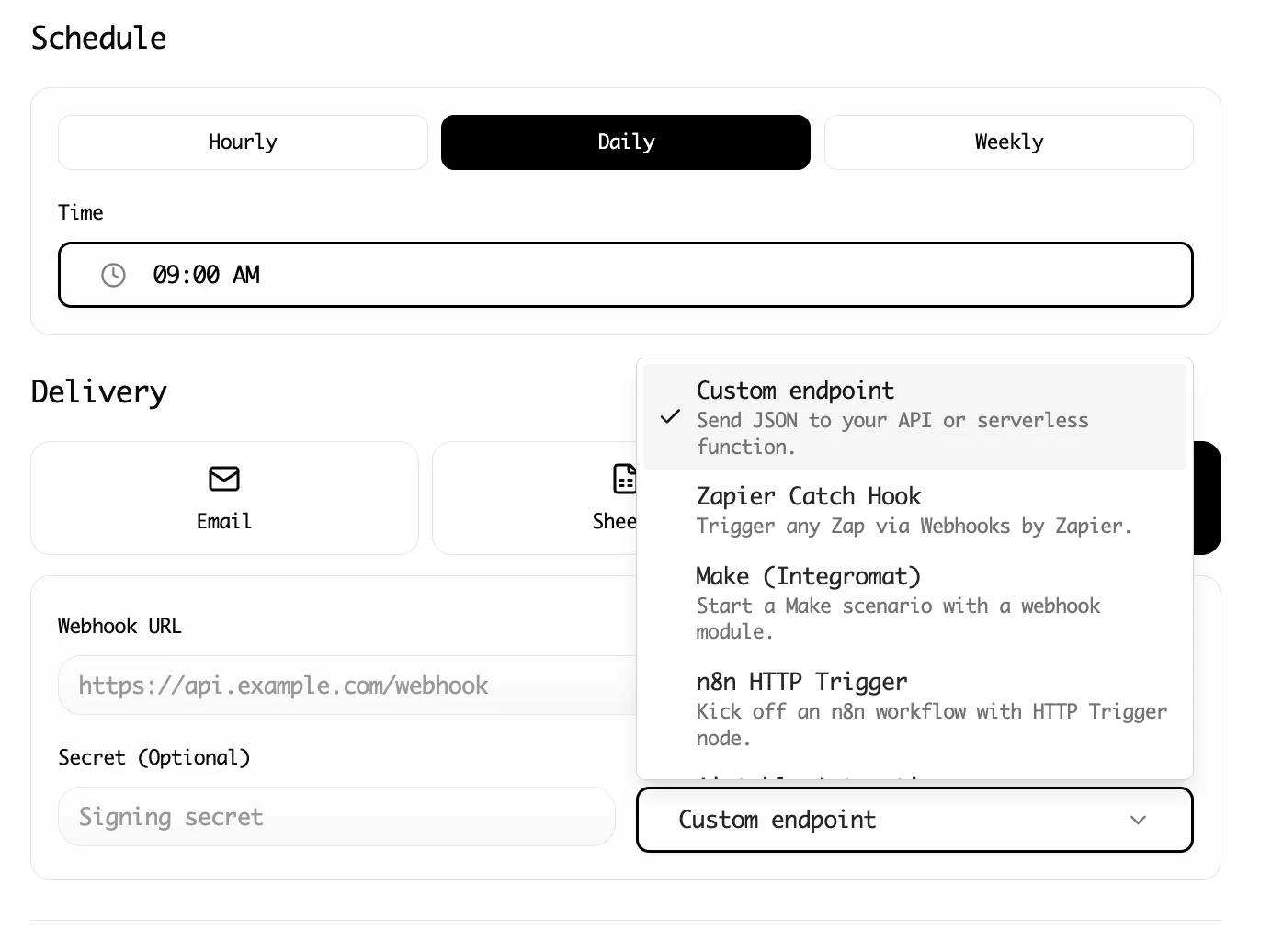
Amazon prices fluctuate hourly. What you researched today may be outdated by Friday. This is where cloud scraping transforms your workflow.
In Lection, convert your scrape to a Cloud Scrape. Set it to run every Monday at 7:00 AM. When you start your week, your Google Sheet already contains fresh data, no manual intervention required.
Advanced Techniques for Power Users
Once you have the basics working, consider these advanced patterns.
Tracking Price History
Instead of overwriting your sheet each time, append new rows with a timestamp column. Over weeks, you build a complete price history dataset. Google Sheets conditional formatting can then highlight:
- Products where price dropped more than 15%
- Products with unusual price volatility
- Best times to buy based on historical patterns
Multi-Category Monitoring
Create separate scheduled scrapes for different product categories. Each scrape exports to a different sheet tab in the same Google Sheet file. You end up with a multi-category dashboard tracking electronics, beauty, home goods, and more, all in one place.
Integration with Business Tools
Once data lands in Google Sheets, you can trigger downstream workflows:
- Zapier: Send a Slack message when any product drops below $50
- Make (Integromat): Add new products to an Airtable for visual catalog management
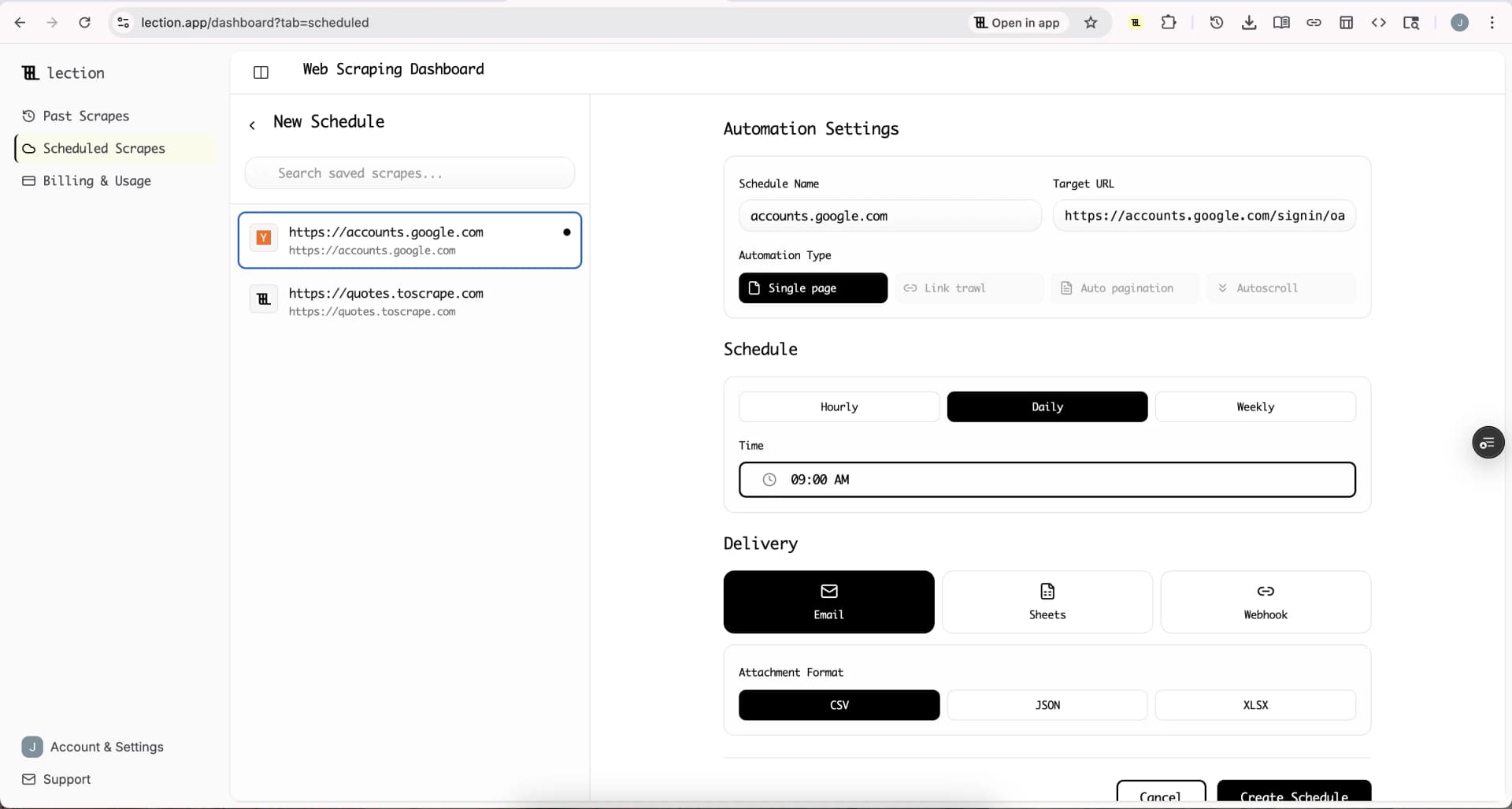
- Custom Webhooks: Push data to n8n for advanced automation
The Lection integrations include direct Zapier and Make connections, so you can build these automations without touching code.
Common Questions and Troubleshooting
"The prices I see differ from what Lection extracts"
Amazon personalizes prices based on browsing history, location, and account status. Lection captures what the browser sees, which should match your logged-in experience. For consistent pricing data, consider using cloud scraping with a standardized location.
"Some products have missing fields"
Amazon product listings are inconsistent. Some "Sponsored" products have different data structures. Some products lack star ratings if they are new. Lection extracts what is available and leaves cells blank for missing data rather than inserting errors.
"I hit a CAPTCHA during scraping"
Amazon occasionally presents CAPTCHAs to verify you are human. If this happens during local browser scraping, solve the CAPTCHA manually and Lection resumes. Cloud scraping uses proxy rotation and distributed infrastructure to minimize CAPTCHA frequency.
"My scheduled scrape stopped working"
Amazon layout changes can occasionally affect extraction accuracy. Open Lection on the target page and re-train the agent with the current layout. Cloud scrapes update to use your latest training.
Why This Approach Beats the Alternatives
| Method | Time Investment | Maintenance | Data Quality | Google Sheets Integration |
|---|---|---|---|---|
| Manual Copy-Paste | 2+ hours/100 products | None | Error-prone | Manual paste |
| IMPORTXML | 30 min setup | Constant fixing | Unreliable on Amazon | Direct (but broken) |
| Python Scripts | Days of development | Weekly updates | Good when working | Manual export |
| Tools like Lection | 5 minutes | Minimal | AI-adaptive | Direct, one-click |
The economics are clear. If you value your time at even $25/hour, the hours spent on manual extraction or script maintenance quickly exceed the cost of purpose-built tooling.
Beyond Basic Extraction: What Else Can You Track?
Once your Amazon-to-Sheets pipeline is working, consider expanding your data collection:
Competitor Price Monitoring
Track specific ASINs from competing sellers. Get alerted when they drop prices below your threshold so you can match or beat them.
Review Sentiment Trends
Extract reviews (not just counts) and run basic sentiment analysis in Sheets using add-ons or simple keyword flagging.
Stock and Availability
Some products fluctuate in availability. Tracking "In Stock" vs "Currently Unavailable" patterns reveals supply chain insights.
Best Seller Rank Tracking
BSR (Best Seller Rank) fluctuates throughout the day. Historical BSR data helps you understand demand patterns and seasonality.
Conclusion: Your Data Deserves Better
Amazon product research should not feel like data entry. Your expertise is in analyzing markets, identifying opportunities, and making decisions, not in copying and pasting between browser tabs.
By automating the Amazon-to-Google-Sheets pipeline with AI-native tools like Lection, you reclaim hours weekly while improving data accuracy. You can track more products, update more frequently, and spot trends before your competitors.
Ready to stop copying and start analyzing? Install Lection for free and connect your first Amazon scrape to Google Sheets in under 10 minutes.