In the competitive landscape of e-commerce, data is no longer just an advantage—it is the lifeblood of survival. Whether you are a brand manager tracking MAP (Minimum Advertised Price) compliance, a market researcher analyzing consumer trends, or a price-conscious shopper looking for the best deals, having access to structured Amazon data is essential.
However, for most people, "accessing data" translates to hours of soul-crushing manual work. You open a search results page, copy the product name, switch to a spreadsheet, paste it, switch back, copy the price, switch again... and before you know it, three hours have passed, and you’ve only managed to log 50 products from a single category.
This "copy-paste fatigue" is more than just a nuisance; it’s a bottleneck that prevents teams from making timely, data-driven decisions. In today’s guide, we will show you how to move past the manual grind and scrape data from Amazon without writing a single line of code. Using Lection, you can transform any Amazon search result or product page into a structured Excel or Google Sheet in minutes.
The Messy Reality of Manual Data Collection
Imagine you are tasked with building a price comparison sheet for the 500 best-selling mechanical keyboards on Amazon.
If you do this manually:
- The Time Sink: At 60 seconds per entry (including verification), you are looking at over 8 hours of work. That’s a full workday lost to data entry.
- The Fragility: One accidental "Command+V" in the wrong cell breaks your entire sorting logic. A misplaced price point can lead to a pricing strategy that costs your company thousands.
- The Burnout: Repetitive tasks like this breed "low-level anxiety." Your brain is wired for strategic thinking, not for acting as a manual bridge between a web browser and a spreadsheet.
Why Most Scrapers Break on Amazon
If you have tried other web scraping tools, you might have noticed they often struggle with Amazon. There are a few technical reasons for this:
- Anti-Scraping Measures: Amazon has some of the most sophisticated bot-detection systems in the world. If you use a basic script (like a Python/Beautiful Soup combo) without proper header rotation and proxy management, you will likely hit a CAPTCHA within seconds.
- Dynamic Layouts: Amazon frequently runs A/B tests. The "price" element might be in one
divfor user A and a completely different structure for user B. Rigid scrapers (which rely on specific HTML paths called XPath) break the moment the layout shifts by even a few pixels. - Infinite Complexity: From "Limited Time Deals" to "Sponsored" tags, the data can be messy. Traditional tools often mix up real results with ads, giving you a corrupted dataset.
This is where Lection is different. As an AI-native agent, it doesn't just look for "boxes" in the code; it "sees" the page like a human does. It understands the difference between a product title and a sponsored banner, making it significantly more resilient than legacy software.
Step-by-Step: Exporting Amazon Data to Google Sheets
Let’s walk through the actual process of scraping Amazon search results using the Lection Chrome extension.
Step 1: Install the Lection Extension
Before you can start, you need the tool. Head over to the Chrome Web Store and add Lection to your browser.
Once installed, pin it to your toolbar. You now have a powerful data agent living right where you work.
Step 2: Navigate to Your Target Amazon Page
Go to Amazon and search for the product category you need. For this example, let's look for "mechanical keyboards."
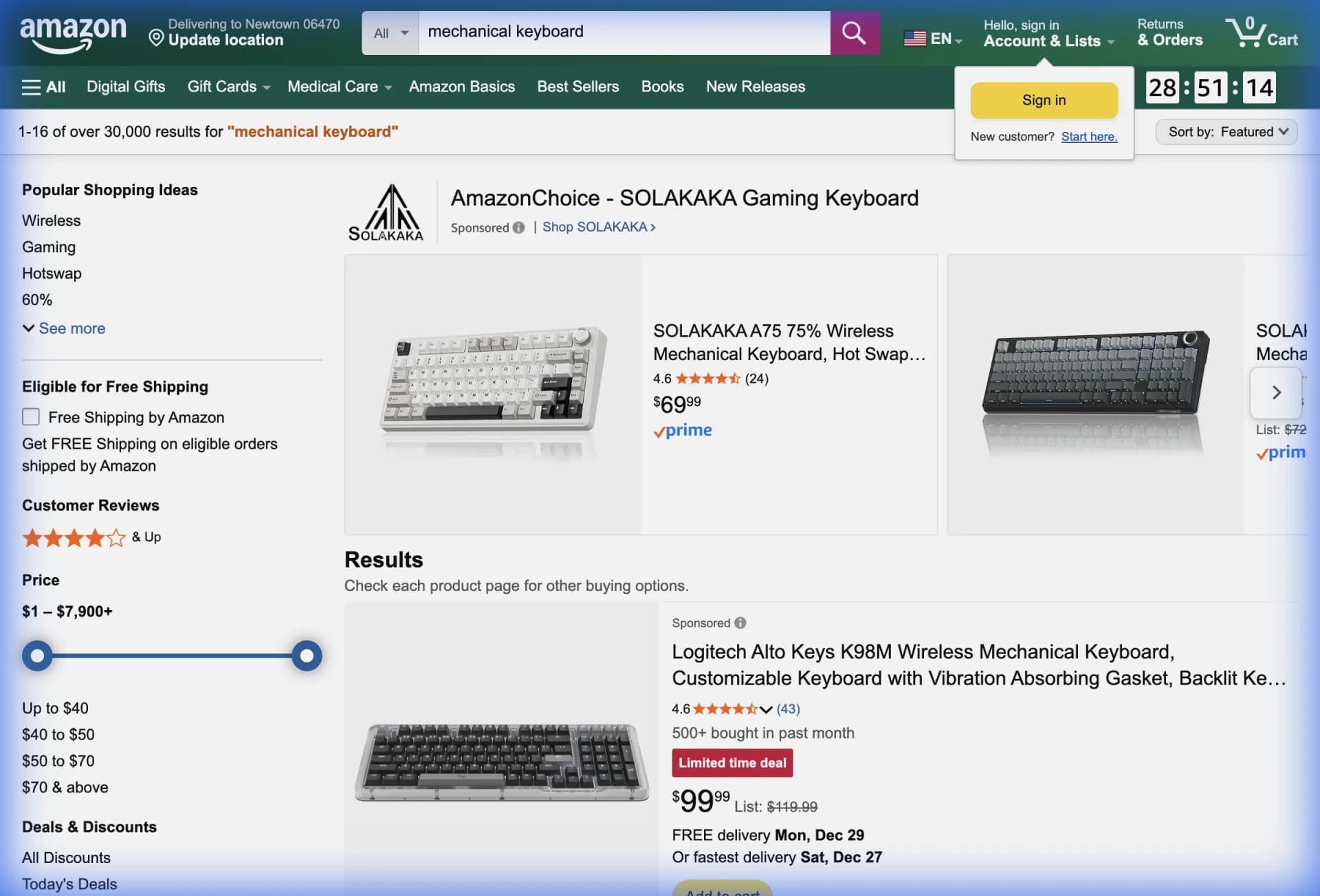
Step 3: Activate the Lection Agent
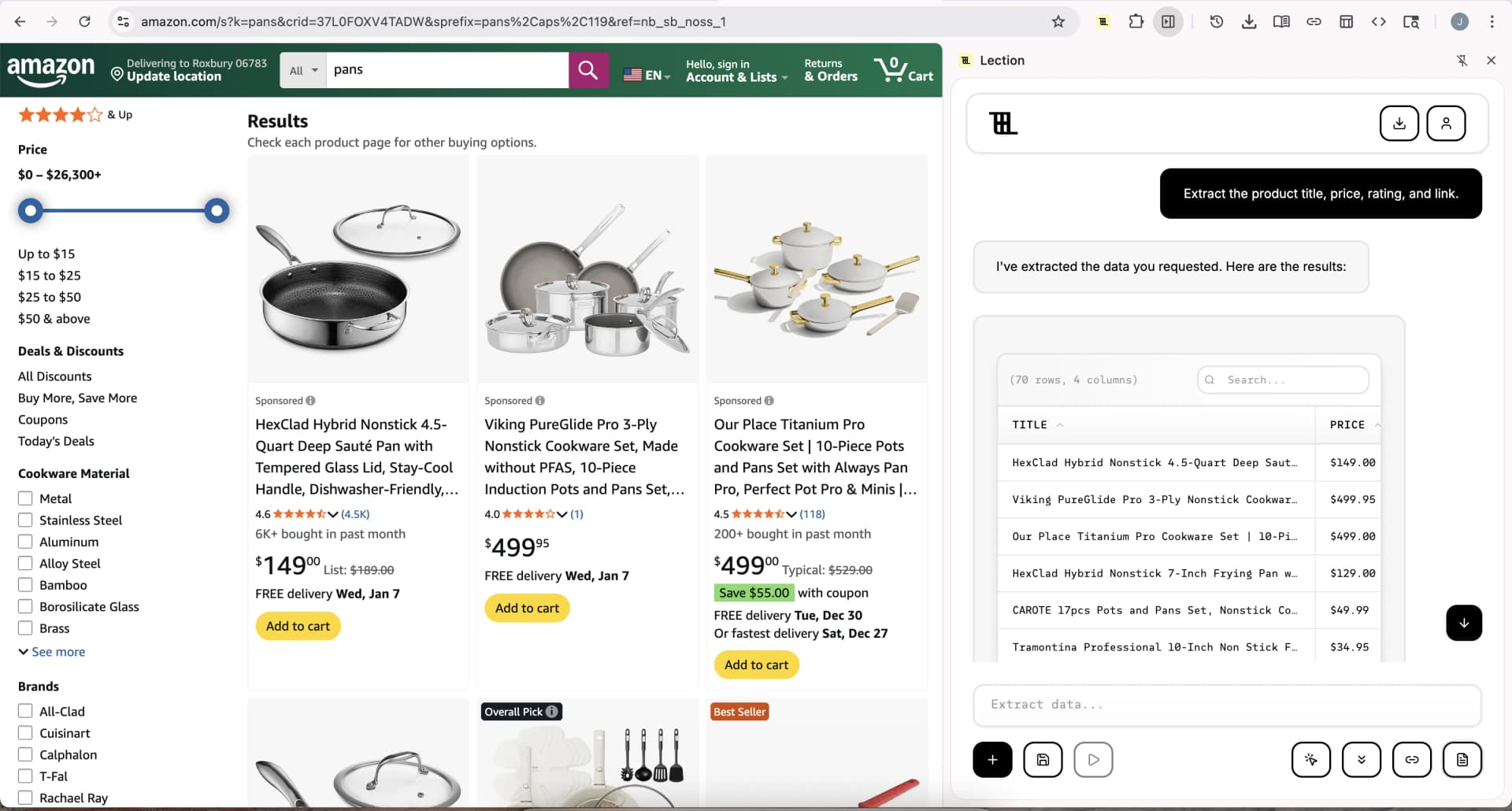
Click the Lection icon in your browser toolbar. The sidebar will open, and Lection’s AI will immediately begin analyzing the items on your screen.
Because Lection is AI-native, it will likely identify the product grid automatically. You’ll see a list of detected items, including:
- Product Name
- Price
- Rating (e.g., 4.6 out of 5 stars)
- Number of Reviews
- Prime Availability
- Product URL
Step 4: Refine Your Selection
If there is a specific piece of data you need—perhaps the "Shipping Weight" buried in the product details—you can simply click on it. Lection learns from your selection and applies that logic across all other items in the search results.
Step 5: Handling Pagination (The "Scale" Phase)
Amazon search results are usually spread across dozens of pages. You don’t want to scrape just page one; you want the whole category.
In the Lection sidebar, you can toggle on "Pagination." Lection will automatically find the "Next" button and move through the pages, stacking the data into a single, clean table.
[!TIP] Safety First: To avoid being flagged as a bot, Lection uses "Smart Delays." It mimics human browsing behavior, waiting a random number of seconds between page loads. This is far safer than raw scripts that hit the servers as fast as possible.
Step 6: Export to Excel or Google Sheets
Once the agent has finished gathering the data, click Export.
- How to get Amazon data into Google Sheets: Select the "Google Sheets" integration. Lection will ask you to pick a sheet, and within seconds, your data will stream directly into the columns you’ve designated.
- Export Amazon data to Excel without coding: Simply select "Download as CSV" or "Excel." You’ll get a perfectly formatted file ready for pivot tables and analysis.
Pro Tip: Running Scrapes in the Cloud
One of the biggest pain points with browser-based scraping is that you have to keep your computer open while it works. If you are scraping 5,000 products, that can take a while.
Lection solves this with Cloud Scraping. You can set your scrape to run on Lection's servers instead of your local machine.
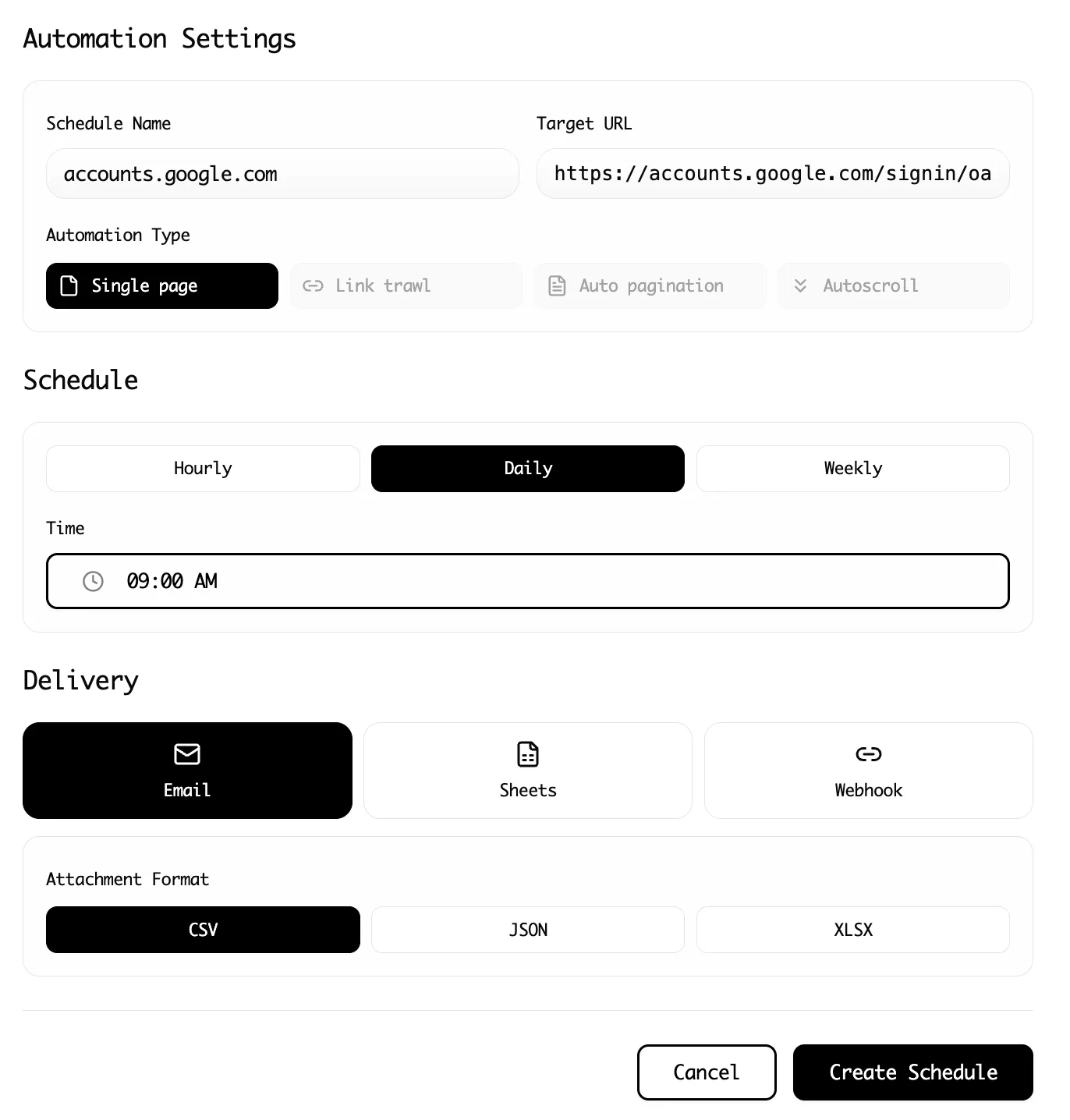
This allows you to:
- Schedule runs: Get a price update every morning at 9:00 AM.
- Save local resources: Use your computer for other tasks while the AI works in the background.
- Scale: Run multiple scrapes simultaneously across different Amazon categories.
Troubleshooting Common Pitfalls
Even with the best tools, web scraping can involve some troubleshooting. Here are the most common issues and how to solve them:
1. "I'm seeing a CAPTCHA."
Amazon occasionally throws a CAPTCHA to verify you aren't a bot. If this happens while using the extension, simply solve it manually in the browser window, and Lection will resume where it left off. If you are running in the cloud, Lection uses advanced proxy rotation to minimize these occurrences.
2. "The data column is empty."
This usually happens when an element is "lazy-loaded" (it only appears when you scroll down). To fix this, ensure you have enabled the "Scroll to Bottom" option in Lection's advanced settings before starting the scrape.
3. "The layout changed."
Amazon site updates can be frequent. If your scheduled scrape suddenly looks different, open the extension on that page again. Lection will recognize the new structure and update your agent automatically.
Conclusion: Stop Copying, Start Analyzing
Your value as a business professional or researcher isn't found in how fast you can "Command+C" and "Command+V." It’s found in the insights you derive from the data.
By automating your Amazon data extraction with Lection, you aren’t just saving time—you are gaining a competitive edge. You can react faster to competitor price drops, identify emerging market trends before they go mainstream, and maintain a level of accuracy that manual work simply cannot match.
Ready to turn Amazon into your own personal database?
Install Lection for free today and export your first dataset in less than five minutes.