eBay is the world's garage sale, but for data-savvy businesses, it is a goldmine. With millions of listings, it is the ultimate source of truth for secondary market pricing, vintage collectibles, and consumer demand trends.
Whether you are a reseller looking for arbitrage opportunities, a market researcher tracking vintage watch prices, or a brand monitoring gray market listings, eBay holds the data you need.
But manually copy-pasting listing details into a spreadsheet ? That is a path to madness.
In this guide, we will show you ** how to scrape eBay data without writing a single line of code **.We will useLection, an AI-native browser extension that turns eBay search results into structured spreadsheets in minutes.
Why Scrape eBay Data ?
Real-time access to eBay listings enables powerful use cases:
1. Arbitrage and Reselling
Spot underpriced items instantly.By scraping "Buy It Now" listings and comparing them against market averages, you can find deals before anyone else.
2. Market Research & Pricing Strategy
What is the going rate for a "Nintendo 64 in box" ? Don't guess. Scrape hundreds of sold listings to calculate the average selling price and sell-through rate.
3. Competitor Monitoring
Track what your competitors are selling and for how much.Identify their top-performing inventory.
The Problem with Traditional ebay Scraping
eBay is notoriously difficult to scrape with traditional scripts.
- ** Complex DOM **: Their code structure is messy and changes frequently.
- ** Anti-Bot Measures **: Aggressive rate limiting and CAPTCHAs often block Python scripts.
- ** Inconsistent Layouts **: A "Sponsored" listing looks customizable different from a standard organic result in the code, breaking rigid selectors.
This is where AI scraping shines.
How to Scrape eBay with Lection(Step-by-Step)
Lection uses computer vision and AI to "read" the page like a human, making it immune to many of the layout shifts that break traditional bots.
Step 1: Install Lection
Go to theChrome Web Store and add Lection to your browser.
Step 2: Run Your eBay Search
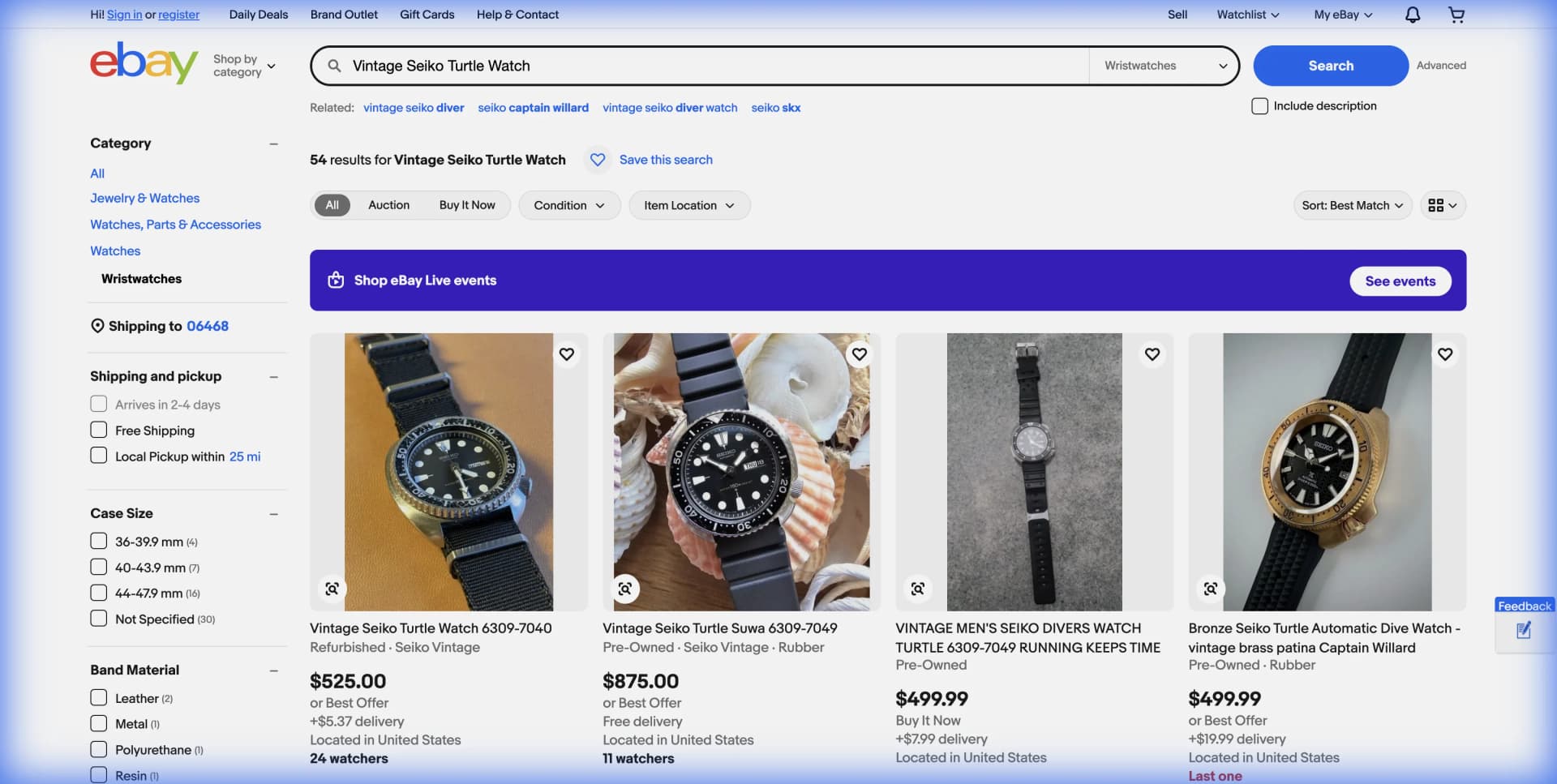
Navigate to eBay and search for your target item.For this example, let's search for "Vintage Seiko Turtle Watch".
- Filter by "Sold Listings" if you want historical price data.
- Filter by "Buy It Now" if you are looking for active arbitrage targets.
- Check out the listings below:
Step 3: Activate the Agent
Click the Lection icon.The agent will analyze the page.Because eBay uses a list format for results, Lection will automatically detect the repeating items.
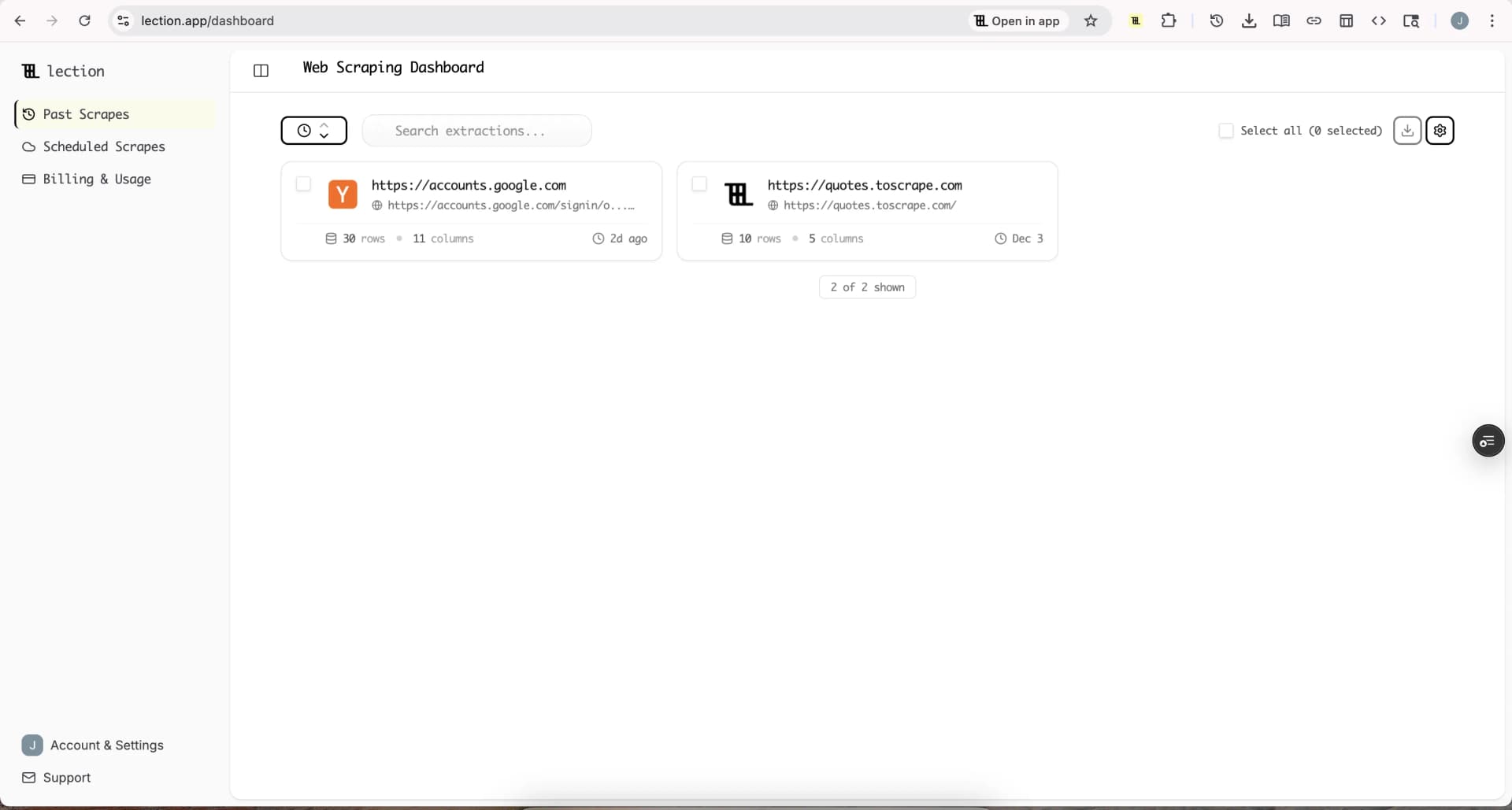
Step 4: Select Your Data
Lection will highlight suggested fields.You can easily click to confirm or add:
- ** Item Title **
- ** Price **
- ** Shipping Cost **
- ** Condition ** (New / Pre-owned)
- ** Seller Name **
- ** Listing URL **
- ** Sold Date ** (if viewing sold listings)
Step 5: Handle Pagination
You don't just want the first 60 results. Enable "Pagination" in the Lection sidebar. The agent will find the "Next" button and automatically traverse through multiple pages of results, stacking the data into one clean table.
Export eBay Data to Excel or Google Sheets
Once your scrape is finished, you need the data where you can use it.
- ** Export eBay data to Excel without coding **: Click "Download CSV" or "Excel" to get a file ready for pivot tables.
- ** How to get eBay data into Google Sheets **: Use Lection's direct integration to engage "Sync to Sheets". Your data will populate a Google Sheet in real-time.
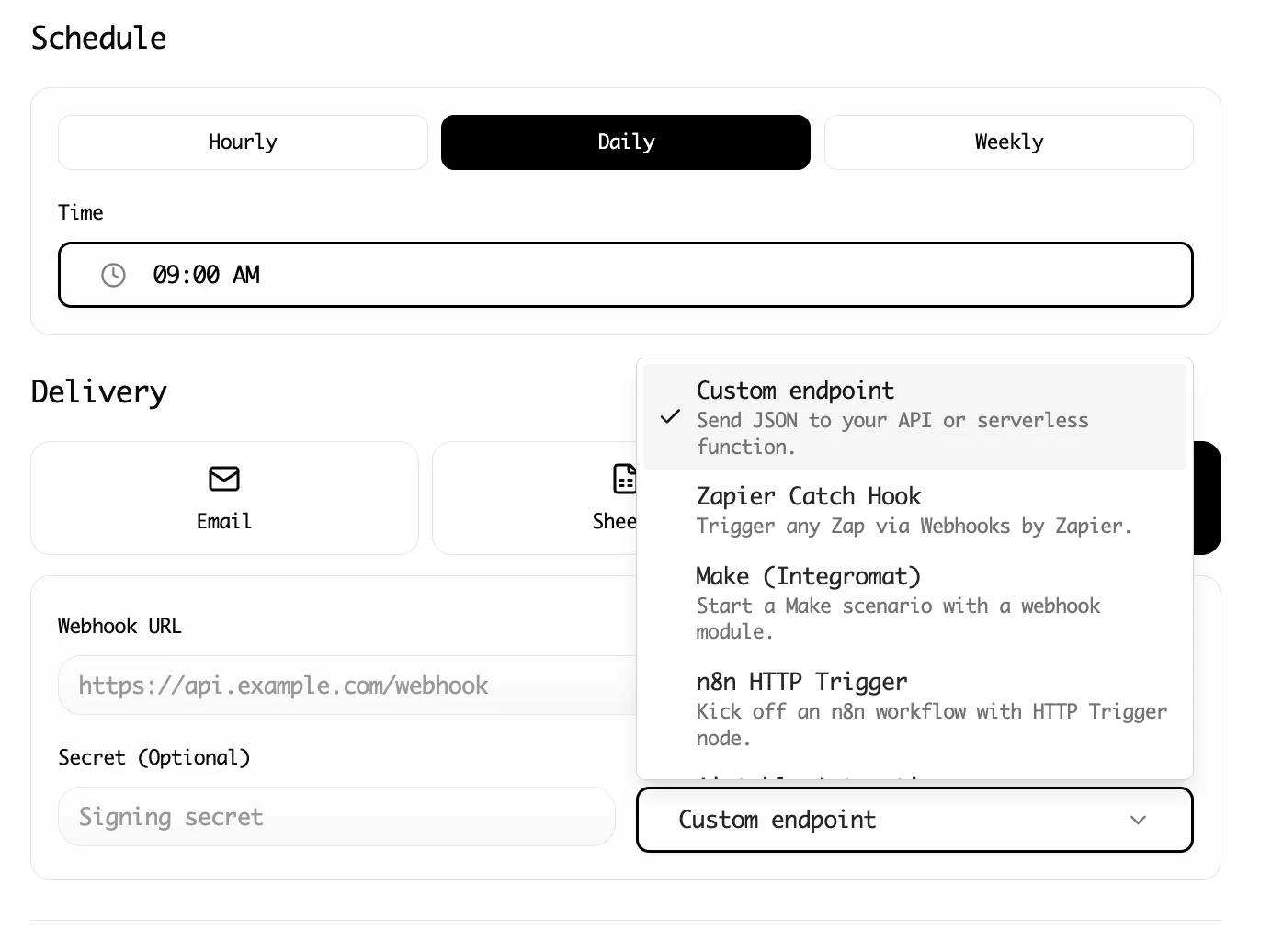
Advanced Tip: Automate Price Monitoring
Prices change.Listings disappear.New stock arrives. Instead of running this manually every day, use Lection's Cloud Scraping.
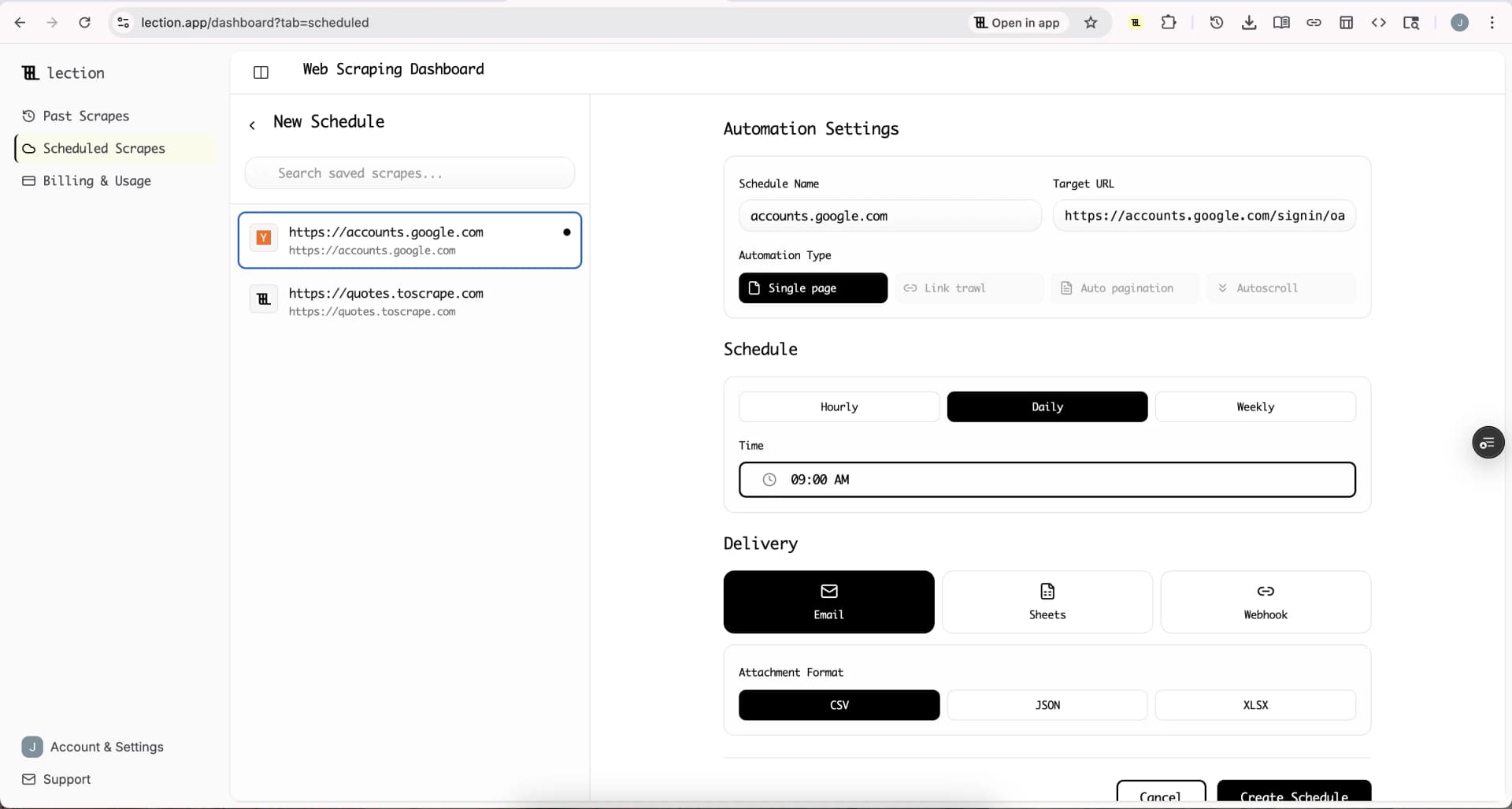
- Set up your search criteria.
- Schedule the scrape to run daily at 9 AM.
- Lection will run in the cloud and update your spreadsheet automatically.
Conclusion
Manual data entry is a bottleneck that kills your speed and accuracy.By automating your eBay research with Lection, you can analyze thousands of listings in the time it takes to drink your morning coffee.
Whether you are building a flipping business or analyzing global market trends, clean data is your competitive advantage.Start scraping today.