Searching for a new job is a full-time job in itself. You have 20 tabs open on Indeed, 15 on LinkedIn, and a messy spreadsheet where you are trying to remember which roles you have applied to.
The "spreadsheet method" is better than nothing, but it is manual, tedious, and prone to friction. You find a great role, but by the time you copy the title, company, URL, and location into your sheet, you have lost your flow.
A better way is to turn Notion into your automated application tracking system (ATS). By connecting a web scraper to Notion, you can click one button on a job posting and instantly fetch all the details into a structured database.
This guide shows you how to build an automated job tracking pipeline using Lection (to scrape the data) and Notion (to organize it).
Why Notion for Job Tracking?
Spreadsheets are flat. Notion databases are dynamic.
- Status Tracking: Use a Kanban board view to move jobs from "To Apply" -> "Applied" -> "Interviewing" -> "Offer".
- Rich Context: Each job is a page. You can store your tailored cover letter, interview notes, and research right inside the job entry.
- Date Properties: Set reminders for follow-ups.
The Automated Workflow
We will build a simple pipeline:
- Browser: You find a job on Indeed or LinkedIn.
- Lection: Extracts the Title, Company, Location, and URL.
- Zapier: Sends that data to Notion.
- Notion: Creates a new item in your "Job Search" database.
Step 1: Set Up Your Notion Database
First, create the destination for your data.
- Create a new page in Notion called "Job Applications".
- Create a Database (Inline or Full Page).
- Add these columns (Properties):
- Name (Title): For the Job Title.
- Company (Text or Select): For the Company Name.
- URL (URL): To link back to the posting.
- Location (Text): e.g., "Remote" or "Chicago".
- Status (Select): Options like "To Apply", "Applied", "Interviewing".
- Date Applied (Date).
Step 2: Configure the Scraper (Lection)
Now we need a way to get data OFF the job board and INTO the pipeline. We will use Lection because it handles the complex HTML of sites like Indeed without breaking.
- Install Lection: Get it from the Chrome Web Store.
- Go to Indeed: Search for your target role (e.g., "Product Manager").
- Open Lection: Click the extension icon.
- Select Data: Click on the Job Title, Company Name, and Location of the first result. Lection's AI will identify the pattern and highlight all jobs on the page.
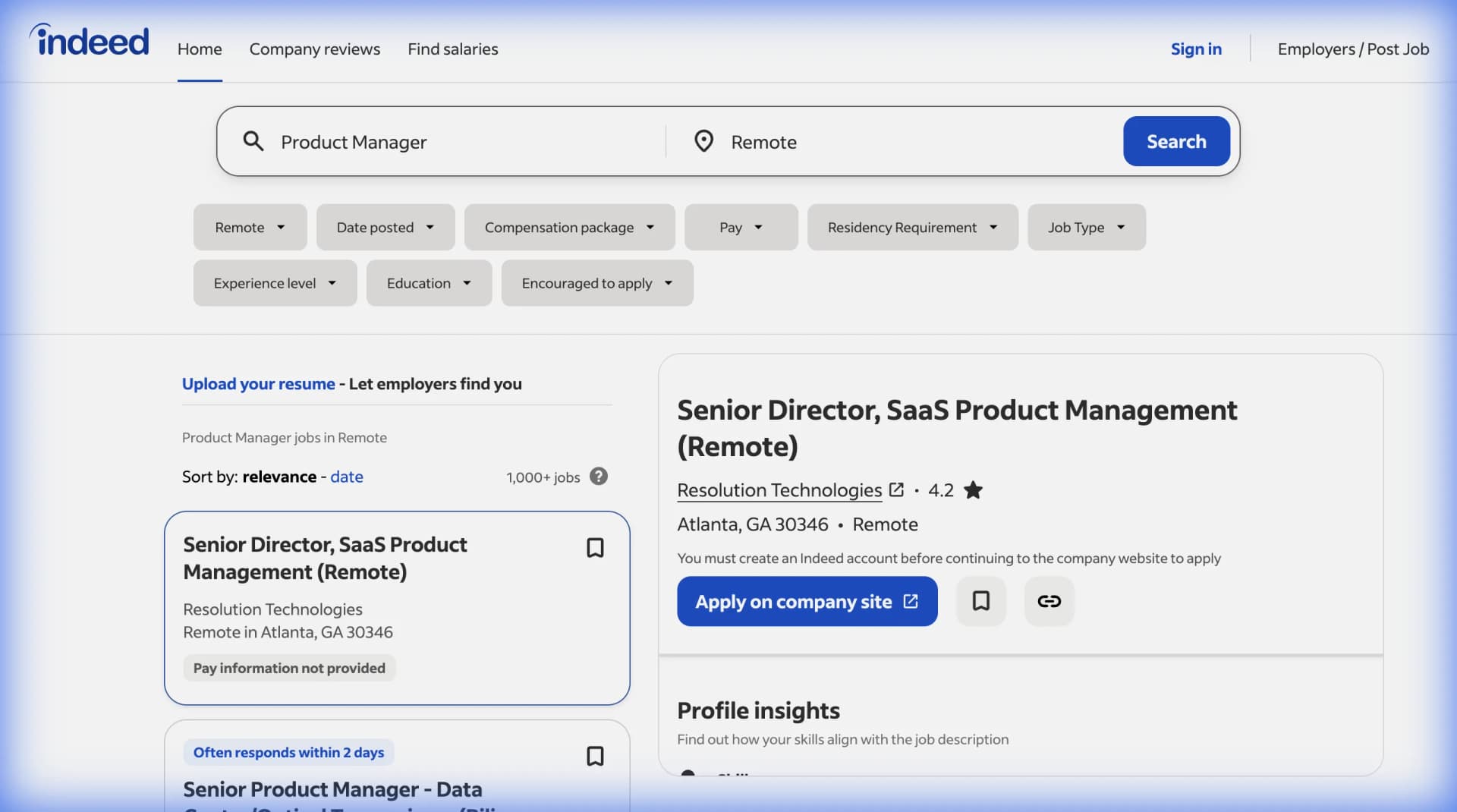
Note: You can also just extract a single active job page if you prefer one-by-one entry. For this guide, we are setting up a "bulk capture" workflow where you can scrape a whole page of search results at once.
Step 3: Connect to Notion
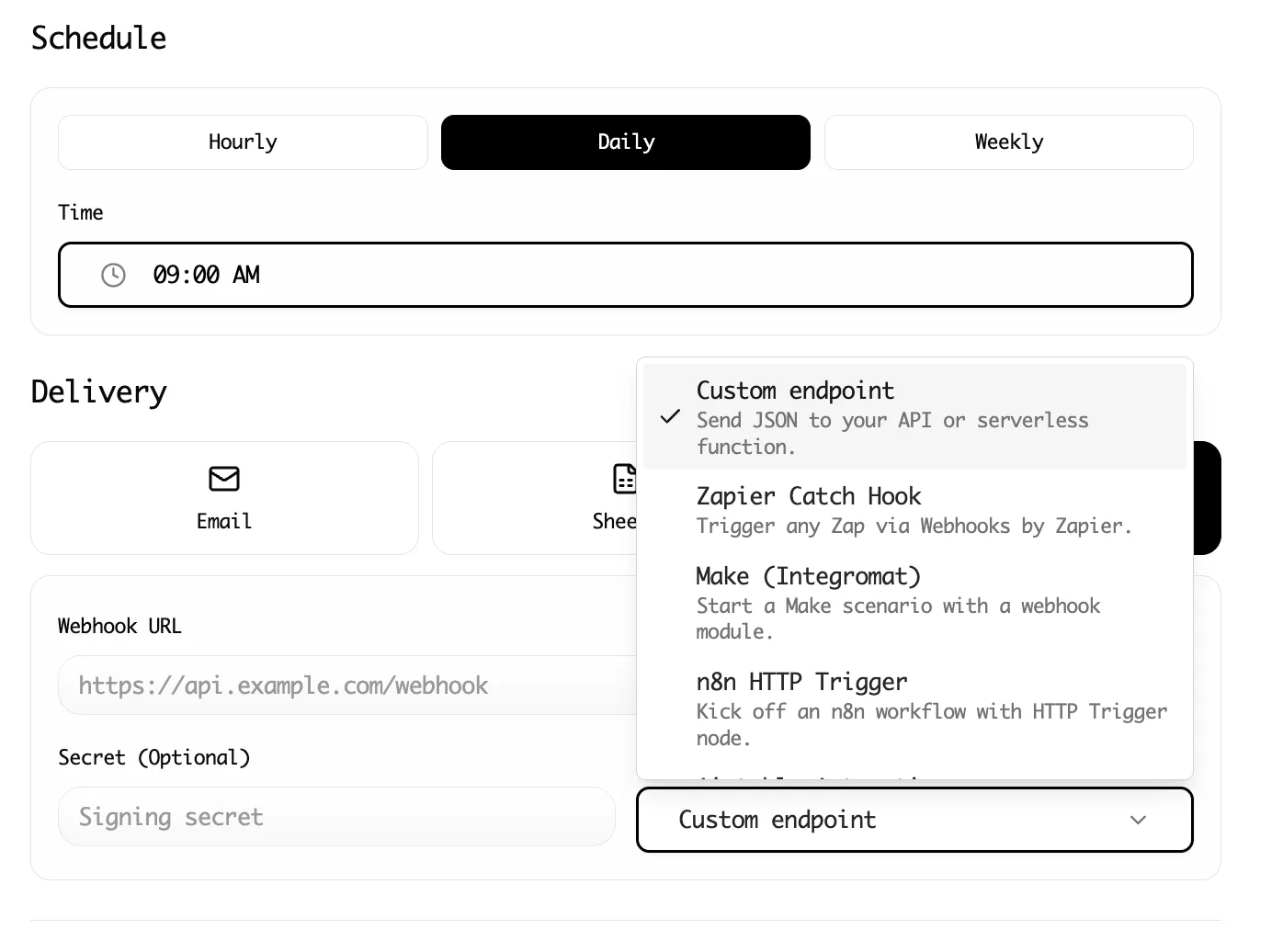
Lection now integrates directly with Notion, so you don't need Zapier or webhooks.
- Open Lection Dashboard: Go to the Integrations tab.
- Connect Notion: Find the Notion integration card and click Connect.
- Authorize: You'll be redirected to Notion to approve access. Select the pages/databases you want Lection to access (make sure to select your "Job Applications" page).
- Select Database: Back in Lection, select your "Job Applications" database from the dropdown.
- Map Fields: Match the data from Lection to your Notion properties:
- Name -> Job Title
- Company -> Company
- URL -> Link
- Location -> Location
Step 4: Frictionless Application Tracking
Now, your workflow is transformed.
Old Way:
- Find job.
- Highlight title -> Copy -> Switch Tab -> Paste.
- Highlight company -> Copy -> Switch Tab -> Paste.
- Copy URL -> Switch Tab -> Paste.
- Repeat 50 times.
New Way:
- Search for jobs.
- Click Lection.
- Click "Extract".
- 50 jobs appear in your Notion ready for review.
Advanced Idea: The "Auto-Filter"
If you scrape 100 jobs, you might get some junk. Instead of sending directly to your main "Applied" list, add an interim step:
- Filter in Notion: Send everything to an "Inbox" view in Notion, and drag the good ones to "To Apply".
Summary
Job hunting is a numbers game, but it requires quality output. By automating the low-value work (data entry), you save your energy for the high-value work: writing great cover letters and acing interviews.
Ready to build your personal recruiter bot? Install Lection and start populating your Notion database today.