Your web scraping tool extracts 150 competitor prices every morning. The data lands in a CSV file. Then you spend the next 30 minutes uploading it to Google Sheets, formatting columns, checking for duplicates, and pinging your team on Slack about the outliers.
By the time you finish the manual handoff, you have lost focus on the analysis that actually matters.
Make.com (formerly Integromat) solves this automation gap. It connects your web scraping directly to 1,800+ apps, so extracted data flows automatically into the workflows where you need it. Instead of playing human courier between your scraper and your tools, you build a scenario once and let it run forever.
This guide shows you how to connect web scraping to Make.com, turning one-off data extraction into fully automated pipelines.
Why Make.com for Web Scraping Workflows?
Make has become the power user's choice for automation, especially for data-heavy workflows.
Visual Workflow Builder
Make's scenario builder shows your entire data flow visually. Each step appears as a connected module, making complex logic easy to understand and debug. When your competitor price scrape needs to check for price drops, update a sheet, send a Slack alert, and create a Notion task, you see every step laid out in a clear diagram.
This visual approach means business analysts and operations managers can build sophisticated automations without writing code.
Operations-Based Pricing
Unlike task-based pricing models, Make charges by operations. One scenario run with 20 records counts as 20 operations, not a single task. For high-volume scraping workflows, this granular approach can be significantly more cost-effective.
A marketing agency told us they process 3,000 leads per week through Make scenarios. Under task-based pricing, they would pay for 3,000 tasks. With Make's operations model, many of their steps bundle together, reducing costs by about 40%.
Advanced Data Transformation
Make's built-in functions handle data transformation without external tools:
- Text parsing: Extract substrings, format numbers, clean HTML
- Arrays: Iterate, filter, aggregate, merge datasets
- JSON: Parse nested structures, map fields, handle complex APIs
- Math: Calculate margins, compare old and new values, apply formulas
When your scraper pulls raw price strings like "$29.99 USD" and you need clean numbers, Make's functions handle the conversion inline.
The Architecture: How Scraping and Make Connect
Understanding the connection pattern helps you build reliable workflows.
Webhooks as the Universal Bridge
Most web scrapers send data to Make through webhooks. A webhook is a URL that receives HTTP POST requests. Think of it as a mailbox: your scraper sends data, and Make is waiting to receive it.
The flow looks like this:
- Scraper extracts data from target websites
- Scraper sends data to your Make webhook URL
- Make receives the payload and triggers your scenario
- Make executes your modules in sequence (sheets, Slack, databases, etc.)
This happens automatically, either in real-time as scraping completes or on a schedule.
Instant vs Scheduled Scenarios
Make supports both triggering approaches:
Instant scenarios activate immediately when data arrives at the webhook. Your scraper finishes extracting 50 products, sends the data, and within seconds Make has processed and distributed it.
Scheduled scenarios run at intervals you define. You might scrape competitor prices hourly but only want the Make scenario to aggregate and report once daily.
Tools like Lection work seamlessly with both approaches. You can trigger webhooks in real-time or use cloud scraping to feed scheduled Make scenarios.
Step-by-Step: Connecting Web Scraping to Make
Let us walk through building a practical workflow. Say you want to monitor Hacker News for trending AI discussions and automatically collect relevant posts in Google Sheets with Slack notifications for high-engagement items.
Step 1: Create a Make Webhook
Log into Make.com and create a new scenario. For the trigger module, search for "Webhooks" and select "Custom Webhook."
Click "Add" to create a new webhook. Make generates a unique URL. Copy this carefully as you will need it for your scraper configuration.
Important: Webhook URLs provide direct access to trigger your scenario. Treat them like passwords and do not share them publicly.
Step 2: Configure Your Web Scraper
Now set up your scraping tool to send data to this webhook. Here is the process with Lection:
- Install the Lection Chrome extension
- Navigate to Hacker News (or your target site)
- Click the Lection icon and select the data you want (titles, links, points, etc.)
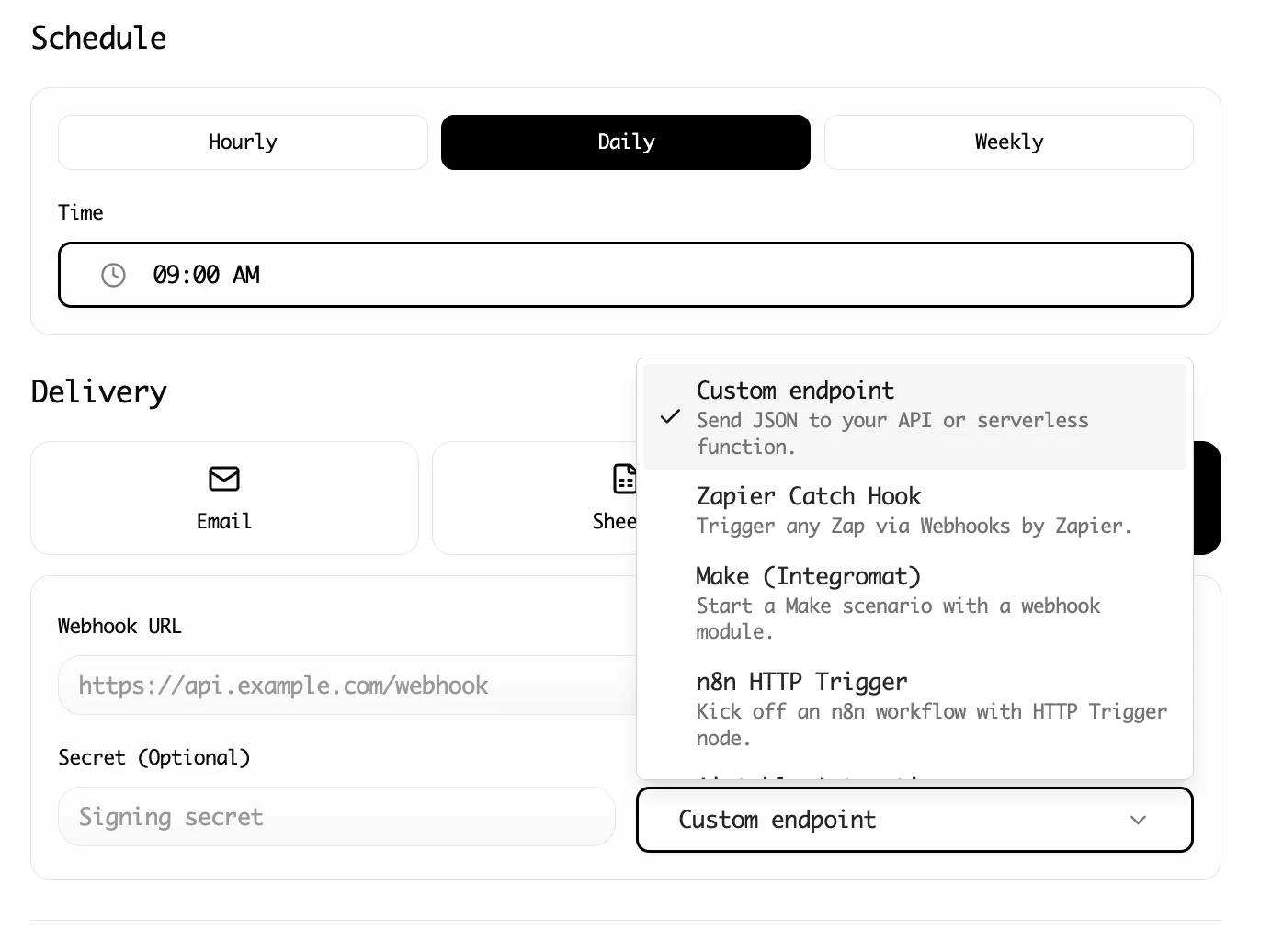
- In export options, select Webhook
- Paste your Make webhook URL
- Run the scrape
When extraction completes, Lection sends the structured data directly to Make.
Step 3: Define the Data Structure
Back in Make, click "Run once" to put the webhook in listening mode. Then run a test scrape with a small dataset (5-10 items).
When Make receives the data, it automatically detects the structure. You will see each field (title, url, points, comments, etc.) mapped and available for use in subsequent modules.
This step teaches Make what data to expect. Future webhook calls with the same structure will route correctly.
Step 4: Add Processing Modules
Now build out what happens with incoming data. Click the "+" after your webhook to add modules.
For our Hacker News example:
Module 2: Google Sheets - Add a Row
Connect your Google account, select your spreadsheet, and map fields:
- Column A → post title
- Column B → post URL
- Column C → points
- Column D → comment count
- Column E → timestamp (you can use Make's built-in now function)
Module 3: Filter (optional)
Add a filter between modules to only continue for posts meeting criteria. Example: only process posts with more than 50 points.
Module 4: Slack - Send a Message (conditional)
For high-engagement posts (say, 100+ points), send a notification to your team's Slack channel with the title and link.
Step 5: Test and Activate
With all modules configured, run a complete test. Trigger your scraper to send data through the webhook, and watch Make execute each step.
Check your Google Sheet for new rows and your Slack channel for notifications. If everything works, turn on your scenario by toggling the scheduling switch.
Step 6: Schedule Recurring Scrapes
One test run is nice. Automated daily runs are transformative.
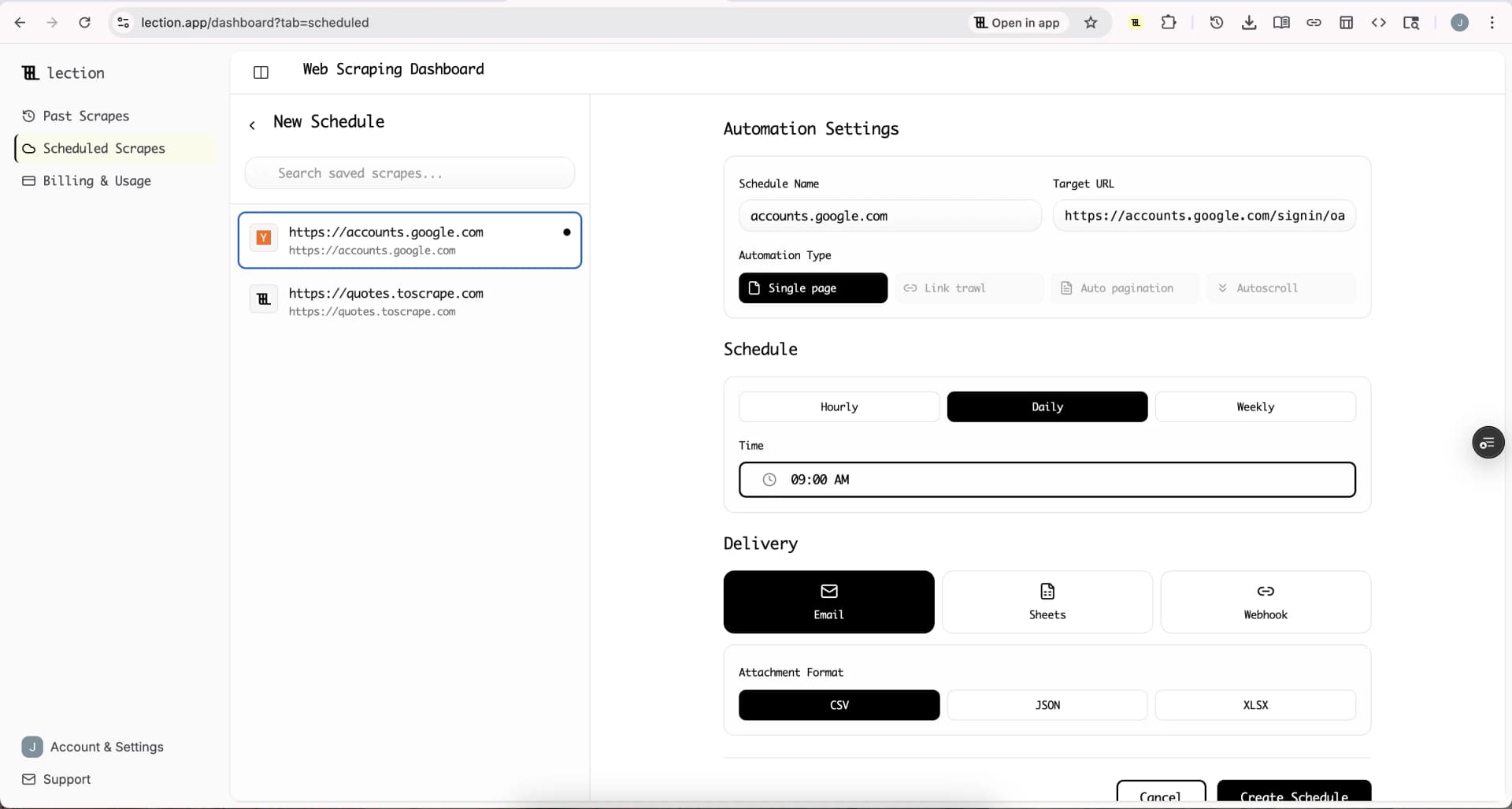
With Lection's cloud scraping, convert your scrape to run on a schedule. Set it to extract Hacker News front page every day at 8 AM. Each run automatically triggers your Make scenario.
Your Google Sheet accumulates trending posts automatically. Slack notifications arrive without you lifting a finger.
Advanced Make Patterns for Scraped Data
Once basic integration works, these patterns unlock powerful workflows.
Iterators for Batch Processing
When your webhook sends an array of items, Make's Iterator module breaks it into individual items for processing. Each product, each post, each lead becomes its own execution path.
This is essential for scraping workflows. You extract 50 items in one scrape, and the Iterator ensures each one gets its own Sheets row or database record.
Aggregators for Summaries
Going the opposite direction, Aggregators collect multiple items into summaries. After iterating through 50 scraped prices, aggregate them to calculate the average, minimum, and maximum. Store these summary statistics in a separate tracking sheet.
Routers for Conditional Paths
Routers let you branch your scenario based on conditions. Scraped leads might route differently based on their source:
- Route 1 (LinkedIn leads): Add to HubSpot with "LinkedIn" source tag
- Route 2 (Company website leads): Add to HubSpot with "Website" source tag
- Route 3 (All leads): Log to master Google Sheet
Each path executes its own sequence of modules while sharing the original trigger.
Error Handlers for Reliability
Scraping the web means dealing with occasional failures. Maybe a page times out, or the structure unexpectedly changes. Make's error handlers let you build resilient scenarios:
- Ignore: Skip problematic items and continue with the rest
- Resume: Retry the step after a delay
- Rollback: Undo previous steps if something fails
- Break: Stop the scenario and alert you
For production scraping workflows, adding an error handler that logs failures to a sheet gives you visibility into issues without breaking the entire pipeline.
Real-World Use Cases
These examples show how teams use Make with web scraping.
E-commerce Price Intelligence
Setup: Scrape competitor product pages daily. Make scenario:
- Receives scraped prices via webhook
- Compares each price to previous day (stored in Sheets)
- If price dropped more than 5%, adds to "Price Alert" sheet
- Sends daily summary email with all price changes
Result: Your pricing team wakes up to actionable intelligence, not research to-do lists.
Recruitment Lead Pipeline
Setup: Scrape job boards for companies hiring your target roles. Make scenario:
- New job posting data arrives via webhook
- Check company database for existing record
- If new company, create record in Airtable
- Add job posting details to related table
- Notify account executives about high-priority targets
Result: Sales team learns about expansion signals before competitors do.
Content Research Aggregation
Setup: Scrape industry blogs, Reddit, and forums for mentions of relevant topics. Make scenario:
- All scraped mentions flow to a single webhook
- Aggregate by source and topic
- Run through AI text analysis (using HTTP module to call OpenAI)
- Store analyzed content in Notion database
- Weekly digest email summarizes top themes
Result: Research that would take hours happens automatically in the background.
Common Questions
"My webhook is not receiving data"
Debug checklist:
- Verify the webhook URL has no trailing spaces
- Confirm your scraper is configured for webhook export (not CSV)
- Check Make's webhook logging for incoming requests
- Try a simpler webhook tester like webhook.site to isolate the issue
"Make is creating duplicate records"
This happens when scraping the same source multiple times. Solutions:
- Add a "Search Rows" module before insertion to check for existing records
- Use unique identifiers (URLs) as deduplication keys
- Configure your scraper to only send new items, not the full dataset
"Some data fields are empty"
Web pages are inconsistent. Handle missing data with:
- Default value functions:
ifempty(field; "N/A") - Filters to skip records with missing critical data
- Conditional processing that only writes non-empty values
"How do I handle rate limits?"
Both Make and destination APIs have limits. For high-volume scraping:
- Add delay modules between operations (Sleep)
- Use Make's built-in rate limiting settings
- Space large scrapes across multiple scheduled runs
- Consider Make's higher-tier plans for increased limits
Make vs Alternatives
| Platform | Best For | Learning Curve | Pricing Model |
|---|---|---|---|
| Make | Complex logic, power users | Moderate | Per-operation |
| Zapier | Simple workflows, beginners | Easy | Per-task |
| n8n | Self-hosted, developers | Steep | Free (self-hosted) |
| Pipedream | Developer-first, code-based | Steep | Per-invocation |
Make hits the sweet spot for data-heavy workflows: more powerful than Zapier, more accessible than self-hosted solutions.
Best Practices for Production Workflows
Start with Simple Scenarios
Build and test a 3-module scenario before adding complexity. Get the webhook-to-Sheets flow working perfectly, then layer in filters, routers, and error handling.
Document Your Scenarios
Make lets you add notes to modules. Use them liberally. Six months from now, you will thank yourself for documenting why that filter checks for values greater than 50.
Monitor Execution History
Make's execution logs show every scenario run. Review them weekly to catch silent failures or unexpected patterns. Set up email notifications for failed executions.
Version Your Configurations
Before making major changes, use Make's blueprint export to save your current scenario. This gives you a restore point if something breaks.
Conclusion
Manual data shuttling between your scraper and your tools is a productivity leak that compounds daily. Every copy-paste, every CSV upload, every "let me just move this to the other system" adds friction to your workflow.
By connecting web scraping to Make.com, you build data pipelines that run while you sleep. Your scraped intelligence arrives in the right tools, properly formatted, ready for analysis and action.
Ready to automate your web scraping workflows? Install Lection free and connect your first scrape to Make in under 20 minutes.