You found the perfect dataset on a website. Hundreds of products, prices, specifications, all laid out in tables. The only problem: getting that data into Excel means copying 400 cells one at a time, switching tabs, pasting, going back, finding your place, copying the next cell. After 20 minutes, you have made it through about 30 rows and your eyes are glazing over.
This manual approach is not just tedious. It is error-prone. A missed row here, a misaligned column there, and suddenly your analysis is built on bad data. One financial analyst we spoke with spent 6 hours manually transferring price data from a vendor's website, only to discover a copy-paste error that shifted half the columns by one row.
The good news: Excel has built-in tools for importing web data automatically. And when those tools hit their limits, tools like Lection can handle more complex scraping without writing code.
Excel's Built-In Web Import: Power Query
Microsoft added web data import to Excel years ago, and the feature has matured significantly. Power Query (also called "Get & Transform Data") can pull data directly from websites into your spreadsheets.
How Power Query Works
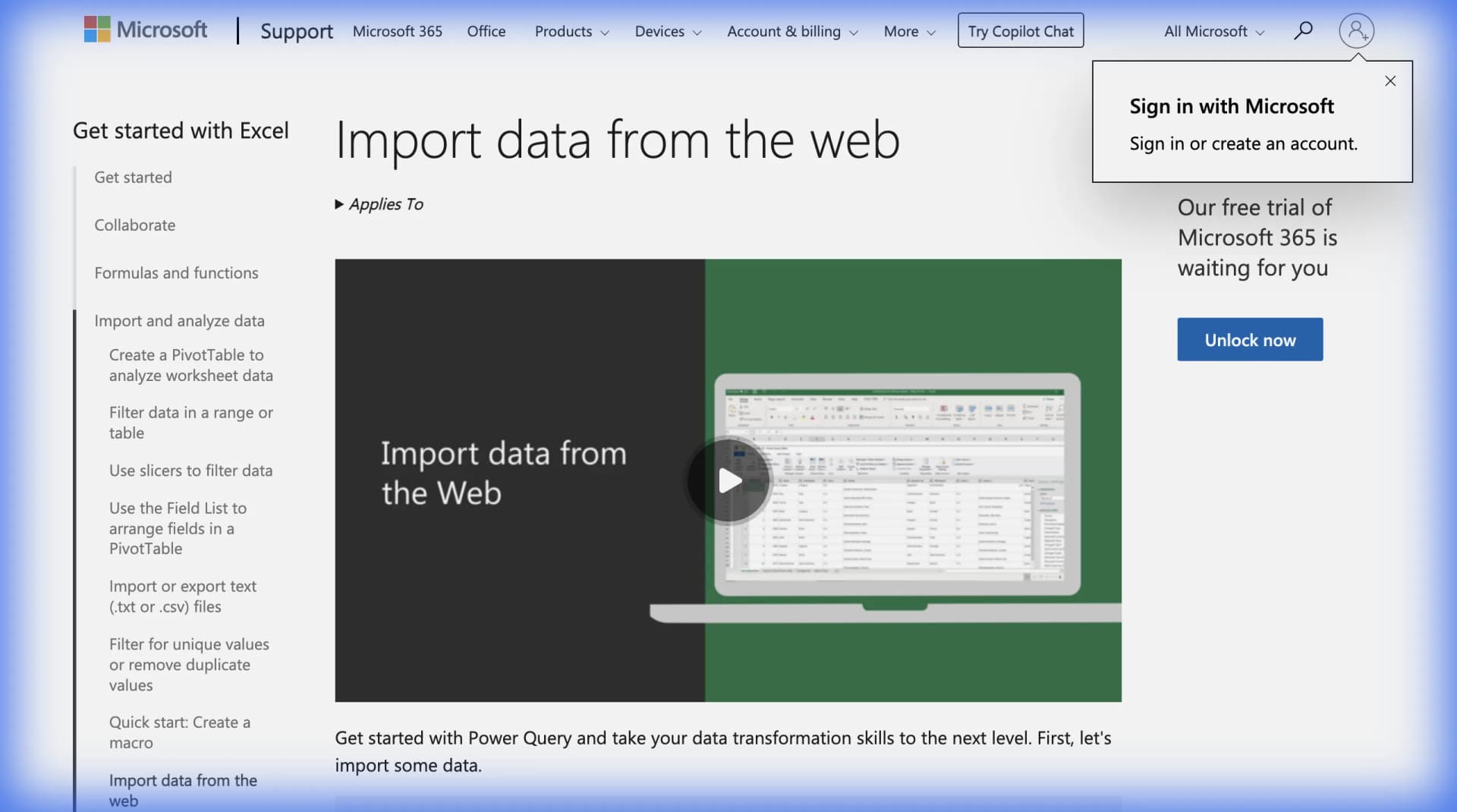
Power Query connects to a URL, analyzes the page structure, identifies data tables, and lets you import them directly into Excel. For websites with well-structured HTML tables, this works remarkably well.
The process takes about 2 minutes:
- Open Excel and go to the Data tab
- Click Get Data > From Other Sources > From Web
- Paste the URL you want to import from
- Excel identifies tables on the page
- Select the table you want and click Load
That is it. The data appears in your spreadsheet, properly formatted in rows and columns.
What Power Query Does Well
For certain use cases, Power Query is genuinely excellent:
Government statistics pages: Census data, economic indicators, and public datasets often use clean HTML tables. Power Query handles these effortlessly.
Wikipedia tables: Those nicely formatted tables on Wikipedia pages? Power Query can import them in seconds. Historical data, comparison charts, and lists import cleanly.
Simple product listings: Some e-commerce sites still use traditional HTML tables for product listings. If the data you need is in a visible table, Power Query can grab it.
Financial data tables: Stock quotes, currency rates, and index data from financial portals often work with Power Query.
The Refresh Button: Keeping Data Current
Power Query's data connections are persistent. After importing, you can refresh the data anytime:
- Right-click the data in Excel
- Select Refresh
- Excel pulls the latest version from the website
For data that updates weekly or monthly, this one-click refresh saves hours compared to manual re-entry.
You can even schedule automatic refreshes in Excel Online or configure refresh behavior when the workbook opens. Your Monday morning meeting prep becomes: open the file, wait 10 seconds while it refreshes, and your competitive analysis is current.
When Power Query Fails (And It Often Does)
Power Query has a fundamental limitation: it only sees static HTML tables. Modern websites do not work that way.
The JavaScript Problem
Most websites today load data dynamically using JavaScript. When you visit Amazon, the page structure loads first, then JavaScript fetches product data and renders it into the page. Power Query cannot execute JavaScript, so it sees an empty page where the products should be.
Try importing from Amazon, LinkedIn, or most modern e-commerce sites. Power Query either finds nothing, or it pulls irrelevant navigation elements instead of the actual content.
A marketing manager tried using Power Query to track competitor prices on Shopify stores. She spent two hours troubleshooting before realizing the prices she needed never existed in the raw HTML. They were loaded client-side, invisible to Power Query.
Authentication Walls
Many data sources require login. LinkedIn profiles, internal dashboards, subscription content, member directories. Power Query can sometimes pass basic authentication, but anything with modern OAuth flows, CAPTCHAs, or session management will block it.
Even public sites often detect automated requests and serve different content than what you see in your browser. Rate limiting kicks in, CAPTCHAs appear, and suddenly the data you could see moments ago is inaccessible to Power Query.
Pagination Nightmares
Websites split large datasets across multiple pages. Power Query can import page 1, but automatically following "Next" links, loading page 2, page 3, all the way to page 47? Not without some fairly advanced Power Query M code that most non-developers would struggle to write.
Price monitoring across 500 products spread over 50 pages requires either:
- Manually importing each page (defeating the automation purpose)
- Writing custom Power Query scripts (defeating the "no code" promise)
- Using a different tool entirely
Layout Changes Break Everything
Power Query works by identifying table positions on a page. When a website updates its layout, and websites update constantly, your import breaks. The table that was element #3 last month is now element #5, and Excel pulls the wrong data.
This fragility makes Power Query unsuitable for production workflows. An investment analyst relying on Power Query for daily price updates discovered that a minor website redesign had been silently pulling corrupted data for two weeks before anyone noticed.
The Solution: Browser-Based Scraping Tools
When Excel's built-in features fall short, browser-based scraping tools bridge the gap. These tools work by operating within an actual browser environment, seeing exactly what you see when you visit a website.
Why Browser-Based Tools Work Where Power Query Fails
Lection and similar browser-based scrapers address Power Query's core limitations:
JavaScript execution: The tool runs in your browser, so JavaScript loads normally. Dynamic content renders completely before extraction begins. Those Amazon products, LinkedIn profiles, and Shopify prices are all visible and extractable.
Authenticated access: You log in to websites normally. The scraper sees the same content you do after logging in. Your LinkedIn Sales Navigator subscription, your industry database access, your supplier portal: all accessible.
Intelligent pagination: AI-powered tools recognize pagination patterns and automatically follow them. Define what you want from page 1, and the tool extracts the same data from all subsequent pages.
Visual selection: Instead of writing code to identify HTML elements, you simply click on what you want. The AI learns the pattern and applies it across similar items.
Step-by-Step: Scraping to Excel with Lection
Let us walk through a practical example. Say you need to extract product data from an online marketplace and analyze it in Excel.
Step 1: Install and Open Lection
Head to the Chrome Web Store and install the Lection extension. Pin it to your browser toolbar for quick access.
Navigate to the marketplace page containing the products you want to extract.
Step 2: Select Your Data Points
Click the Lection icon in your toolbar. The AI agent activates and analyzes the page structure.
Click on the first data point you want: product name. Lection highlights it and asks if you want to extract similar items from the page. Click "Select All" to grab all matching product names.
Repeat for each field:
- Product name
- Price
- Rating (if available)
- Description or specifications
- Product URL
Lection learns the pattern from your clicks and automatically identifies the same data across all products on the page.
Step 3: Handle Pagination
If the marketplace has multiple pages of products, enable pagination in Lection. The tool identifies the "Next" button and automatically navigates through all pages, extracting data from each one.
A 50-page product catalog that would take hours to import manually becomes a single automated run.
Step 4: Export to Excel Format
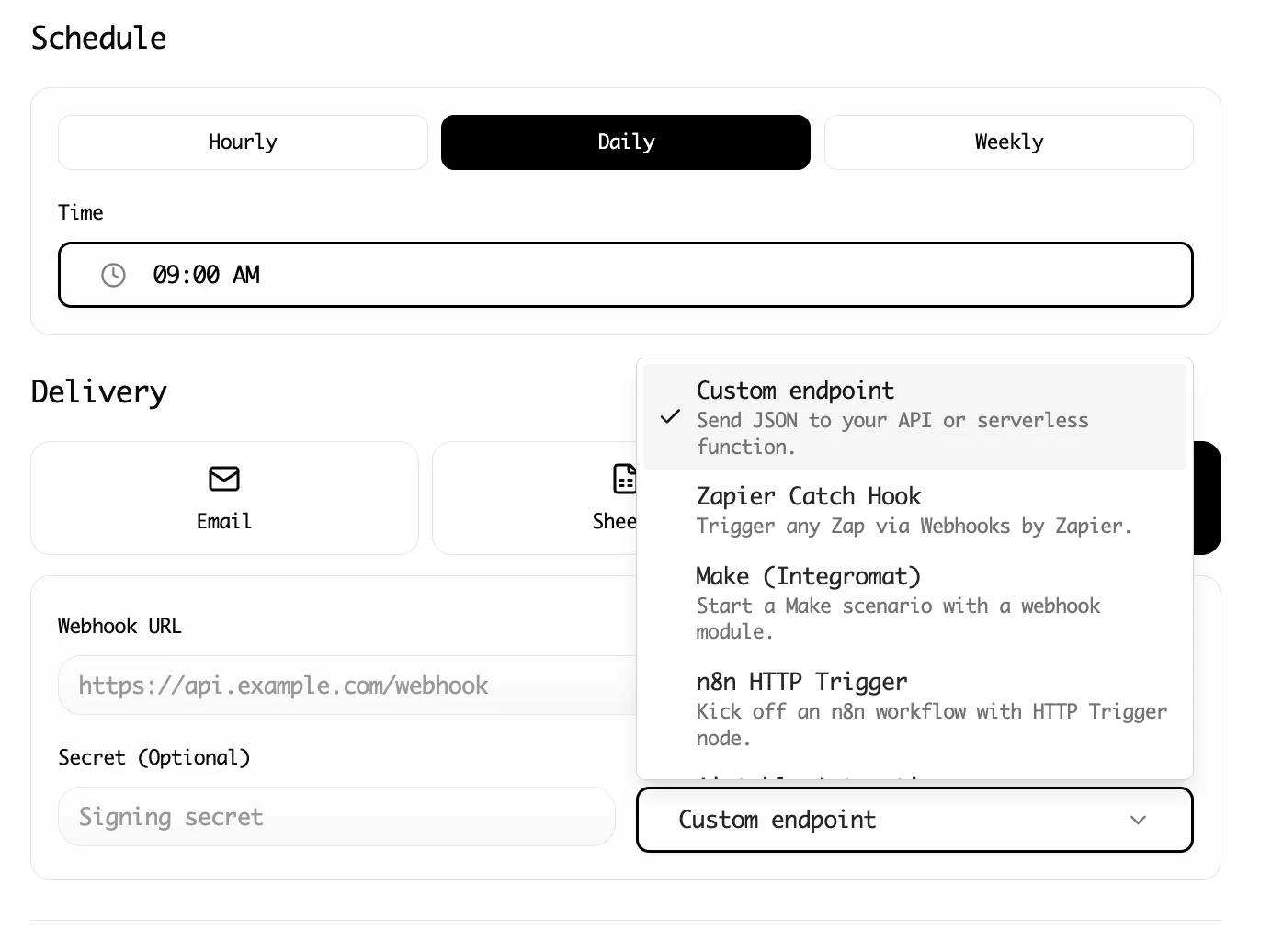
With your data selected, click Export. Choose CSV or Excel format. The download appears in your downloads folder, ready to open in Excel.
For recurring extraction, Lection also supports direct Google Sheets integration. If you prefer working in Sheets and then downloading as Excel, this workflow keeps your data synchronized automatically.
Advanced Pattern: Automated Updates with Cloud Scraping
One-time extraction is useful. Automated daily updates are transformative.
The Manual Update Problem
Price data gets stale. Competitor listings change. Inventory levels fluctuate. If you extracted marketplace data last Monday, it is already outdated by Friday.
Manually running extractions daily is theoretically possible but practically unsustainable. You have other work to do, and "re-run the scrape" inevitably slips from the to-do list.
Cloud Scraping: Set and Forget
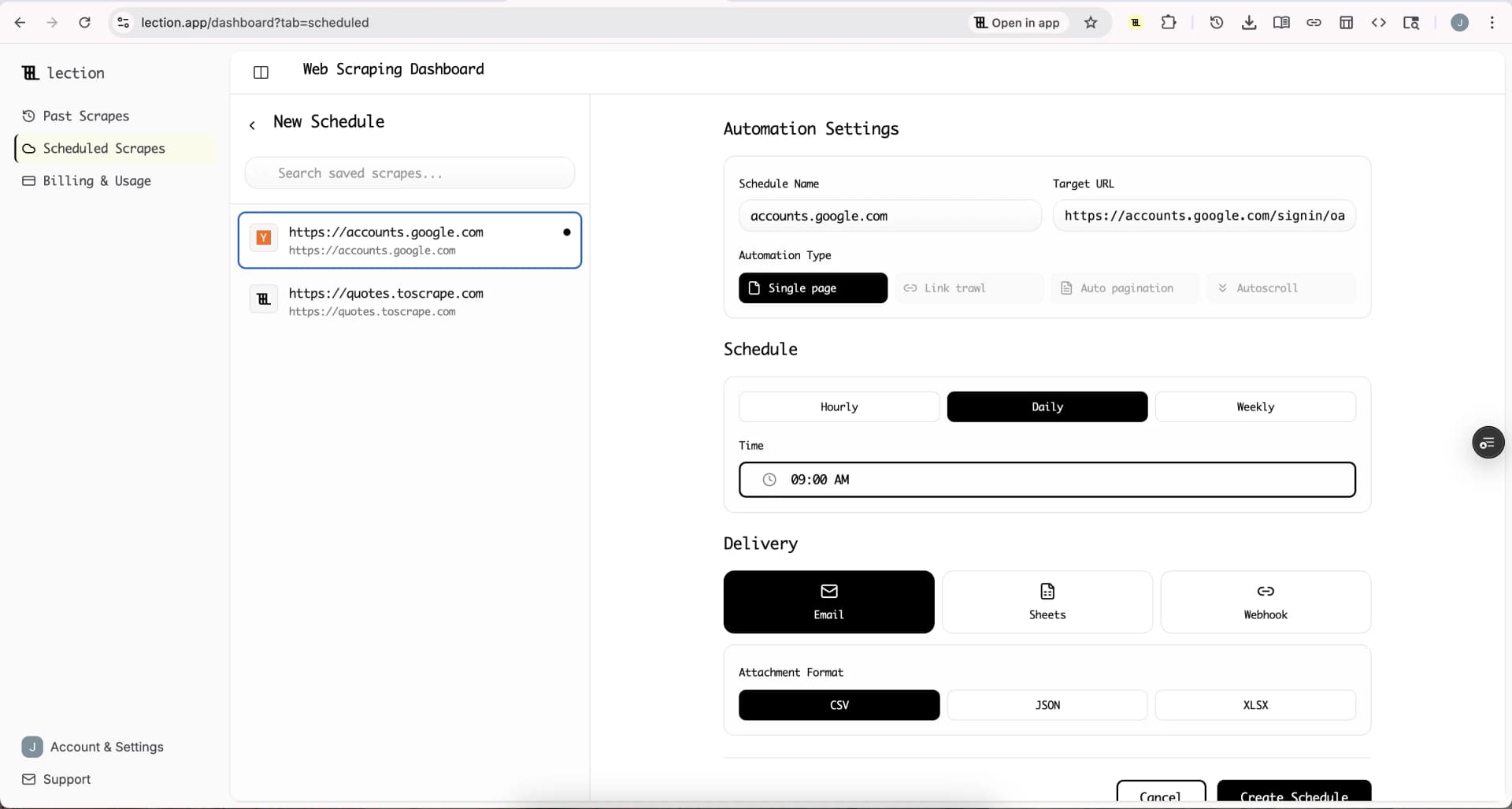
Lection's cloud scraping runs your extractions automatically on a schedule. Configure a scrape to run every morning at 6 AM:
- Convert your extraction to a Cloud Scrape
- Set the schedule (daily, hourly, weekly, etc.)
- Choose your export destination
When you arrive at work, your spreadsheet already contains the freshest data. Price changes from overnight are captured. New products are included. Discontinued items are visible.
Connecting to Automation Platforms
For users who want data flowing automatically into Excel Online or Google Sheets, Lection integrates with automation platforms:
- Zapier: Send scraped data to Google Sheets, which you can then download as Excel
- Make: Build sophisticated workflows that process, filter, and route data
- Webhooks: Connect to any system that accepts HTTP requests
A procurement team we spoke with uses this pattern to monitor supplier pricing across 12 vendors. Cloud scrapes run overnight, data flows to Sheets via webhook, and their morning begins with a comparative price dashboard that took zero manual effort.
Power Query vs Browser-Based Tools: When to Use Each
Both approaches have their place. Here is when to choose each:
Use Power Query When:
- Data is in a clean HTML table (visible when you View Source)
- The website does not require login
- You need data from a single page
- The website layout is stable and unlikely to change
- You prefer staying entirely within Excel
Use Browser-Based Scraping When:
- Data loads dynamically with JavaScript
- You need to log in to access the data
- Data spans multiple pages with pagination
- You need to interact with forms, filters, or dropdowns
- You want automated recurring updates
- Website layouts change frequently
In practice, Power Query handles maybe 20% of web scraping needs. For the other 80%, where data lives behind JavaScript, authentication, or pagination, browser-based tools are the practical choice.
Common Excel Integration Questions
"Can I schedule Power Query refreshes without Excel Online?"
Power Query refresh scheduling requires Excel Online or Power BI. Desktop Excel can refresh on demand or when the file opens, but true scheduling needs Microsoft's cloud infrastructure.
Alternatively, use a cloud scraping tool like Lection that schedules extractions independently, exporting fresh data whenever you want.
"Why does Power Query import the wrong table?"
Websites often contain multiple tables: navigation menus, sidebars, footers. Power Query lists all of them, and it is not always obvious which one contains your target data.
Use the Navigator pane to preview each table before importing. The correct table will show the data you actually want. If tables are numbered inconsistently, try Web View mode to see the page visually and select by clicking.
"How do I handle websites that block automated access?"
Websites detect and block automated requests to prevent abuse. Power Query often triggers these blocks because it makes requests that look different from normal browser traffic.
Browser-based tools like Lection operate within an actual browser session, appearing like normal user activity. This dramatically reduces blocking.
"Can I combine data from multiple websites into one spreadsheet?"
Power Query supports merging multiple data sources. Import from multiple URLs, then use Append Queries or Merge Queries to combine them into a single table.
For more complex multi-source workflows, consider using a cloud scraping tool that aggregates data before export, giving you a single clean file to work with.
Troubleshooting Common Issues
Power Query Shows No Tables
Symptom: You enter a URL but Power Query says "no tables found."
Cause: The website likely uses JavaScript to render content, or the data is not in HTML table format.
Solution: Try a browser-based scraping tool that executes JavaScript and can extract data from any visual element.
Excel Freezes During Import
Symptom: Large imports cause Excel to hang or crash.
Cause: Power Query is importing more data than Excel can handle efficiently, or the connection is timing out.
Solution: Filter data at the source. Use Power Query's transformation steps to remove unnecessary columns and rows before loading. For very large datasets, consider importing to Power BI instead.
Data Formatting Is Wrong
Symptom: Numbers appear as text, dates are unrecognized, currencies have wrong symbols.
Cause: Power Query infers data types from the source, and web data is inconsistent.
Solution: Use Transform steps in Power Query Editor to explicitly set data types. Convert text to numbers, parse dates into proper date format, and remove currency symbols before converting to numeric.
Refresh Fails After Working Initially
Symptom: Your import worked once, but subsequent refreshes fail.
Cause: The website changed its structure, your session expired, or anti-bot protections activated.
Solution: Check if the website still has accessible data in your browser. If it does but Power Query cannot access it, the site is likely blocking automated requests. Switch to a browser-based scraping approach.
Conclusion
Getting web data into Excel does not require programming skills. For straightforward HTML tables, Power Query handles the job admirably with just a few clicks. For the majority of modern websites where JavaScript, authentication, and pagination complicate matters, browser-based tools like Lection fill the gap.
The key is matching the tool to the task. Start with Power Query for simple cases. When you hit its limitations, and most users eventually do, switch to a no-code scraping tool that sees the web the same way you do.
Ready to get web data into Excel automatically? Install Lection and extract your first dataset in minutes.