Your sales team spends hours manually entering leads into HubSpot. They copy names from LinkedIn, paste company details from directories, and type email addresses one by one. By the time 50 contacts are added, half the morning is gone.
This manual grind is not just tedious. It introduces errors. A mistyped email address means a lost opportunity. A forgotten company name means no context when the rep calls. And the opportunity cost? Those hours could have been spent actually selling.
The solution is connecting a web scraper directly to HubSpot. You extract lead data from websites automatically, then route that data into your CRM without touching a spreadsheet. This guide shows you how to build that pipeline using tools like Lection for extraction and Zapier or n8n for automation.
Why Automate Lead Import to HubSpot?
Manual data entry is a hidden tax on your sales operation. Here is what it actually costs:
Time drain. Research from Salesforce found that sales reps spend only 28% of their time actually selling. Administrative tasks like data entry consume far more hours than most managers realize.
Error rates. Studies on manual data entry show error rates between 1% and 4%. For a database of 10,000 contacts, that means 100 to 400 records with mistakes. Bad data leads to bounced emails, disconnected calls, and wasted follow-ups.
Inconsistency. When five reps enter data five different ways, your HubSpot reports become unreliable. Job titles get formatted inconsistently. Company names vary. Segmentation breaks.
Missed speed. In competitive markets, the first rep to reach a prospect often wins. If your team spends 20 minutes adding a lead while a competitor's automated system captures and contacts them in 2 minutes, you lose deals you never knew existed.
Automating lead import eliminates these problems. Fresh leads flow into HubSpot within minutes of discovery, properly formatted and ready for outreach.
The Automated Lead Pipeline
Before diving into setup, here is how the complete system works:
- Source Website — A directory, LinkedIn results page, or industry listing with prospect data
- Lection — Extracts names, companies, job titles, and contact info from the page
- Webhook — Sends the structured data to your automation platform
- Zapier or n8n — Receives the data and applies any transformations
- HubSpot CRM — Creates new contact records automatically
The whole process runs in seconds. You click "Extract" and contacts appear in HubSpot ready for your sales sequence.
Step 1: Prepare Your HubSpot Properties
Before importing data, ensure HubSpot has fields to receive it. Open HubSpot and navigate to Settings → Properties → Contact Properties.
Verify these standard properties exist (they should by default):
| Property | HubSpot Field | Purpose |
|---|---|---|
| First Name | firstname | Contact's first name |
| Last Name | lastname | Contact's last name |
| Primary email address | ||
| Company | company | Company name |
| Job Title | jobtitle | Role at the company |
| Website | website | Company website URL |
| Phone | phone | Phone number |
If you want to track the source of scraped leads (highly recommended for reporting), create a custom property:
- Click Create property
- Name it "Lead Source Detail"
- Set field type to "Single-line text"
- Save
This lets you tag contacts with specific sources like "LinkedIn Sales Navigator" or "Clutch Directory" for attribution later.
Step 2: Configure Lection for Lead Extraction
Now set up the data extraction side. Install Lection from the Chrome Web Store if you have not already.
Extracting from a Directory
Let us use a business directory as an example. Navigate to a page with multiple company listings.
- Click the Lection extension icon
- Select the first company name on the page
- Lection's AI identifies the pattern and highlights all matching elements
- Add more fields: click on a job title, email, or phone number
- Preview the extracted data to verify accuracy
The AI adapts to different page layouts automatically. Unlike XPath selectors that break when sites update, Lection recognizes data by understanding the page structure visually.
Extracting from LinkedIn
LinkedIn is one of the most valuable lead sources, but also one of the trickiest to extract from. The site uses heavy JavaScript rendering and anti-scraping measures.
Lection handles this because it operates in your actual browser. The page renders completely before extraction begins, and your authenticated session means you see the same data you would when browsing normally.
Navigate to a LinkedIn search results page (e.g., "Marketing Directors in Chicago"):
- Open Lection
- Click on the name of the first result
- Add company name and job title fields
- Run the extraction
For deeper data (email addresses, phone numbers), you may need to combine LinkedIn extraction with an enrichment tool in your automation workflow.
Step 3: Connect Lection to Zapier
Lection exports data via webhooks, which Zapier can receive directly.
Create the Zap
- In Zapier, create a new Zap
- Choose Webhooks by Zapier as the trigger
- Select Catch Hook
- Copy the webhook URL Zapier provides
Configure Lection's Webhook
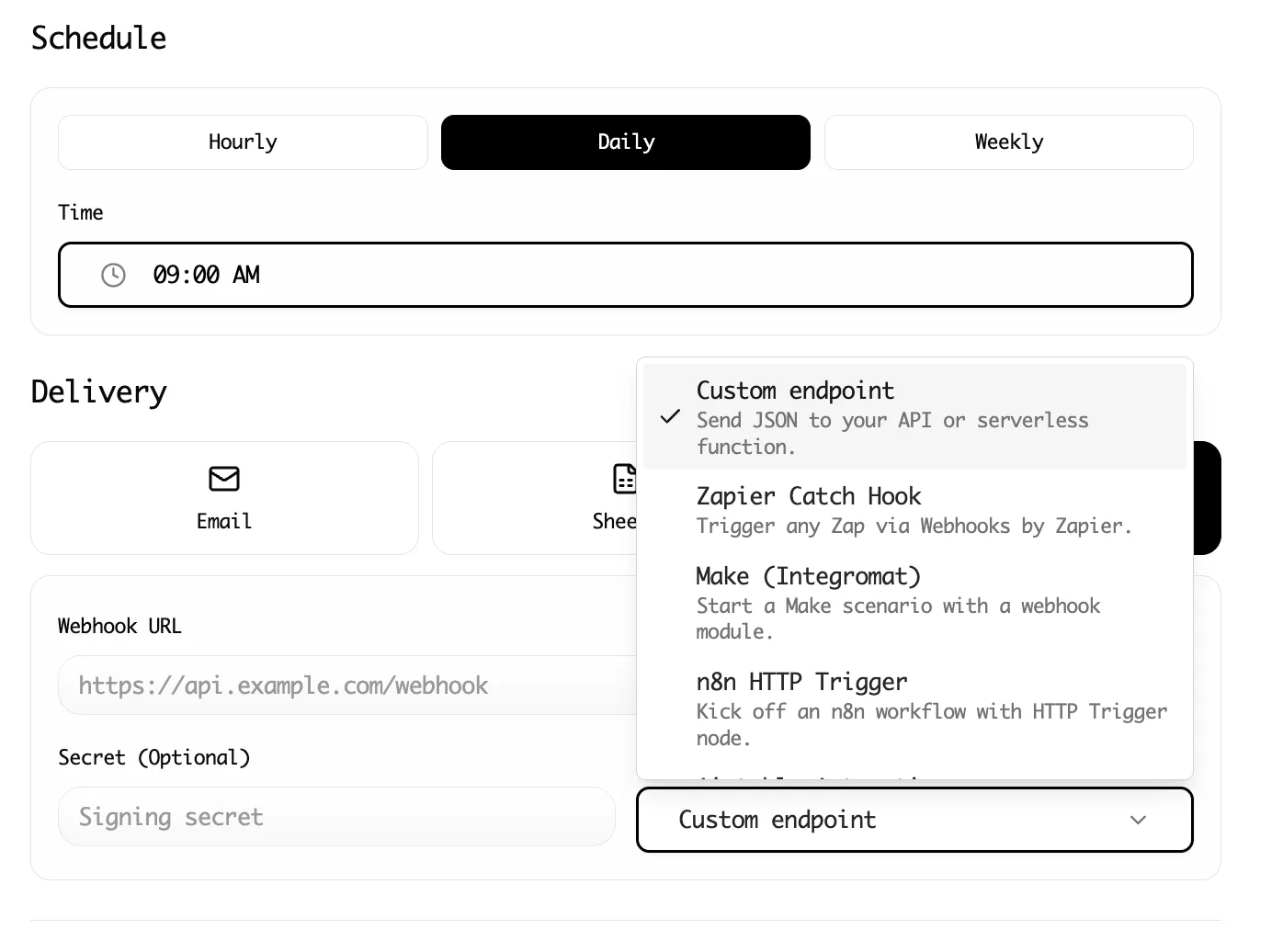
- In Lection, open the Integrations panel for your extraction
- Select Webhook
- Paste the Zapier webhook URL
- Run a test extraction to send sample data
Verify the Connection
Back in Zapier, click Test trigger. You should see the data from your test extraction with fields like:
If the data appears, your connection is working.
Step 4: Map Data to HubSpot Contacts
Now add the action that creates HubSpot contacts.
Add the HubSpot Action
- Click the + to add an action step
- Search for HubSpot
- Select Create Contact
- Connect your HubSpot account if prompted
Map the Fields
Match each Lection field to the corresponding HubSpot property:
| Lection Field | HubSpot Property |
|---|---|
| Name | First Name (see note below) |
| Company | Company Name |
| Job Title | Job Title |
Handling Full Names: If Lection extracts "Sarah Chen" as a single Name field but HubSpot wants separate First Name and Last Name, use Zapier's Formatter action:
- Add a Formatter step between the webhook and HubSpot
- Choose Text → Split Text
- Input: the Name field
- Separator: space
- Segment Index: First for First Name, Last for Last Name
Set the Lead Source
Map your custom "Lead Source Detail" property to a static value like "Web Scrape - LinkedIn" or use data from Lection if you included the source URL.
Step 5: Handle Duplicates
HubSpot does not automatically deduplicate contacts. Without handling this, repeated extractions create duplicate records.
Option 1: Zapier Lookup
Add a Find Contact in HubSpot step before creating:
- Search by Email (the most reliable unique identifier)
- Add a Filter step: only continue if contact does not exist
- Proceed to Create Contact
Option 2: HubSpot's Native Deduplication
HubSpot Professional and Enterprise plans include duplicate management:
- Go to Contacts → Actions → Manage duplicates
- Review and merge duplicates periodically
Option 3: Upsert Logic
Instead of "Create Contact," some workflows use "Create or Update Contact" to handle existing records gracefully. This updates existing contacts with fresh data rather than creating duplicates.
Step 6: Test the Complete Pipeline
Run an end-to-end test before relying on the automation:
- Navigate to a source page with test data
- Run a Lection extraction
- Check Zapier's task history for the incoming webhook
- Verify the contact appears in HubSpot with correct field mapping
- Confirm the Lead Source property is set correctly
Scaling with Scheduled Cloud Scrapes
Manual one-click extractions work well for ad-hoc prospecting. But for ongoing lead generation, automate the extraction itself.
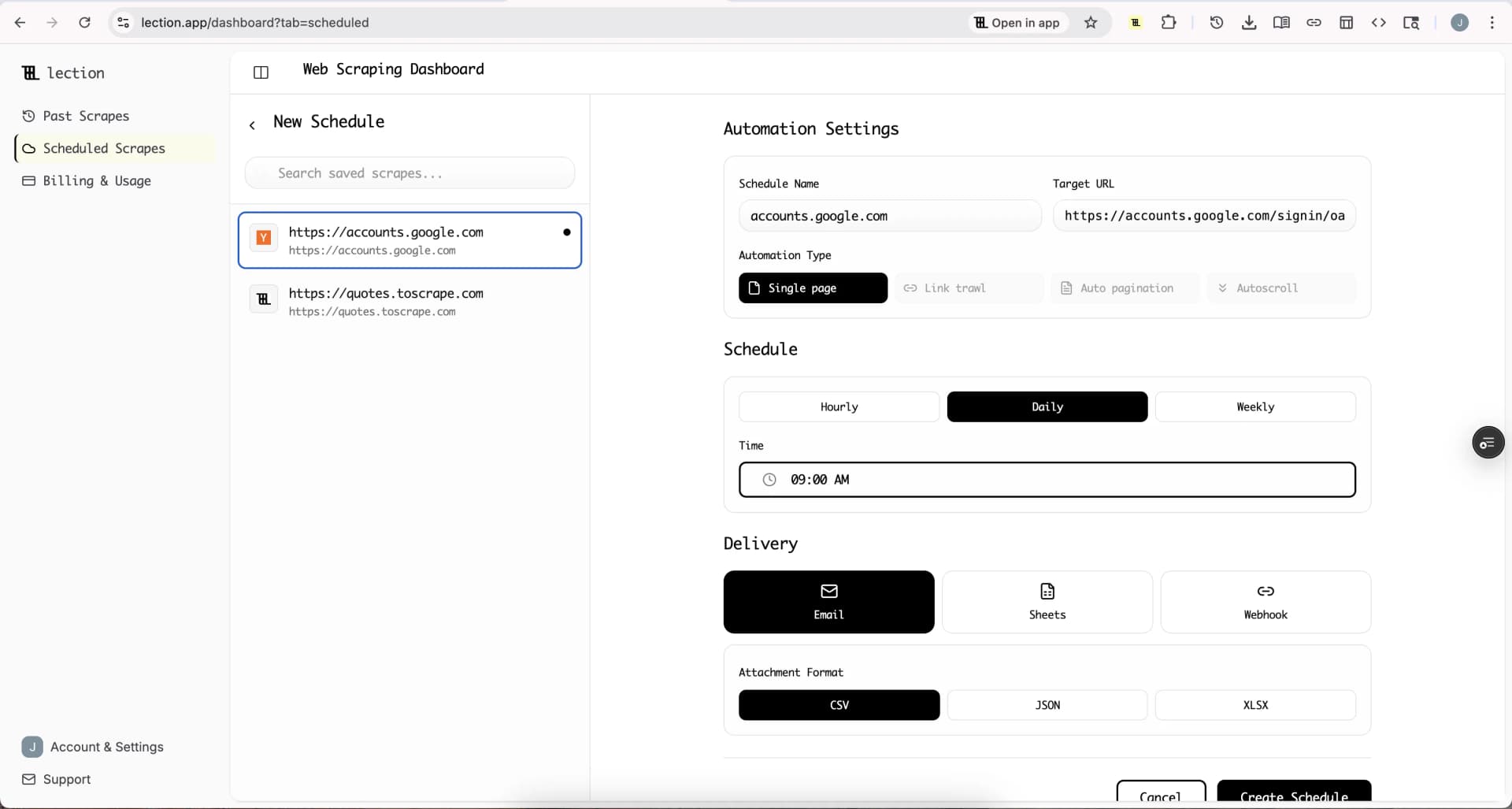
Lection's Cloud Scrape feature runs extractions on a schedule without you opening your browser:
- Save your extraction configuration in Lection
- Switch to Cloud Scrape mode
- Set a schedule (daily, weekly, or custom)
- The scrape runs automatically and sends data via your configured webhook
Use case examples:
Daily directory monitoring. Scrape a business directory daily for new listings. Fresh leads get added to HubSpot each morning before your team starts work.
Weekly LinkedIn refresh. Run a weekly scrape of search results to capture new prospects matching your ICP (Ideal Customer Profile).
Event attendee lists. After a conference publishes speakers or sponsors, run an extraction to immediately populate your CRM with networking targets.
Alternative: Using n8n Instead of Zapier
If you prefer open-source tools or need more control, n8n offers similar webhook-to-HubSpot functionality.
The workflow structure is identical:
- Webhook node — Receives data from Lection
- Set node — Transforms or enriches the data
- HubSpot node — Creates the contact
n8n advantages:
- Self-hosted option for data privacy
- No per-task pricing
- More technical flexibility for complex transformations
Learn more about setting up extraction workflows in our guide to Make and web scraping.
Enriching Leads Before Import
Raw scraped data is valuable, but enriched data is actionable. Consider adding enrichment steps to your pipeline.
Email Discovery
If you scrape names and companies but not emails, tools like Hunter, Apollo, or Clearbit can find professional email addresses. Add an enrichment step in Zapier between extraction and HubSpot:
- Lection sends Name + Company
- Hunter lookup finds email
- Combined data goes to HubSpot
Company Data Enrichment
Clearbit and similar services can append company size, industry, revenue, and technology stack based on company name or domain. This data helps sales prioritize leads and personalize outreach.
Troubleshooting Common Issues
Contacts Not Appearing in HubSpot
Check Zapier's task history. Look for errors in the HubSpot step. Common causes:
- Email field is empty (HubSpot requires email for most operations)
- Required field is missing
- API rate limits reached
Verify field mapping. Ensure Lection field names match exactly what Zapier expects. JSON field names are case-sensitive.
Duplicate Contacts Created
Add deduplication logic as described in Step 5. The "Find Contact" approach catches most duplicates before they are created.
Extraction Stops Working
If Lection extractions suddenly fail:
- The source website may have changed its layout
- Re-record the extraction by clicking on elements again
- Lection's AI often adapts automatically, but significant redesigns may require reconfiguration
Webhook Not Receiving Data
- Verify the webhook URL is correctly pasted in Lection
- Check that Zapier's webhook is "on" (not paused)
- Try a manual test extraction and watch Zapier's task history in real-time
Measuring Pipeline Performance
Track these metrics to understand your automated lead pipeline's impact:
Leads added per week. How many contacts are being automatically imported? Compare to manual entry rates before automation.
Time to first contact. Measure how quickly new leads receive outreach. Automation should dramatically reduce this.
Lead quality scores. Are scraped leads converting at similar rates to other sources? If not, refine your extraction targets.
Error rate. What percentage of extractions fail or create incomplete records? Monitor and adjust field mappings as needed.
Create a simple HubSpot report filtering by your "Lead Source Detail" property to see all scraped-origin leads and their outcomes.
Building a Sustainable Lead Engine
Automating lead import is not just about saving time today. It creates a compounding advantage:
Consistent pipeline coverage. Your CRM fills continuously rather than in sporadic batches when someone has time for data entry.
Faster competitive response. When a new prospect appears in your target market, you capture them in minutes, not days.
Better data quality. Structured extraction produces cleaner, more consistent records than rushed manual entry.
Scalable growth. Adding new lead sources requires configuring another extraction, not hiring more data entry staff.
The combination of browser-based extraction tools like Lection, automation platforms, and modern CRMs like HubSpot creates a lead generation engine that runs continuously with minimal ongoing effort.
Getting Started
Ready to automate your lead pipeline? Here is the quick-start path:
- Install Lection and extract your first set of prospect data
- Create a free Zapier account or set up n8n
- Connect the webhook from Lection to your automation platform
- Map fields to HubSpot and run a test
- Scale up with Cloud Scrapes for automated daily lead generation
In an hour, you can have a working pipeline. In a week, your CRM will be fuller than it has been in months.