LinkedIn contains the professional data that fuels modern sales and recruiting. Contact information, job titles, company details, mutual connections, and career histories all live on LinkedIn profiles. Getting that data into Airtable, where you can segment it, enrich it, and trigger workflows, has traditionally required either tedious manual entry or expensive automation platforms designed for enterprise budgets.
A sales development rep we spoke with described her Monday morning ritual: open LinkedIn Sales Navigator, find 50 prospects matching her criteria, then spend the next three hours copying names, titles, companies, and LinkedIn URLs into an Airtable base. By the time she finishes, half her morning is gone, and she has barely started actual outreach. "I know there has to be a better way," she said, "but every tool I find either costs $500 a month or requires me to learn Python."
This guide shows you how to get LinkedIn data into Airtable without writing code, using tools like Lection that bridge the gap between browser-based extraction and Airtable's powerful database capabilities.
Why LinkedIn Data Belongs in Airtable
Before diving into the how, let us establish why this integration matters for teams that rely on LinkedIn for prospecting, recruiting, or research.
Structured Data Enables Automation
Raw LinkedIn profiles are useful for one-off research. But when that same data lives in Airtable, it becomes fuel for automated workflows:
- Lead scoring formulas that calculate prospect priority based on title, company size, and engagement signals
- Automated outreach sequences triggered when a new high-value lead enters your pipeline
- Team assignment rules that route leads to the right rep based on territory or industry
- Follow-up reminders scheduled automatically based on last contact date
A recruiting team at a mid-size tech company reduced their time-to-first-contact by 60% after moving their LinkedIn sourcing into Airtable. The structured data allowed them to build automations that were impossible with scattered spreadsheets.
Centralized Collaboration
When your LinkedIn data lives in Airtable, your entire team has access. Sales managers see the same pipeline their reps see. Marketing can segment prospects for targeted campaigns. Leadership can pull reports without requesting exports.
No more emailing CSV files or wondering which spreadsheet version is current. One source of truth, updated in real-time.
Flexible Views and Analysis
Airtable's view system transforms raw data into actionable insights:
- Kanban boards showing deals by stage
- Calendar views tracking follow-up schedules
- Gallery views with profile photos for visual prospect management
- Filtered views showing only "hot leads" or "needs follow-up"
LinkedIn data becomes truly valuable when you can slice, filter, and visualize it in ways the platform itself does not support.
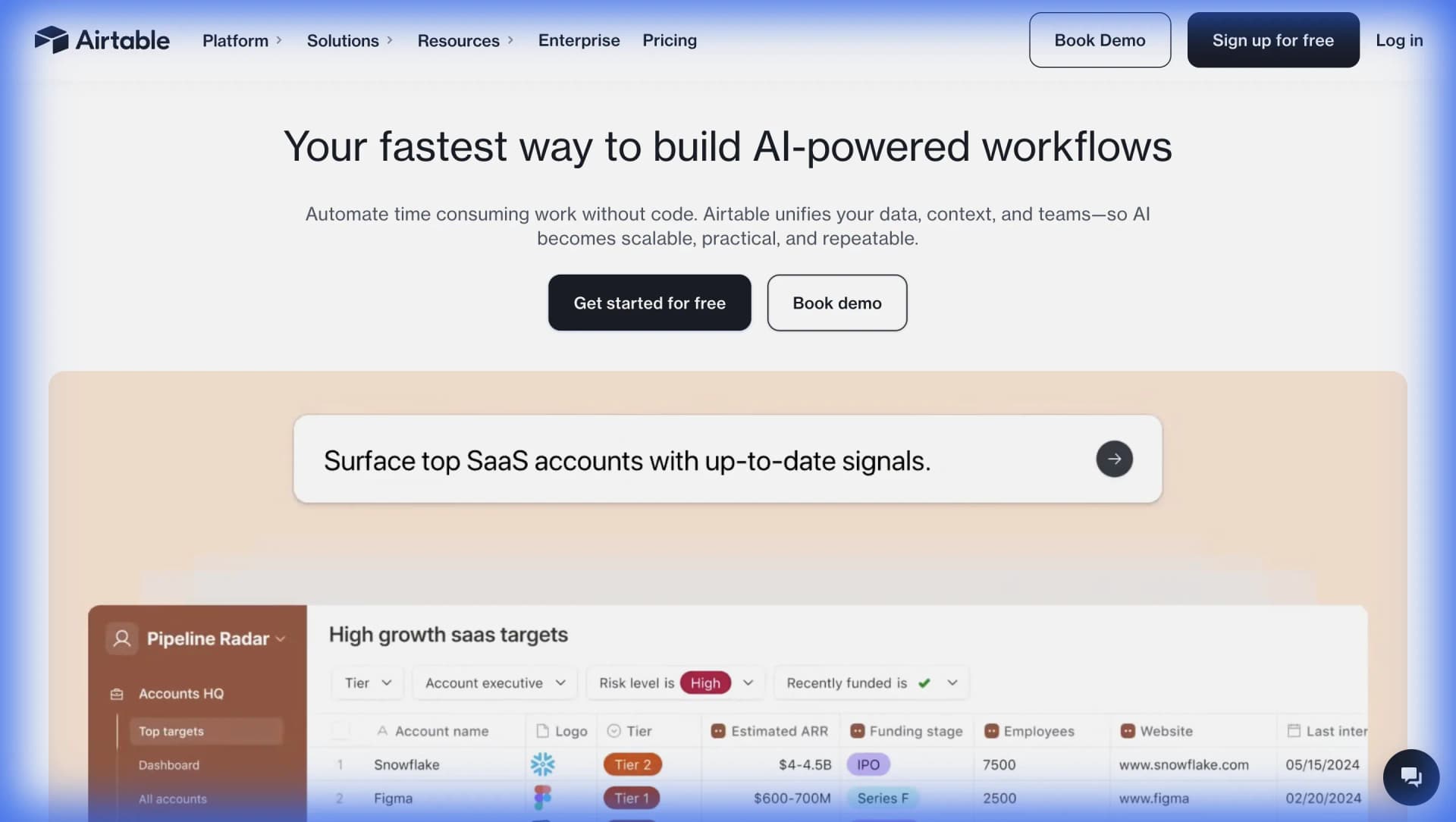
The Problem: Why LinkedIn Data is Hard to Get
If syncing LinkedIn to Airtable is so valuable, why are people still copy-pasting? Because LinkedIn actively resists automated data collection.
LinkedIn's Anti-Scraping Defenses
LinkedIn deploys multiple layers of protection:
- Rate limiting: Rapid profile views trigger temporary blocks and security captchas
- Authentication requirements: Most valuable data requires login, making anonymous scraping impossible
- Dynamic rendering: LinkedIn's interface relies heavily on JavaScript, breaking simple HTML scrapers
- Legal enforcement: LinkedIn has sued multiple scraping companies and sends cease-and-desist letters aggressively
A Python developer on Reddit documented spending 80+ hours building a LinkedIn scraper, only to have it break within days when LinkedIn updated their page structure. "I got it working for about a week," he wrote, "then spent another 20 hours debugging before giving up."
Traditional Approaches Fall Short
Manual Copy-Paste: At 90 seconds per profile (being optimistic), extracting 100 prospects takes 2.5 hours of focused work. This does not scale, introduces errors, and burns through your most productive hours.
Browser Extensions with Fixed Templates: Many Chrome extensions use rigid CSS selectors that break when LinkedIn updates their layout. What works today fails tomorrow without constant maintenance.
Enterprise Platforms: Tools like PhantomBuster and Dux-Soup offer LinkedIn automation, but pricing starts at $50-100 per month and quickly scales into the hundreds for serious usage. For a solo sales rep or small recruiting team, these costs are hard to justify.
Python Scripts: Effective for engineers, but require maintenance, proxy rotation, and constant updates. Not practical for non-technical users.
The Real Cost of Bad Data
Beyond time waste, manual entry introduces errors. One mistyped email address means a lost opportunity. One wrong company name creates confusion during outreach. One outdated job title makes you look unprepared.
A sales manager calculated that data entry errors cost her team at least two deals per quarter, representing over $15,000 in lost pipeline value annually.
The Solution: AI-Native Scraping with Webhook Integration
Tools like Lection represent a fundamentally different approach. Instead of relying on brittle CSS selectors, AI-native scrapers visually interpret pages the way you do. This means:
- Adaptive intelligence: When LinkedIn changes their layout, the AI adjusts. No code updates required.
- Browser-native operation: Lection runs inside Chrome, seeing LinkedIn exactly as you do (including your logged-in session).
- Webhook exports: Send extracted data directly to Airtable, Notion, or any platform that accepts webhooks.
- Cloud scraping: Schedule automated extractions that run even when your laptop is closed.
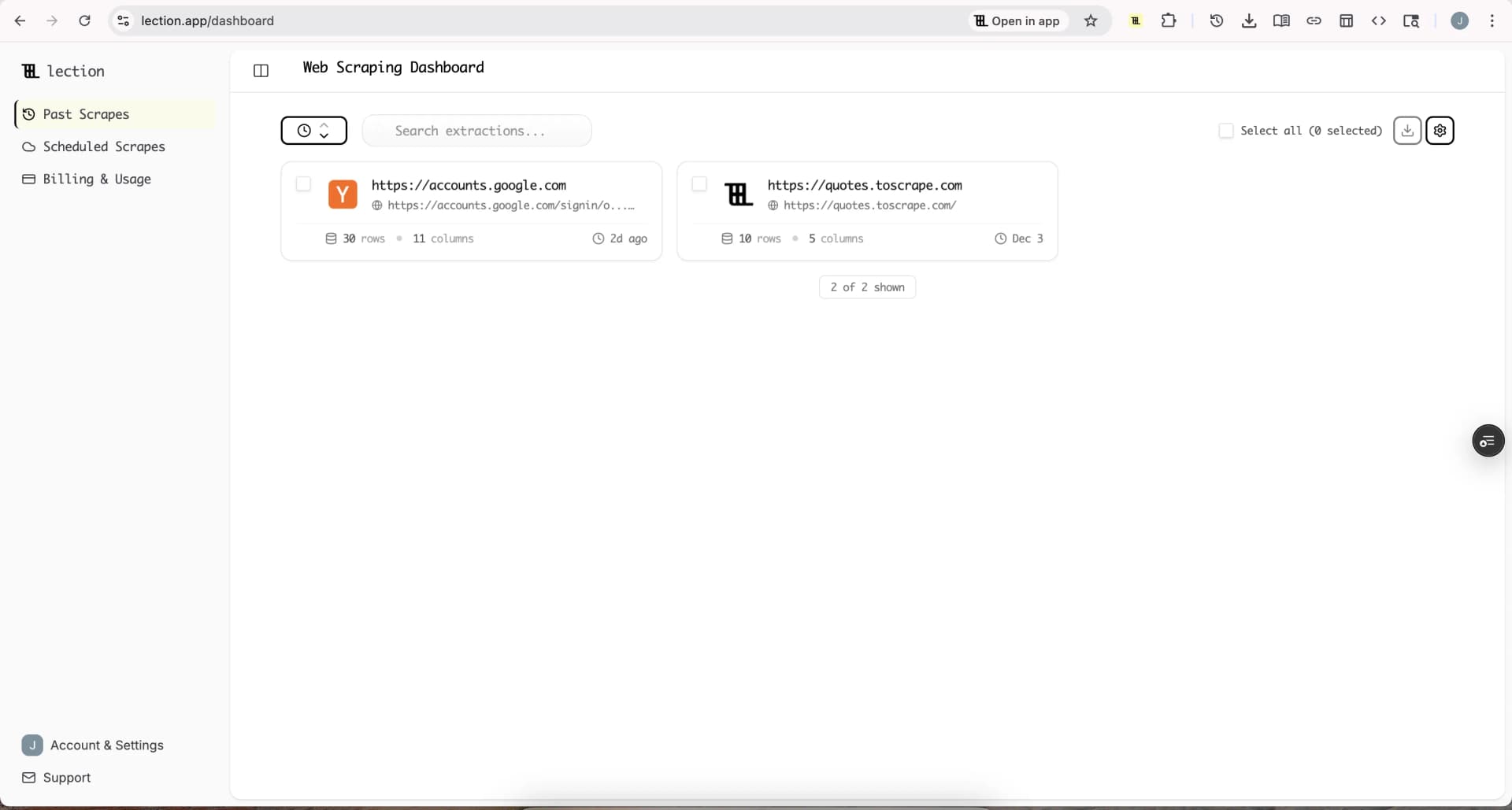
Step-by-Step: LinkedIn Data to Airtable
Let us walk through a practical example. Say you want to build a prospect list of 200 VPs of Engineering at Series B startups, automatically synced to your Airtable CRM.
Step 1: Set Up Your Airtable Base
Before extracting data, prepare your Airtable destination.
Create a new base (or use an existing one) with these fields:
| Field Name | Field Type | Notes |
|---|---|---|
| Name | Single line text | Full name from LinkedIn |
| Title | Single line text | Current job title |
| Company | Single line text | Current employer |
| LinkedIn URL | URL | Direct profile link |
| Location | Single line text | City/region |
| Connections | Number | Useful for influence scoring |
| Added Date | Date | When imported |
You can add more fields later. Airtable is flexible.
Step 2: Connect Lection to Airtable
Lection integrates directly with Airtable, making setup instant.
- Open Lection Dashboard: Navigate to the Integrations tab.
- Connect Airtable: Click Connect on the Airtable card.
- Authorize: Log in to Airtable and grant access to the base you created.
- Select Your Table: Choose the Base and Table where you want the data to go.
The direct integration handles the connection without needing to copy-paste webhook URLs.
Step 3: Install the Lection Chrome Extension
Head to the Chrome Web Store and install Lection. The extension installs in seconds and appears in your browser toolbar.
Step 4: Navigate to LinkedIn Search Results
Open LinkedIn and run your target search. For this example, search for "VP of Engineering" and filter by company funding stage, location, or industry as needed.
LinkedIn Sales Navigator provides more powerful filtering if you have access. Standard LinkedIn search works for many use cases.
Step 5: Activate Lection and Configure Fields
Click the Lection icon in your toolbar. The sidebar opens, and the AI begins analyzing the page.
Lection automatically detects the repeating patterns of search result cards. For each profile, you can extract:
- Name: The person's full name
- Title: Their current role
- Company: Where they work
- Location: Geographic information
- LinkedIn URL: Direct profile link
- Headline: The custom tagline they have set
Click on any element you want to include. Lection learns your selection and applies it across all visible results.
Step 6: Enable Pagination for Complete Data
A single LinkedIn search page shows around 10-25 results. For 200 prospects, you need multiple pages.
Toggle Pagination in Lection. The agent identifies the "Next" button and navigates through pages automatically, stacking all results into a unified dataset.
[!TIP] Respect Rate Limits: Lection includes smart delays between page loads. This mimics natural browsing behavior and reduces the risk of triggering LinkedIn's security measures.
Step 7: Configure Airtable Mapping
With Lection connected to your Airtable account:
-
Refresh Fields: In the Lection Integrations panel, you'll see your Airtable columns.
-
Map Data: Align your scraped fields with the Airtable columns.
- Lection Name -> Airtable Name
- Lection Title -> Airtable Title
- Lection LinkedIn URL -> Airtable LinkedIn URL
- ...and so on.
-
Test: Click "Run Test" or "Export" to send your first batch of data. Watch your Airtable base populate instantly.
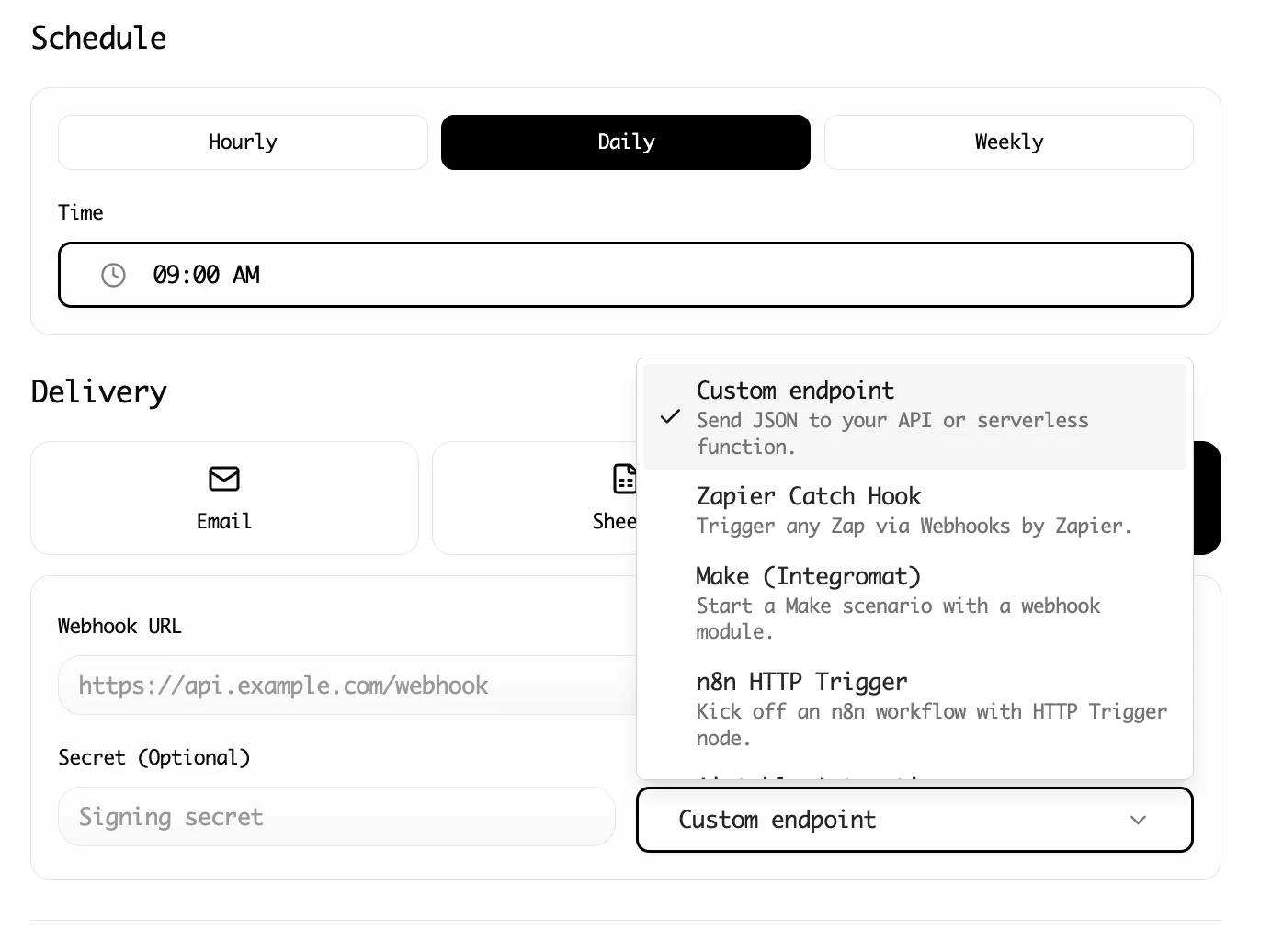
Step 8: Schedule Recurring Syncs (Optional)
For ongoing prospecting, convert your scrape to a Cloud Scrape. Schedule it to run weekly, and new matching profiles automatically flow into your Airtable base.
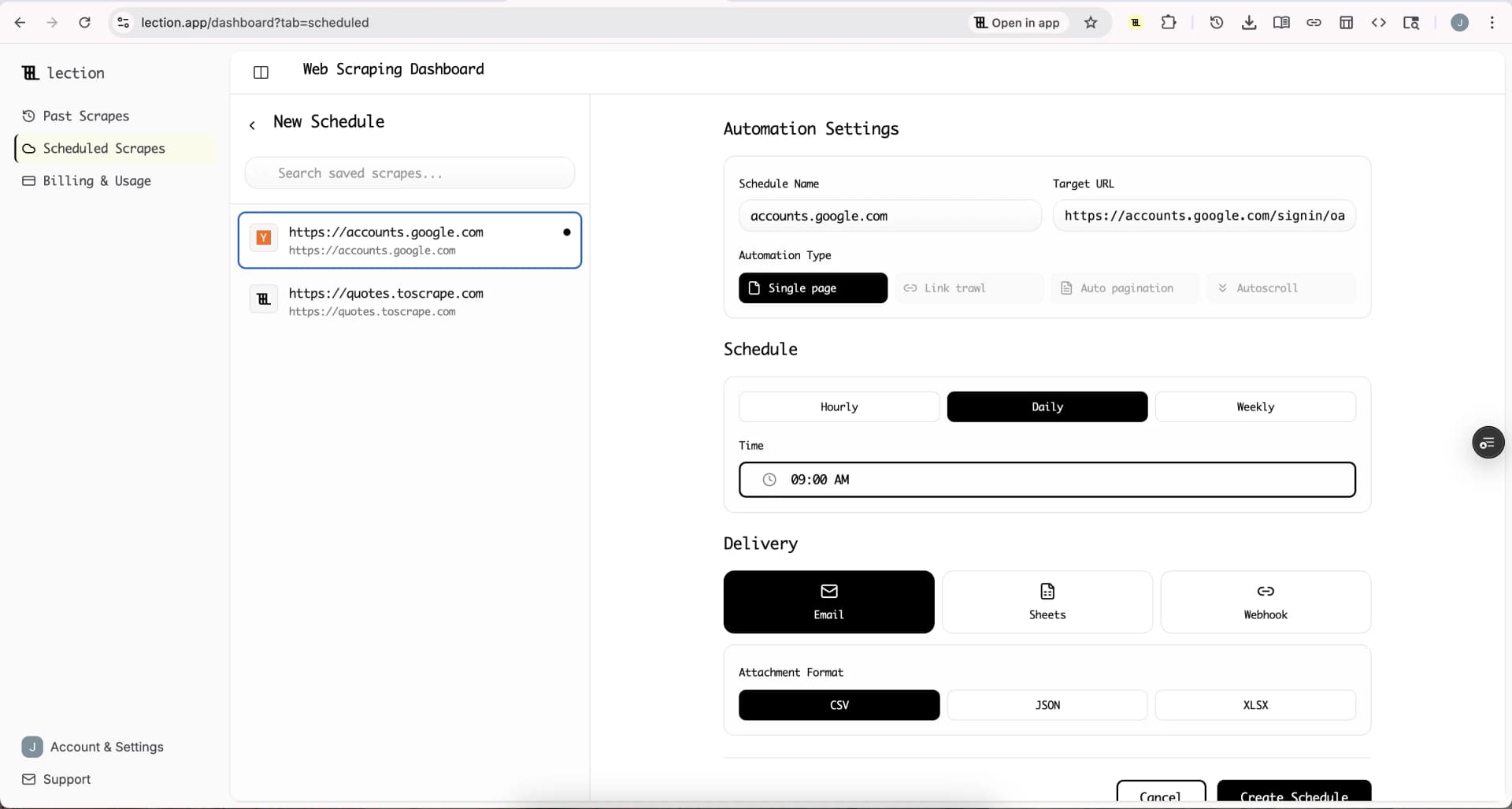
Alternative Integration: Using Zapier or Make
If you prefer a visual automation platform, you can route Lection's webhook output through Zapier or Make before it reaches Airtable.
This approach offers additional flexibility:
- Data transformation: Clean or reformat fields before they hit Airtable
- Conditional logic: Only create records if certain criteria match
- Multi-destination routing: Send the same data to Airtable, Slack, and HubSpot simultaneously
- Enrichment: Use intermediate steps to add additional data (email addresses, company info) before the record is created
The trade-off is additional setup complexity and potential costs from the middleware platform.
Advanced Techniques for Power Users
Once your basic pipeline is working, consider these enhancements.
Lead Scoring in Airtable
Create a formula field that calculates prospect priority based on multiple factors:
IF(
  AND(
    FIND("VP", Title) > 0,
    Connections > 500
  ),
  "Hot Lead",
  IF(Connections > 200, "Warm Lead", "Cold Lead")
)
This simple formula flags high-priority prospects for immediate follow-up.
Deduplication Logic
Airtable automations can check for existing records before creating duplicates. Use the "Find records" action before "Create record" and only proceed if no match exists.
Outreach Integration
Connect Airtable to your email outreach tool (Instantly, Lemlist, Apollo) via Zapier. When a new "Hot Lead" record appears, automatically add them to an outreach sequence.
Team Assignment Rules
Use Airtable's "Round Robin" automation pattern or territory-based rules to assign new leads to specific reps automatically.
Common Questions and Troubleshooting
"LinkedIn is blocking my extractions"
LinkedIn's rate limits are real. Solutions:
- Add longer delays between page loads in Lection's settings
- Extract smaller batches (50 profiles instead of 500)
- Use cloud scraping, which rotates infrastructure automatically
- Avoid running multiple scrapes simultaneously
"Some fields are missing data"
LinkedIn profiles vary in completeness. Some profiles hide location, some have minimal headlines, some show company names differently. Lection extracts what is visible. Empty cells in Airtable mean that data was not displayed on the profile.
"My webhook is not creating records"
Debug checklist:
- Verify the webhook URL in Airtable is still active
- Check that your field mappings match Airtable's expected format
- Test with a manual webhook call using a tool like Postman
- Review Airtable's automation history for error messages
"I need email addresses too"
LinkedIn rarely displays email addresses directly. You have two options:
- Export to a separate enrichment tool like Apollo or Clearbit to append emails before they reach Airtable
- Use Airtable's enrichment add-ons to find emails based on name + company
Why This Approach Beats the Alternatives
| Method | Setup Time | Maintenance | Cost | Scalability |
|---|---|---|---|---|
| Manual copy-paste | None | Ongoing labor | Free (time cost) | Does not scale |
| Enterprise tools (PhantomBuster, etc.) | Hours | Low | $50-500+/month | Good |
| Python scripts | Days | High | Free + proxy costs | Good if maintained |
| Tools like Lection + Webhook | Minutes | Low | Affordable tiers | Good |
For small teams and solo operators, the Lection approach offers the best balance of cost, complexity, and capability.
Beyond LinkedIn: What Else Can You Sync?
Once your LinkedIn-to-Airtable pipeline is working, consider expanding:
- Crunchbase company data to enrich your prospect records with funding and industry information
- News mentions from Google News to track prospect companies
- Job postings from company career pages to identify growing teams
- Industry directories to build comprehensive prospect lists
The same scrape-and-webhook workflow applies to any data visible in your browser.
Conclusion: Your CRM Deserves Fresh Data
Sales and recruiting run on information. Stale prospect data, incomplete profiles, and manual entry errors all slow you down and cost you opportunities.
By connecting LinkedIn to Airtable with AI-native tools like Lection, you eliminate the tedious work while improving data quality. Your Airtable base becomes a living system that updates itself, freeing you to focus on what actually closes deals: conversations with prospects.
Ready to stop copying and start closing? Install Lection free and sync your first LinkedIn search to Airtable in under 15 minutes.