You have been there. The formula worked yesterday. Today, you open your Google Sheet and every cell shows the same infuriating message: "Imported content is empty." No error explanation. No debugging information. Just... nothing.
IMPORTXML is one of those features that sounds magical in theory. Type a URL, write an XPath query, and data from any website flows directly into your spreadsheet. The reality is far messier. One product researcher described spending "an entire afternoon trying to import 50 product prices, only to end up copy-pasting them manually anyway."
This guide explains exactly why IMPORTXML fails so frequently, what those cryptic error messages actually mean, and the reliable alternatives that professionals use when spreadsheet functions are not enough for web scraping.
What IMPORTXML Is Supposed to Do
IMPORTXML is a Google Sheets function that fetches data from web pages using XPath queries. The syntax looks simple enough:
=IMPORTXML("https://example.com/products", "//h1[@class='title']")
This formula is supposed to:
- Request the HTML from the URL
- Parse the page
- Extract elements matching the XPath query
- Return the results directly into your cell
When it works, IMPORTXML feels like a superpower. Need stock prices? Product names? Article headlines? Just write the formula and refresh.
But "when it works" is doing a lot of heavy lifting in that sentence.
The 6 Reasons IMPORTXML Fails (And How Often)
1. JavaScript-Rendered Content (Most Common)
This is the number one reason IMPORTXML returns empty results. Most modern websites load content dynamically using JavaScript. IMPORTXML only sees the initial HTML source code, before any JavaScript executes.
Consider a typical e-commerce site. When you view the page in your browser, JavaScript runs and populates product prices, reviews, and inventory status. When IMPORTXML requests that same page, it only gets the skeleton HTML with empty placeholders.
How to test this: Disable JavaScript in your browser (Chrome DevTools > Settings > Preferences > Debugger > Disable JavaScript), then reload the page. If the content you need disappears, IMPORTXML will not be able to extract it.
Common sites where this fails:
- Amazon (product details)
- LinkedIn (profile data)
- Most e-commerce platforms
- Single Page Applications (SPAs)
- Sites using React, Vue, or Angular
2. Anti-Scraping Protections
Websites actively block automated requests. When Google's servers make a request on behalf of your IMPORTXML formula, the target site may:
- Serve a simplified page without the data you need
- Return a CAPTCHA challenge
- Block the request entirely
- Redirect to an error page
Many sites check the User-Agent header. IMPORTXML sends a recognizable bot signature that triggers protective measures.
A marketing analyst shared this frustration: "My IMPORTXML formula for competitor pricing worked fine for two weeks, then suddenly every query returned empty. The site started blocking Google's crawlers."
3. Website Structure Changes
XPath queries are fragile. They depend on the exact HTML structure of the page. When a website updates their design or reorganizes their code, your carefully crafted XPath breaks.
// This worked last month
=IMPORTXML(url, "//div[@class='product-price']/span")

// But they changed the class name
// Now it needs to be
// "//div[@class='price-container']/span[@data-price]"
Enterprise websites regularly update their layouts. Amazon alone makes thousands of small changes per month. Each change is a potential breaking point for your IMPORTXML formula.
4. Authentication Requirements
IMPORTXML cannot access content that requires login. The function has no way to:
- Store login credentials
- Maintain session cookies
- Handle authentication redirects
If the data you need lives behind a login wall, IMPORTXML simply cannot reach it. This affects:
- CRM systems
- Subscription content
- Member directories
- Internal dashboards
- Social media profiles (beyond public data)
5. Google Sheets Quota Limits
Google Sheets imposes hard limits on IMPORTXML:
| Limit | Value |
|---|---|
| Maximum IMPORTXML calls per sheet | 50 |
| Maximum characters per fetch | 50,000 |
| Refresh frequency (automatic) | Once per hour |
| Maximum spreadsheet cells | 10 million |
Try to run 100 IMPORTXML queries and half of them will fail or simply never load. The "Loading..." status can persist indefinitely when quotas are stressed.
A business intelligence developer noted: "We tried building a price monitoring dashboard with IMPORTXML. With 60 products across 3 competitors, we hit the limit immediately. The formulas just hung in a perpetual loading state."
6. Volatile Function Interference
IMPORTXML cannot reference volatile functions like NOW(), RAND(), RANDARRAY(), or RANDBETWEEN(). If your formula chain includes any volatile function, either directly or indirectly, IMPORTXML may fail or behave unpredictably.
This creates problems for common use cases like timestamping extractions or randomizing query order.
Understanding IMPORTXML Error Messages
When IMPORTXML fails, Google Sheets provides frustratingly vague error messages. Here is what they actually mean:
"Imported content is empty"
This is the most common error. It typically means:
- The XPath query found nothing (wrong path)
- The content is JavaScript-rendered
- The site blocked the request
- The URL is inaccessible
Troubleshooting: Test your XPath in the browser's DevTools console using $x("//your/xpath/here") after disabling JavaScript to see if the content exists in the raw HTML.
"#N/A"
The formula could not establish a connection or parse the response. Causes include:
- 404 errors (page not found)
- Server timeouts
- Malformed URLs
- Temporary network issues
"#REF!"
Your XPath returns more cells than the available space, or there is a conflict with existing data. Clear adjacent cells and retry.
"Resource at URL not found"
The URL is either invalid, the site returned a non-200 status code, or the request was blocked entirely.
"Loading..." (indefinitely)
You have likely hit quota limits, or Google is experiencing issues fetching the resource. Reduce the number of IMPORTXML calls and wait.
What Professionals Use Instead
When IMPORTXML is not reliable enough for production use, professionals turn to better tools. Here are the main alternatives, organized by technical complexity.
Alternative 1: IMPORTHTML (For Simple Tables)
If your target data is in an HTML table or list, IMPORTHTML may work where IMPORTXML fails:
=IMPORTHTML("https://example.com/data", "table", 1)
IMPORTHTML has the same JavaScript limitation as IMPORTXML, but it handles structured table data more reliably. Use it when the content is in the raw HTML and organized in <table> or <ul>/<ol> elements.
Alternative 2: Google Apps Script (For Custom Logic)
If you need more control, Google Apps Script lets you write JavaScript that runs server-side and can handle more complex scenarios:
function scrapeData() {
  const url = "https://example.com/products";
  const response = UrlFetchApp.fetch(url);
  const html = response.getContentText();

  // Parse the HTML and extract what you need
  const match = html.match(/<span class="price">(.*?)<\/span>/);
  if (match) {
    return match[1];
  }
  return "Not found";
}
Apps Script provides benefits over IMPORTXML:
- Custom headers (including different User-Agent strings)
- Error handling and retries
- More complex parsing logic
- Integration with other Google services
However, Apps Script shares the critical limitation: it still cannot execute JavaScript. Dynamic content remains unreachable.
Alternative 3: Public APIs (When Available)
Many websites offer APIs that provide structured data directly. Using an API is almost always more reliable than scraping:
- Weather data: OpenWeather API, Visual Crossing
- Stock prices: Yahoo Finance API, Alpha Vantage
- E-commerce: Amazon Product Advertising API (with restrictions)
- Social media: Twitter/X API, LinkedIn Marketing API
Check if your target site offers an API before attempting to scrape. The data comes pre-structured and the approach is explicitly permitted.
Alternative 4: Browser-Based Scraping Tools Like Lection
For the vast majority of web scraping needs, especially when dealing with JavaScript-rendered content, browser-based tools offer the most reliable solution.
Tools like Lection work fundamentally differently from IMPORTXML:
IMPORTXML approach:
- Google servers request raw HTML from the URL
- HTML is parsed without executing JavaScript
- XPath extracts from static content only
- Result sent to your spreadsheet
Browser-based approach:
- The page loads in an actual browser with JavaScript execution
- AI visually identifies the data elements
- Content is extracted after the page fully renders
- Data exports to Google Sheets, Excel, or other destinations
This distinction matters because:
- Every website loads properly (including SPAs)
- Authentication works through your logged-in session
- Dynamic content is fully accessible
- Visual AI adapts when layouts change
When to Use Each Alternative
| Scenario | Best Approach |
|---|---|
| Static HTML tables | IMPORTHTML |
| Static HTML with custom XPath | IMPORTXML |
| Need custom parsing logic | Google Apps Script |
| Structured data with official API | Use the API |
| JavaScript-rendered pages | Browser-based tools like Lection |
| Authenticated/logged-in content | Browser-based tools |
| 50+ URLs or recurring data | Browser-based tools with scheduling |
| One-time small extraction | Manual copy-paste may be fastest |
Tutorial: Replacing a Broken IMPORTXML Formula with Lection
Let us walk through a practical example. Say you have been trying to import product prices from an e-commerce site, but IMPORTXML keeps returning empty.
Step 1: Verify the Problem
First, confirm that JavaScript rendering is the issue:
- Open the target page in Chrome
- Right-click and select "View page source" (not Inspect Element)
- Search for the price or data value you want
- If you cannot find it in the source, the content is JavaScript-rendered
Step 2: Install Lection
Head to the Chrome Web Store and install the Lection extension. The installation takes seconds.
Step 3: Navigate and Extract
- Go to the page with your target data
- Click the Lection icon in your toolbar
- The AI analyzes the page and identifies extractable data
- Click on the elements you want (prices, titles, etc.)
- Lection applies your selection across all matching items
Step 4: Export to Google Sheets
Instead of copy-pasting or dealing with intermediate CSV files:
- Click Export in Lection
- Select Google Sheets as your destination
- Choose your target spreadsheet and sheet
- Data flows directly into your columns
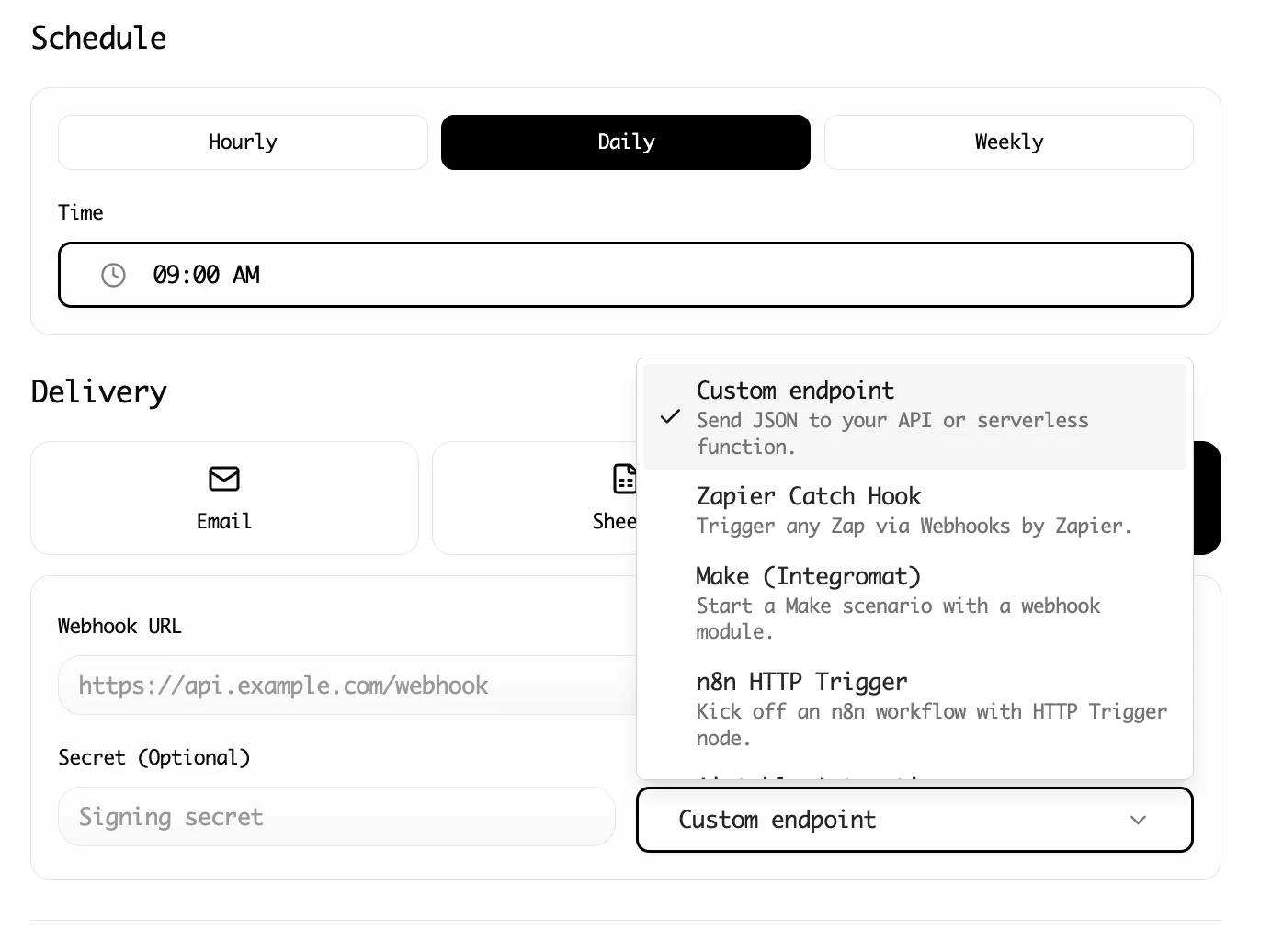
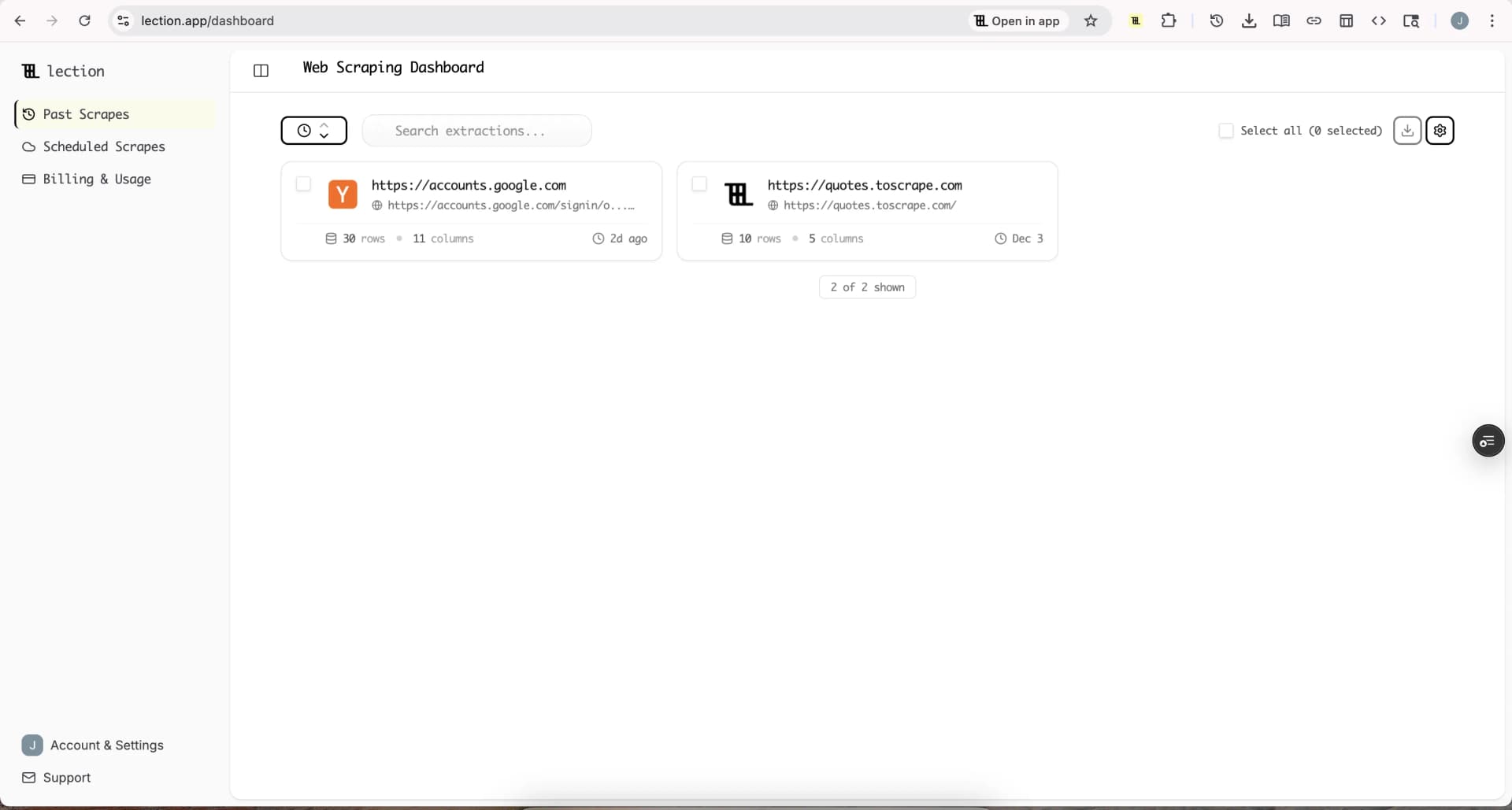
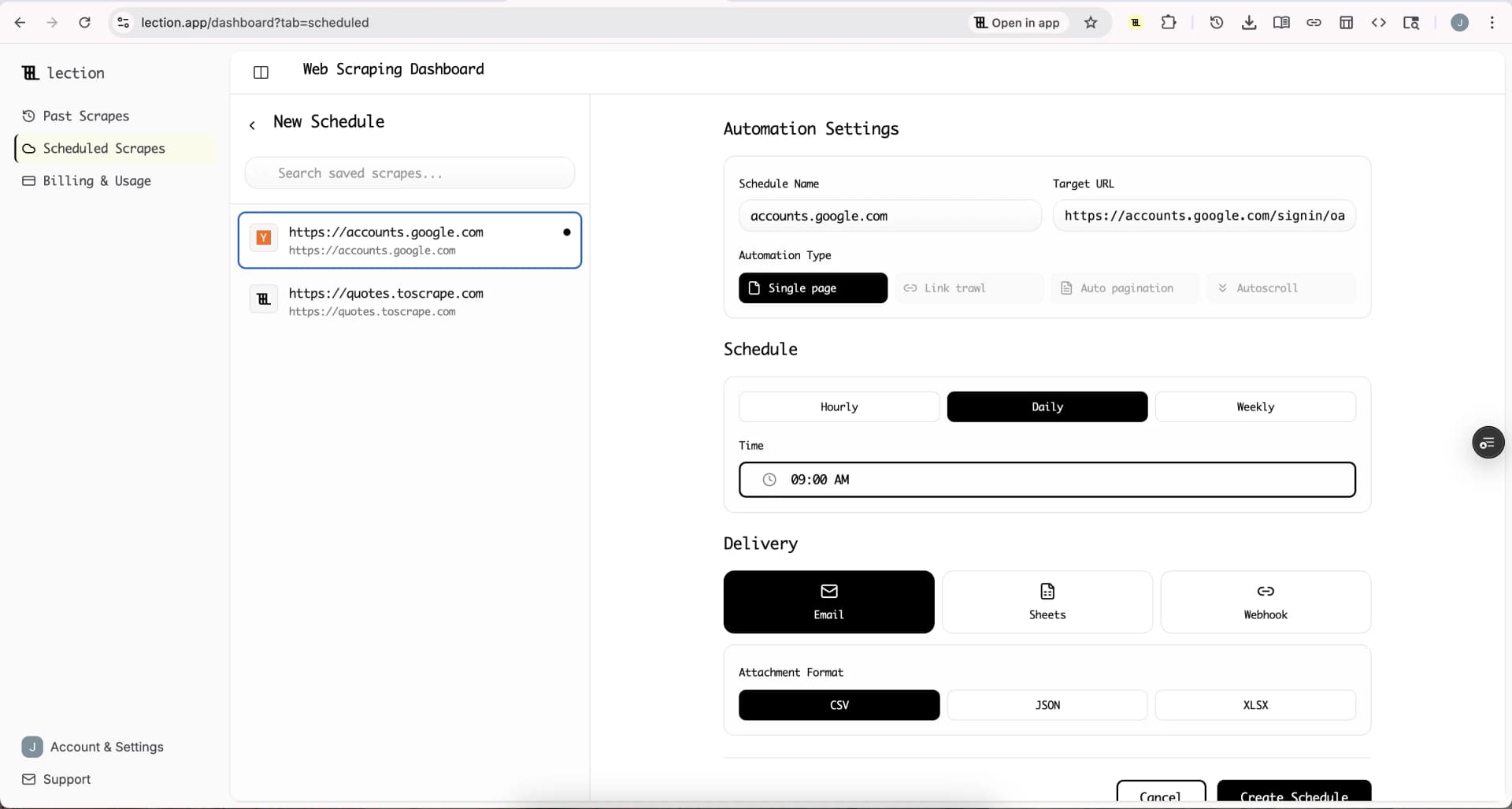
For one-time extractions, you now have your data where IMPORTXML failed. For recurring needs, convert the extraction to a Cloud Scrape and schedule it to run automatically.
Pro Tips for Debugging Existing IMPORTXML Formulas
If you still need to work with IMPORTXML (some older static sites still work fine), here are debugging strategies:
Simplify Your XPath
Start with broad queries and narrow down:
// Too specific (easily breaks)
=IMPORTXML(url, "//div[@id='main']/section[3]/div[@class='product-grid']/div[1]/span[@class='price text-red-600']")

// Better: use flexible matching
=IMPORTXML(url, "//span[contains(@class, 'price')]")
The contains() function makes your XPath more resilient to minor class name changes.
Test XPath in the Browser Console
Before putting an XPath in your spreadsheet, test it in Chrome DevTools:
- Open DevTools (F12)
- Go to the Console tab
- Run:
$x("//your/xpath/here") - Check if the returned elements match your expectations
Force a Refresh
IMPORTXML caches results. To force a refresh without waiting an hour:
- Make a trivial edit to the URL (add a query parameter:
?refresh=1) - Copy the formula, delete it, paste it back
- Create a helper cell that changes and reference it
Monitor for Changes
If a critical IMPORTXML formula breaks, you need to know immediately. Use Apps Script to:
- Run the formula periodically
- Compare results to expected values
- Send an email if extraction fails
Legal and Ethical Considerations
Whether using IMPORTXML or more sophisticated tools, always consider:
Robots.txt compliance: IMPORTXML does not check robots.txt, but the Google servers making requests on its behalf may be blocked by sites that have configured their robots.txt to disallow Google crawlers.
Terms of Service: Websites may prohibit automated data collection in their ToS. Review before building production workflows.
Rate limiting: IMPORTXML has built-in limits, but if you are switching to more capable tools, implement appropriate delays between requests.
Data privacy: Extracting personal data carries legal responsibilities under regulations like GDPR.
Conclusion: Move Beyond Spreadsheet Limitations
IMPORTXML was a clever feature when it launched. For simple, static web pages, it still works. But the web has evolved. JavaScript frameworks now power the majority of websites. Authentication walls protect valuable data. Anti-bot measures are increasingly sophisticated.
The result is that IMPORTXML fails more often than it succeeds for modern web scraping needs. Instead of fighting against these limitations, use tools designed for today's web.
For quick, reliable data extraction from any website, including JavaScript-rendered pages, install Lection and get your data in minutes instead of hours of IMPORTXML debugging.
Related Reading
- IMPORTXML vs IMPORTHTML vs Dedicated Scrapers
- Beginner's Guide to Web Scraping (No Code)
- Web Scraping ROI Calculator
- Build a Price Monitoring Dashboard Without Code
- How to Get Amazon Product Data into Google Sheets (No Code)
- Web Scraping Glossary: 50+ Terms Explained
- Explore all tutorials and guides