IMPORTXML and IMPORTHTML are the most famous web scraping functions in Google Sheets. Type a URL, add a query, and data from a website lands in your cells, no installs, no accounts, no code. For a small static page, that is genuinely magical. For the modern web, it is often a trap: the formula works once, then returns "Imported content is empty" at the worst possible moment.
This comparison covers what each function does, where they break, and when a dedicated scraper is the more reliable tool. It is written for spreadsheet-first teams, which is exactly where the transition from formulas to browser-based extraction happens.
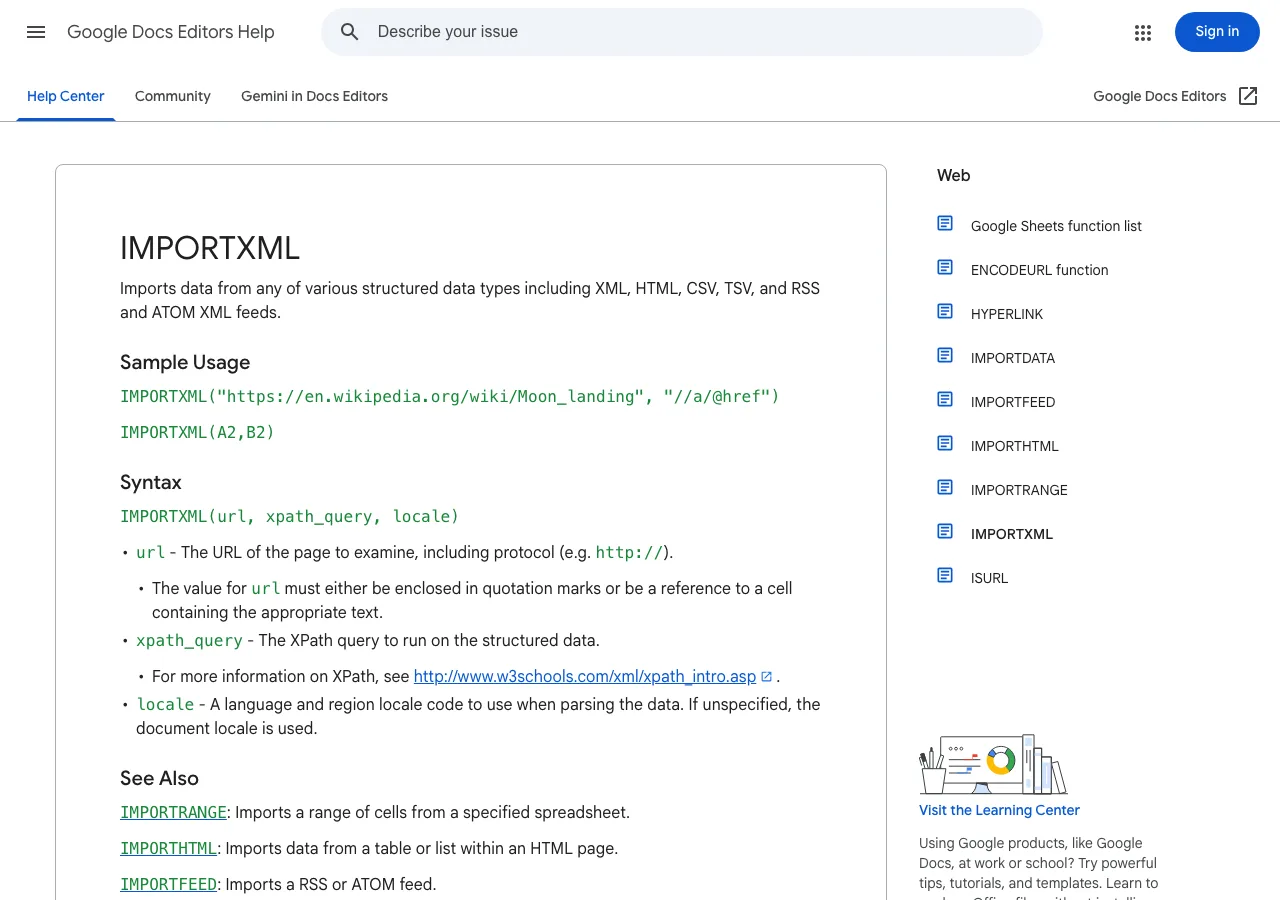
What IMPORTXML does
IMPORTXML imports data from structured formats including XML, HTML, CSV, TSV, and RSS and Atom feeds. According to Google's IMPORTXML documentation, the syntax is:
=IMPORTXML(url, xpath_query)
The first argument is the page URL. The second is an XPath query, a compact language for addressing parts of an XML or HTML document. A query like //h1 returns every heading, while //a/@href returns every link URL.
This is the flexible option of the two functions. Because XPath can target attributes, nested elements, and patterns, IMPORTXML handles anything with a predictable structure, not just tables and lists. It is also the one that requires the most care. XPath is brittle: a class name change or a redesigned layout can silently break a working formula. Our XPath cheat sheet is a useful reference when you write these queries.
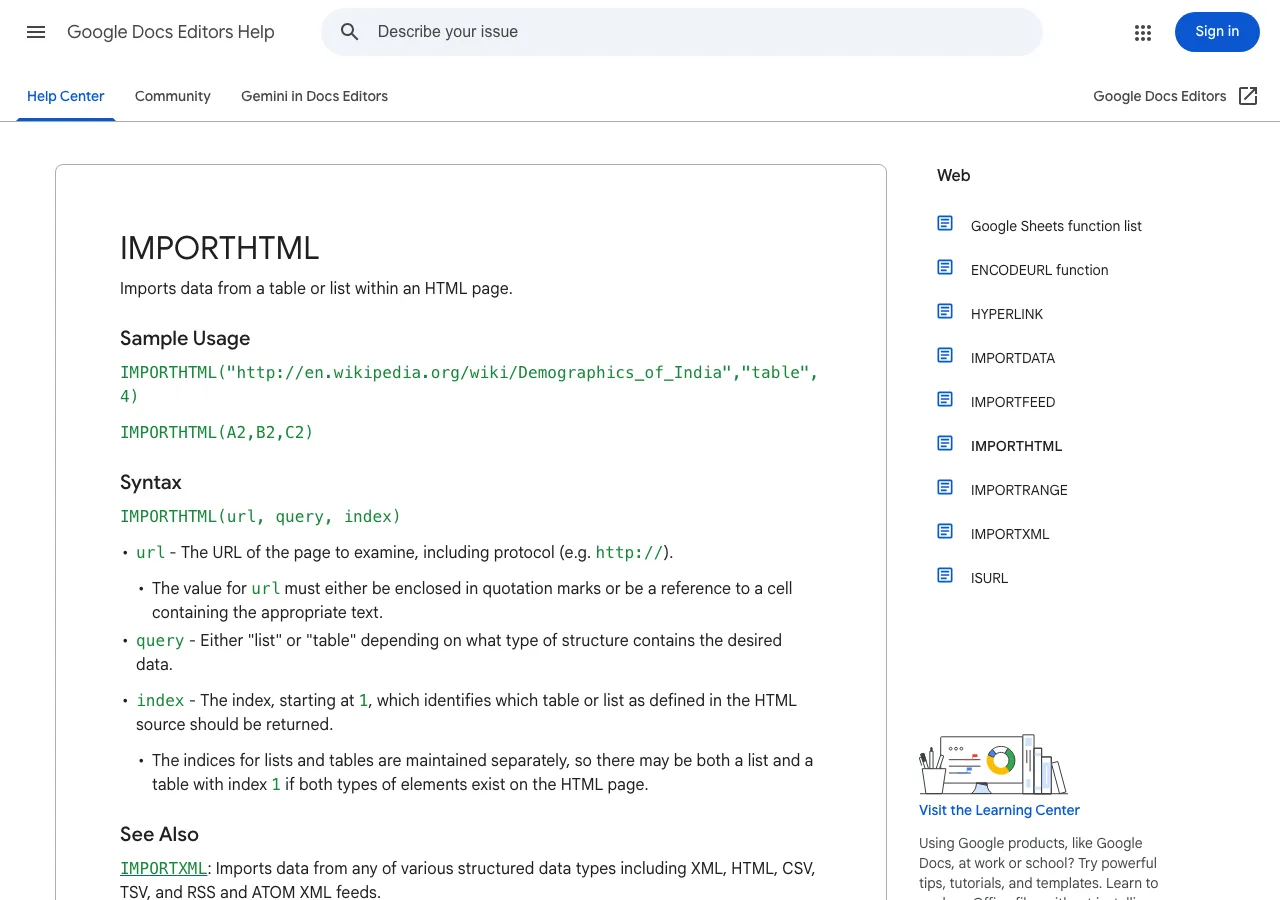
What IMPORTHTML does
IMPORTHTML is the simpler sibling. Google's IMPORTHTML documentation defines it as importing a table or list from an HTML page. The syntax is:
=IMPORTHTML(url, query, index)
The query argument is either table or list. The index is a number starting at 1 that picks which table or list on the page to return, because a page often contains several.
Where IMPORTXML asks you to describe data with XPath, IMPORTHTML asks you to count structures. It is easier to learn and more forgiving for beginners, and it is the right tool when you know the data sits in a plain <table> or <ul> element in the raw HTML.
IMPORTXML vs IMPORTHTML at a glance
| IMPORTXML | IMPORTHTML | |
|---|---|---|
| What it pulls | XML, HTML, CSV, TSV, RSS, Atom | Tables and lists from HTML |
| How you address data | XPath query | "table" or "list" plus an index |
| Flexibility | High | Low |
| Learning curve | Steeper | Shallow |
| Best for | Custom fields, attributes, feeds | Whole tables and lists |
The real question is not which function to choose. It is when spreadsheet formulas should be doing this work at all.
Where Google Sheets import functions fall short
Google's own documentation on import functions is refreshingly honest about the refresh model: IMPORTDATA, IMPORTHTML, and IMPORTXML check for updates every hour while the document is open. That single sentence explains most of the pain. The functions were designed for light, periodic pulls, not for live data pipelines.
They only see the raw HTML
The most common failure is JavaScript-rendered content. Most e-commerce, job, real estate, and social pages assemble their data in the browser. IMPORTXML and IMPORTHTML request the initial HTML only, so the data they return is empty or partial on any site that renders dynamically. The when IMPORTXML breaks guide walks through why this happens and how to test for it.
Refresh timing is out of your control
One-hour refresh intervals mean your sheet is not current when you open it, and editing a formula does not guarantee an immediate refetch. There are tricks to force refreshes, such as appending a query parameter or re-entering the formula, but they are workarounds, not a refresh model. For price monitoring or any workflow where timing matters, that is a structural limitation, not a fixable bug.
No pagination, logins, or interaction
The functions accept one URL and return whatever that URL exposes. They cannot click "next page", scroll a feed, fill a search form, or use a logged-in session. If the data you need spans multiple pages or sits behind authentication, formulas are out of the picture regardless of how well your XPath is written.
Formula sprawl and fragile selectors
A serious import workflow is not one formula. It is a grid of formulas per URL, per field, per refresh, each with its own XPath and each able to fail independently. When a site changes its markup, you diagnose cell by cell. Teams that start this way usually spend more time maintaining formulas than using the data.
Quotas and throttling
Google applies usage limits to keep import traffic reasonable. Heavy formula sheets hit throttling, persistent "Loading..." states, and errors. The limits are generous for small experiments and tight for production workloads.
When import functions are still the right tool
None of this means the functions are useless. They are the correct choice when:
- the page is static HTML with no JavaScript rendering
- the data lives in a real table or list
- you need a one-off pull or a small number of URLs
- the data does not need to be fresh on demand
- your team is comfortable maintaining a handful of formulas
For that profile, IMPORTXML and IMPORTHTML are free, fast to set up, and perfectly reasonable. The problems begin when the workflow grows: more URLs, dynamic pages, recurring refreshes, or downstream automation. That is the moment to compare them against dedicated scrapers.
What dedicated scrapers do differently
Dedicated no-code scrapers such as Lection operate in the browser rather than on Google's servers. The difference sounds small and changes everything.
Extraction happens where you can see it
A browser-based tool loads the page in your Chrome session, so JavaScript runs, logins persist, and content renders exactly as it does for you. You click the fields you want on the first item and the tool applies the pattern across the page. There is no XPath to maintain and no server-side blind spot.
Scheduling and cloud runs
Dedicated tools separate extraction from your screen time. You build a definition once, then schedule it to run in the cloud on any interval. The recurring scrape guide covers the practical details, and the benefits are straightforward: fresh data without opening a browser, and no hourly refresh lottery.
Cleaner exports into Sheets
The output lands in the same destination, but the path is cleaner. Instead of a grid of formulas, you get validated rows exported directly into Google Sheets, with pagination already handled. The Google Sheets automation guide shows how scraped data becomes a working spreadsheet layer instead of a fragile formula surface.
Choosing between them
| Scenario | Best fit |
|---|---|
| Static HTML table, one-off pull | IMPORTHTML |
| Static HTML with a custom field | IMPORTXML |
| JavaScript-rendered or logged-in pages | Dedicated browser scraper |
| 10+ URLs or changing pages | Dedicated scraper |
| Data must be fresh on a schedule | Dedicated scraper with cloud runs |
| No setup budget, tiny scope | Spreadsheet formulas |
Lection is the AI-native option for fast, accurate scraping right in your browser. It transforms raw pages into structured, reusable data with minimal effort, and it exports where your team already works. The features overview and pricing page give the full picture.
A practical migration path
If your sheet already depends on import formulas, do not delete them on day one. Move in stages.
1. Inventory the formulas
List every IMPORTXML and IMPORTHTML formula and label it by purpose: price check, catalog pull, research list, or monitoring. Note which ones fail or hang regularly. The failures are your migration candidates.
2. Rebuild the most painful workflow in a scraper
Choose the workflow that costs the most time or fails the most often. Open the source page in your browser, build the extraction, and export to a staging tab in the same sheet. Compare the result with the formula output row by row.
3. Keep the sheet as the destination
You do not need to leave Google Sheets. Dedicated scrapers export into it directly, so the analysis layer stays where it is. What changes is the collection layer: validated rows instead of formulas.
4. Schedule what needs to stay fresh
Turn the extraction into a cloud scrape for anything you refresh weekly or more often. Then archive the equivalent formulas so nobody maintains two versions of the same workflow.
Troubleshooting common errors
When formulas still do the job, these are the usual failure modes:
- "Imported content is empty" usually means JavaScript rendering, a wrong XPath, or a blocked request. Test the page in a browser with JavaScript disabled to see whether the data exists in the raw HTML.
#N/Aappears when the fetch fails, the URL is wrong, or the response cannot be parsed. Verify the URL in a normal browser first.- The wrong table arrives when the index changed because the page added or removed content. Count the tables in the HTML source and update the index.
- Persistent "Loading..." states usually signal throttling. Reduce the number of formulas and let the sheet settle.
For a deeper treatment of these errors, including the quota details and debugging steps, the when IMPORTXML breaks guide is the companion read.
Conclusion
IMPORTXML and IMPORTHTML are excellent spreadsheet functions with a narrow operating range. They fit static pages, small scopes, and patient refresh needs. The moment your data lives on a dynamic site, needs to be current on demand, or spans more pages than a URL can hold, a dedicated scraper stops being an upgrade and starts being the practical option.
Ready to start scraping? Install Lection and extract your first dataset in minutes.