Plenty of useful data sits in an HTML table on a web page: sports standings, government statistics, product specs, a Wikipedia list. Copying it into Google Sheets sometimes works and sometimes pastes everything into one column. When it fails, the usual advice is a formula, which fails in its own ways.
This guide covers three ways to get a website table into Google Sheets, with the free HTML Table Extractor from Lection as the no-code option, and when each one makes sense.
Option 1: copy and paste
Select the table on the page, copy it, click a cell in Sheets and paste. For a simple static table this is the fastest option, and it needs no tools. It breaks when the table has merged cells, hidden columns, sticky headers or footnote markers, and it will not follow you across several pages.
Option 2: IMPORTHTML
Google Sheets has a built-in function: =IMPORTHTML("https://example.com/page", "table", 1). It reads the first table on the page and keeps it live. It is excellent for plain, static tables. It cannot run JavaScript, so it returns an error on tables that a page builds after loading, and sites that block Google's servers return nothing at all. Our posts on IMPORTXML versus IMPORTHTML and when IMPORTXML breaks go deeper.
Option 3: the HTML Table Extractor, then import
The free tool takes a URL, finds the tables on the page and lets you download any of them as CSV or JSON.
What you get
Each table the tool finds comes back as a preview with its own headers. The preview shows the first 50 rows, and the download contains the complete table. Very small tables, with one row or one column, are filtered out so that layout elements do not clutter the results.
Step by step
- Open the HTML Table Extractor.
- Paste the page address, for example a Wikipedia article.
- Run it and look through the tables it found. Pick the one you want.
- Download it as CSV.
- In Google Sheets, choose File, then Import, then Upload, and select the file. Use "Insert new sheet(s)" to keep several tables in one workbook.
There is also a Copy button that puts the table on your clipboard as tab-separated text, so you can paste it straight into a cell in Sheets and skip the file. The tool needs no extension and no account.
Which option should I use?
| Situation | Best choice |
|---|---|
| One static table, one time | Copy and paste |
| Static table that should stay live in the sheet | IMPORTHTML |
| Messy copy, many tables on a page, or you want a file | HTML Table Extractor |
| Table built by JavaScript, or behind a login | The Lection extension (below) |
| Many pages, or fresh data every day | Scheduled scrape |
When the table is built by JavaScript
The HTML Table Extractor fetches the page's raw HTML. If a table only appears after the page runs its scripts, the extractor will not see it, and neither will IMPORTHTML. That is the moment to use the Lection Chrome extension, which works from the page as you see it in your browser. Open the page, describe the data you want (for instance "the table of results with every column"), review the preview, and export. The extension also handles pagination and scroll on pages where the table continues. See the guide to scraping into Excel without code for a walkthrough of that workflow.
Cleaning the imported table
- Numbers imported as text: use Format, then Number, or wrap with
=VALUE(). - Footnote markers such as "[1]": clean with
=REGEXREPLACE(A2, "\[\d+\]", ""). - Header rows repeated halfway down the table: filter them out with Data, then Create a filter.
- Dates in different formats: use
=DATEVALUE()after standardizing the text.
Keep it updated automatically
The HTML Table Extractor is designed for one-time extraction. For a table you need refreshed, there are two honest choices. If IMPORTHTML can read the page, it is already live and free. If it cannot, save a scrape of the page in the Lection extension and put it on a schedule.
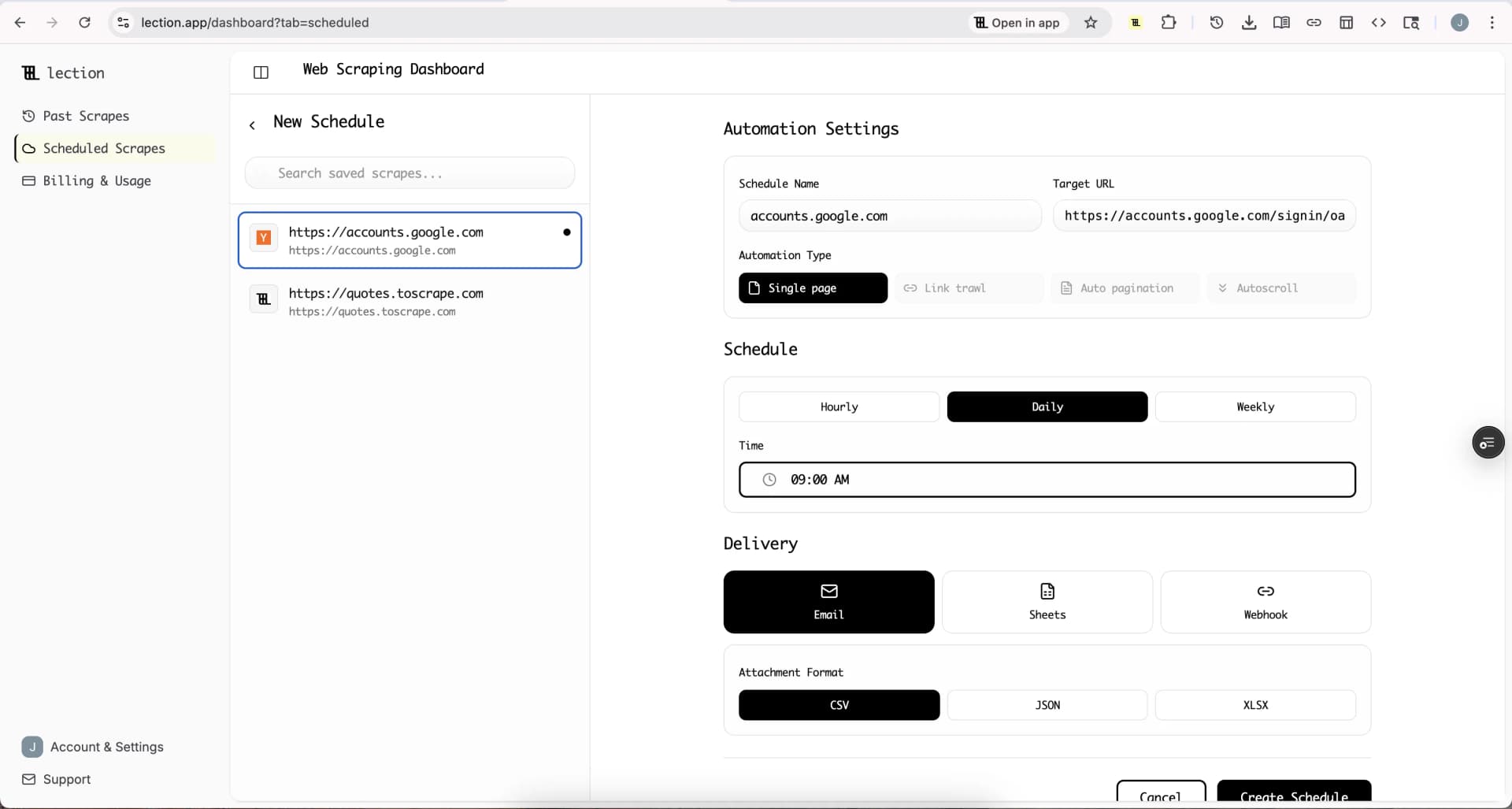
Sheets delivery for scheduled scrapes is part of Standard, and the 30-day trial includes it. The free plan sends email only. The steps, per the Google Sheets integration page:
- Save the scrape.
- In Scheduled Scrapes, create a schedule with an Hourly, Daily or Weekly cadence.
- Under Delivery pick Sheets, connect Google and choose a spreadsheet.
- Append to one tab, or create a new tab each run.
- Save and click Run now.
Sheets delivery appends rows and does not update rows in place. For a table that is a changing snapshot, such as standings, "Create new tab each run" is cleaner than appending.
Start the 30-day Standard trial. It is free for 30 days, then $29 per month, a card is required, and it is for first-time subscribers only.
Honest limitations
- Raw HTML only. The free extractor does not run JavaScript.
- No login. Pages behind a sign-in cannot be fetched by the free tool.
- Download formats are CSV and JSON. Excel and Sheets arrive through the CSV import.
- Check the terms. Some sites forbid automated access. Read their terms and robots.txt, covered in our robots.txt guide.
FAQ
Can I import a website table into Google Sheets for free? Yes, with copy and paste, IMPORTHTML, or the free extractor followed by File, Import.
Why does IMPORTHTML show an error? The table may be built by JavaScript, the page may block Google, or the table index may be wrong.
Does the extractor support multiple tables? Yes, it lists the tables it finds and lets you pick one.
Is there a size limit? The tool states no hard limit on table size. The preview shows 50 rows and the download holds all of them.