If you run a channel, study a competitor, or plan a content calendar, you eventually need a table of videos: titles, views, dates, lengths. YouTube Studio gives owners analytics for their own channel, but it does not give you a quick list for someone else's, and the videos tab just scrolls.
This guide shows how to export a YouTube channel's videos to Google Sheets without code, using the free YouTube Channel Videos Exporter and the Lection Chrome extension. No API key and no login are needed for public channels.
What you get in the sheet
One row per video from the channel's Videos tab:
| Column | What it holds |
|---|---|
| Title | The video title |
| Channel | The channel name |
| Views | The view count |
| Published | The publish date as the tool returns it |
| Duration | The video length |
| Video URL | A link to the video |
Why does copy and paste fail?
A channel's Videos tab loads more entries as you scroll. Selecting text from it gives you titles, view counts and durations jumbled together without structure. IMPORTXML cannot see them, since the page builds the list with JavaScript. The YouTube Data API will return a channel's uploads, but only after you set up a Google Cloud project, a key and some code.
Before you start
- Desktop Chrome and the free Lection extension.
- The channel's Videos tab URL, for example
https://www.youtube.com/@OpenAI/videos.
Step by step: channel videos to Google Sheets
- Open the YouTube Channel Videos Exporter.
- Install the extension if the page asks.
- Paste the channel's Videos URL. Go to the channel, click the Videos tab and copy the address.
- Set Max Rows. The free tool exports up to 30 of the latest videos per run.
- Run the scrape and check the preview.
- Download CSV or Excel.
- In Google Sheets, choose File, then Import, then Upload, and select the file.
What to do with the table
- Content gap analysis. Sort by Views to see which topics a competitor's audience rewarded, then compare with your own list on a second tab.
- Cadence check. Use the Published column to see how often a channel uploads.
- Length versus views. Convert Duration to minutes in a helper column and chart it against Views with Insert, then Chart.
- A video inventory. Keep a catalog of your own uploads with a notes column for repurposing ideas.
- Feed the next export. Copy a Video URL from the table into the YouTube Comments Exporter to pull the audience's reaction.
A simple competitor workflow
Here is a routine that takes about fifteen minutes once you have the export. Pick three channels in your niche and export each one into its own tab. On a summary tab, pull the ten most viewed rows from each tab with =SORT() and =QUERY(), or just sort each tab by Views and copy the top rows. Read the titles side by side. You are looking for patterns, such as questions as titles, numbered lists, or a topic that keeps repeating, and for the gaps where nobody has made a clear video yet.
Then add a column called "Our angle" next to each title you find interesting, and write one line about how your video would differ. The sheet becomes a backlog, and the Video URL column keeps the source one click away. Repeat the export every month and compare, so you can see what the channels published since your last look.
Keep it updated automatically
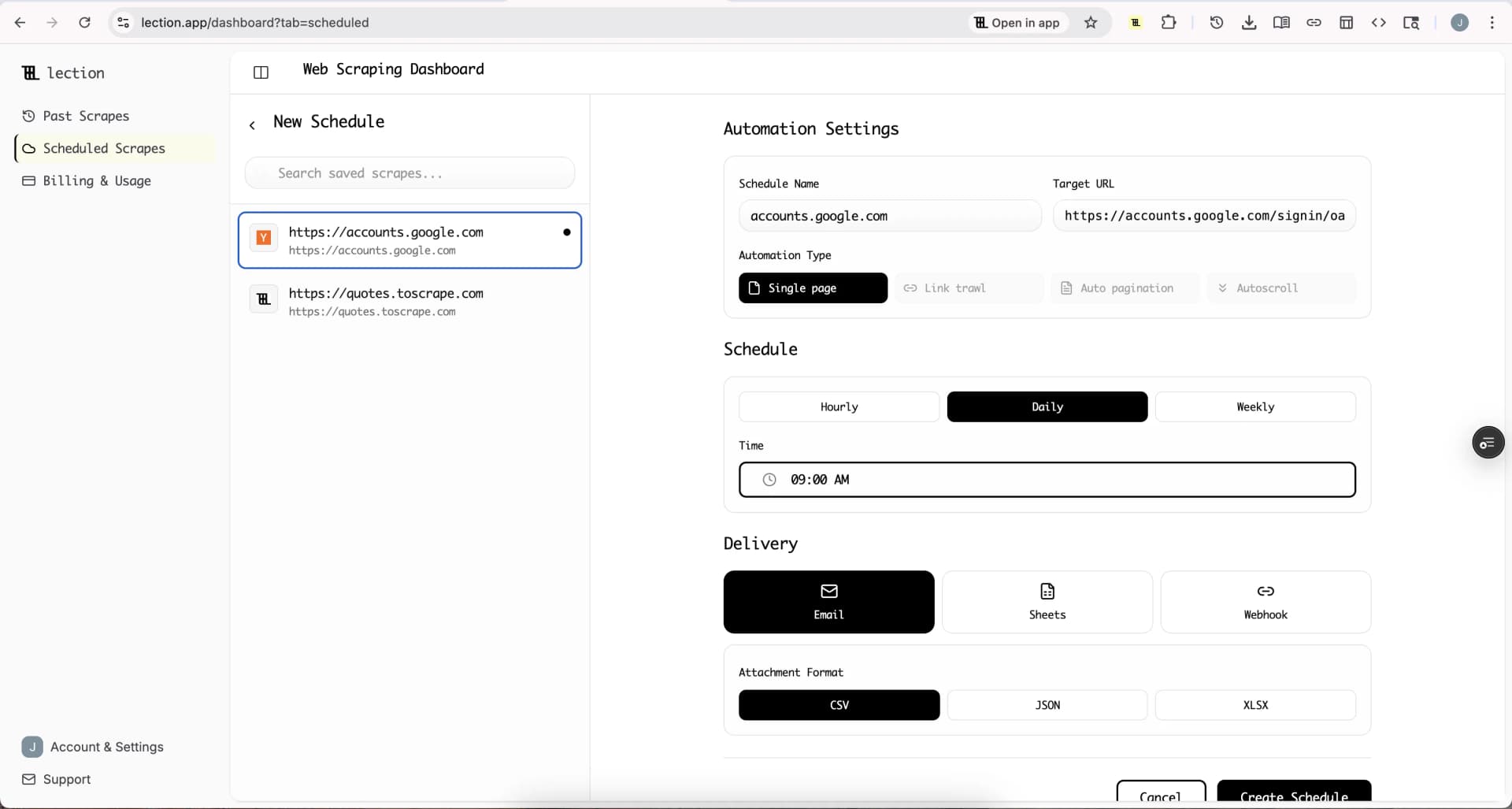
A channel inventory is only useful if it is current. Scheduling the saved scrape lets new runs land in a sheet on their own. Delivery to Google Sheets is part of Standard, and the 30-day trial includes it. The free plan delivers by email only.
- Save the scrape after a successful run.
- In Scheduled Scrapes, create a schedule with an Hourly, Daily or Weekly cadence and your timezone.
- Under Delivery select Sheets, click Connect Google Sheets and approve access.
- Choose a spreadsheet, then append to one tab or create a new tab each run.
- Save and click Run now.
See the Google Sheets integration page for the full walkthrough. Remember that Sheets delivery appends rows and does not match them to existing ones. A weekly run of the latest 30 videos will repeat most rows. A new tab per run avoids that, or you can remove duplicates on Video URL using Data, then Data cleanup, then Remove duplicates.
Start the 30-day Standard trial. It is free for 30 days, then $29 per month, a card is required, and it is for first-time subscribers only.
Honest limitations
- 30 videos per run on the free tool. It reads the latest uploads, not a full archive.
- Videos tab URL. The tool takes a channel's Videos address. Other tabs and playlists are not what it is built for.
- No analytics. You get public numbers (views, date, duration), not watch time or revenue.
- Public channels. Nothing private or unlisted.
- Not a playlist export. It takes a channel URL, not a playlist URL.
Troubleshooting
No rows returned. Make sure the URL ends in /videos and the channel is public.
The extension prompt keeps appearing. Confirm the extension is enabled in the Chrome profile you are using.
Views look different from YouTube. Counts move constantly. The sheet shows the number at the time of the run.
FAQ
Can I export a YouTube channel's videos to Google Sheets for free? Yes, up to 30 per run, using CSV and File, Import.
Do I need the YouTube API? No.
Can I get the comments too? Use the YouTube Comments Exporter, or read how to export YouTube comments to Google Sheets.
Can I search YouTube and export the results? The YouTube Search Results Exporter does that with the same columns.