Comments are the closest thing YouTube has to a free focus group. Viewers tell you what confused them, what they want next, and what they think of your competitor's video. The trouble is that comments live in a scrolling pane under the video, and the platform gives creators no simple way to pull them into a spreadsheet.
This guide shows how to export YouTube comments to Google Sheets without code. It uses the free YouTube Comments Exporter from Lection, which needs the free Chrome extension but no API key and no login. You will also see how to refresh the sheet on a schedule and what the free tool does not cover.
What you get in the sheet
The tool exports the public, top-level comments on a video, one row each:
| Column | What it holds |
|---|---|
| Author | The commenter's display name |
| Comment | The comment text |
| Published | When it was posted |
| Likes | Likes on the comment |
| Replies | The number of replies |
| Author Channel URL | A link to the commenter's channel |
Replies are counted but not listed. Comments the video owner holds for review, or comments on videos with comments turned off, are not available to anyone, so they cannot be exported.
Why does the standard approach fail?
Copying from the page is slow, and YouTube's comment section loads more as you scroll, so you never see a finished list. Spreadsheet formulas such as IMPORTXML do not see the comments either, because the page fills them in with JavaScript after it loads. The official YouTube Data API can return comments, but it needs a Google Cloud project, a key and a script, which is a lot of setup for a one-off research task.
Before you start
- Desktop Chrome with the free Lection extension.
- The video URL, like
https://www.youtube.com/watch?v=dQw4w9WgXcQ. - No YouTube login is needed for public videos.
Step by step: YouTube comments to Google Sheets
- Open the YouTube Comments Exporter and install the extension when prompted.
- Paste the video URL.
- Set Max Rows. The free tool exports up to 20 comments per run.
- Click the scrape button and check the preview table.
- Download as CSV or Excel.
- In Google Sheets, choose File, then Import, then Upload, and pick the file. Use "Insert new sheet(s)" if you are building one workbook for several videos.
For several videos, run the tool once per URL and keep each import on its own tab, named after the video.
Analyzing comments in Sheets
Once the comments are rows, ordinary spreadsheet tools do real work:
- Sort by Likes to find the comments other viewers agreed with.
- Filter Comment for a word such as "price", "tutorial" or "?" to isolate questions.
- Add a column with
=LEN(B2)to find long, detailed comments. - Use Data, then Data cleanup, then Remove duplicates on Author Channel URL to count distinct commenters.
- Use a pivot table on Author Channel URL to see repeat commenters, who are often your most engaged viewers.
Keep it updated automatically
Comments keep arriving after you export. If you track a launch video or a competitor's channel, a scheduled scrape can write new runs into a sheet without you repeating the steps. Delivery to Google Sheets is a Standard plan feature, and the 30-day trial includes it. The free plan sends scheduled results by email.
- Run the scrape and save it.
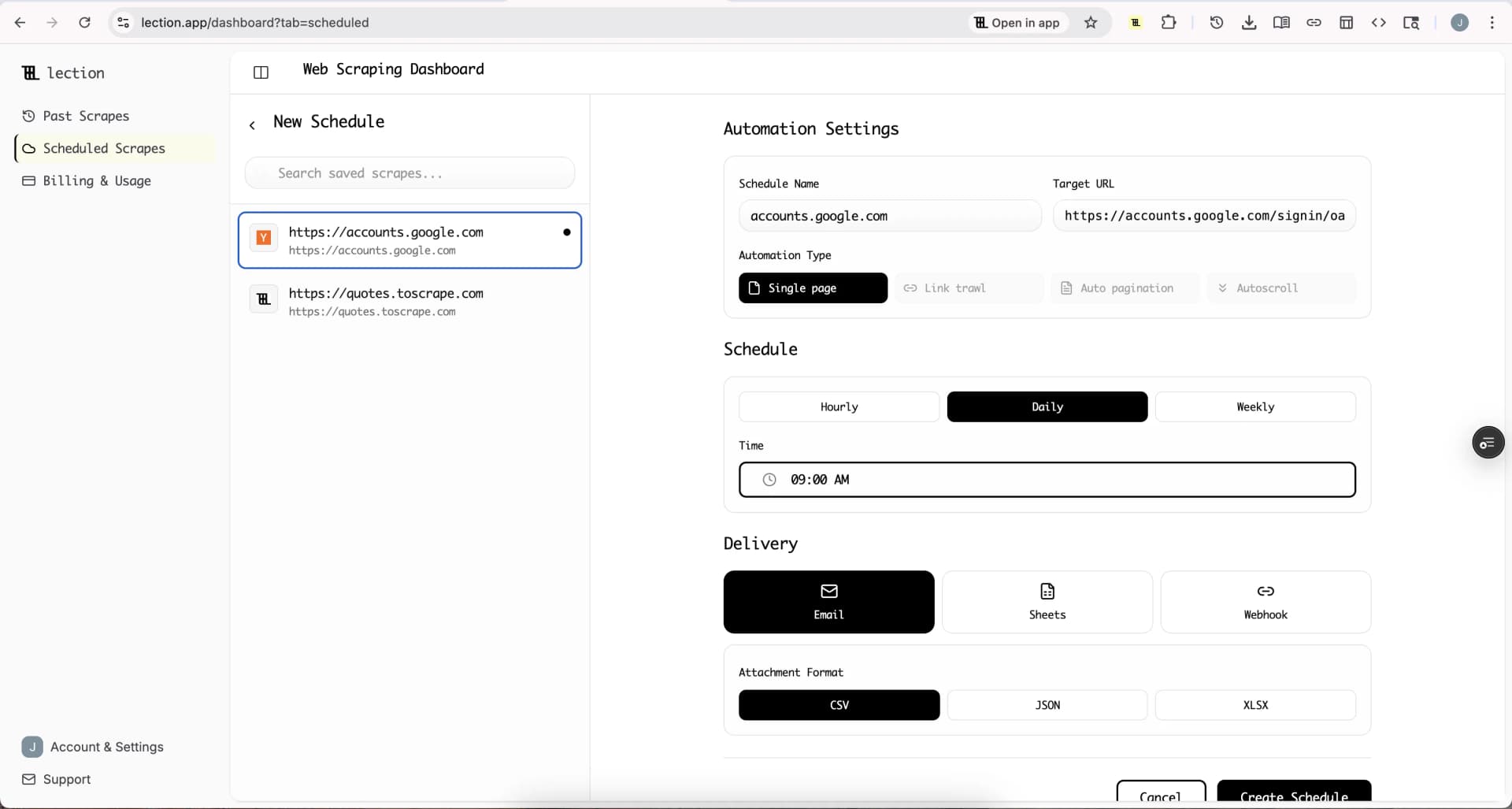
- Open Scheduled Scrapes and create a schedule, choosing Hourly, Daily or Weekly and a timezone.
- Under Delivery pick Sheets, click Connect Google Sheets and approve access.
- Choose a spreadsheet and either append to one tab or create a new tab each run.
- Save and click Run now.
The steps match the Google Sheets integration page. Sheets delivery appends and does not compare rows with what is already there, so repeated runs can repeat the same comments. A new tab per run keeps each snapshot clean, and you can union tabs and run =UNIQUE() on a helper tab.
Start the 30-day Standard trial. It is free for 30 days, then $29 per month, a card is required, and it is for first-time subscribers only.
Honest limitations
- 20 comments per run on the free tool. That is enough to sample a video, not to archive one with thousands of comments.
- Top-level only. No reply text.
- No private data. Only comments YouTube shows publicly.
- Personal names. Comments carry names and channel links. Use them for aggregate research, and follow YouTube's terms. See web scraping legality by country.
- Moderated comments are invisible. Held-for-review or deleted comments never appear.
Troubleshooting
The tool asks for the extension again. Check that the extension is enabled for the Chrome profile you are using.
Fewer rows than expected. Raise Max Rows, up to the 20-row limit of the free tool.
An empty result. Check that the video is public and has comments switched on.
FAQ
Can I export YouTube comments to Google Sheets for free? Yes, up to 20 per run, through CSV and File, Import.
Do I need a YouTube API key? No.
Does it export replies? No, just the reply count.
Can I do a whole channel? The comments tool works per video. To list a channel's videos first, use the YouTube Channel Videos Exporter or read our guide to exporting a YouTube channel's videos to Google Sheets.
Can I ask for YouTube data from Claude or ChatGPT? Lection also has an AI assistant integration that exposes YouTube tools to your chat client. Check that page for current setup steps.