If you buy from a supplier, wholesaler or distributor, you probably know the routine. Their catalog lives on their website, your costing and reorder sheet lives in Google Sheets, and someone copies prices and stock levels across by hand. It works until the catalog has a few hundred items, a price changes quietly, and you find out when the invoice arrives.
This guide shows how to turn a supplier's catalog pages into a clean Google Sheet with Lection, an AI web scraper for Chrome, and then keep that sheet updated on a schedule. No code, no CSS selectors and no IMPORTXML formulas that break the first time the page loads its prices with JavaScript.
What you end up with
One row per product from the catalog pages you point it at. A typical setup looks like this:
| Column | Example |
|---|---|
| Product name | Stainless hinge, 3 inch |
| SKU or part number | HG-3020 |
| Price | 4.85 |
| Pack size or unit | Box of 10 |
| Stock status | In stock |
| Product URL | Link to the product page |
| Scraped at | Date of the run |
You decide the columns. If the catalog shows minimum order quantity, lead time or a tier price, ask for those too. Lection extracts what the page shows, so a field the supplier does not display cannot appear in the sheet.
Before you start
- Desktop Chrome with the free Lection extension.
- The catalog page you want: a category, a search result or a "view all" listing. If the supplier's prices are only shown after you log in to their trade portal, log in first in the same browser. Lection reads pages your browser can already show. It does not bypass logins, paywalls or CAPTCHAs.
- A Google account, if you want the results delivered straight to Sheets.
A quick check before you scrape: some suppliers already offer a price file, a CSV download or a product feed for trade customers. Ask your rep. If they have one, use it. Scraping is the answer when the website is the only up-to-date source.
Step 1: Open a catalog page and describe the data
- Open the supplier's category or search page in Chrome.
- Open the Lection side panel.
- Describe what you want in plain English, for example: "For each product: name, SKU, price, pack size, stock status and the product link." You can also click the elements on the page you need.
- Check the preview table against what you see on the page. Spot-check three or four products, especially prices with discounts or "from" prices.
If a column comes back wrong (say, the crossed-out list price instead of your price), say so in the description: "use the sale price, not the struck-through price." Then preview again.
Step 2: Cover the whole catalog
Most catalogs spread products across many pages. You have two ways to handle that.
Pagination. Lection can follow the catalog's next-page links and collect many pages in one run. How many pages a single run covers depends on your plan: 10 on the free plan, 50 on Standard and 200 on Professional (see pricing).
Several category URLs. If the catalog is split into categories, scheduled runs can take a list of URLs. Standard allows up to 20 URLs per run and Professional up to 50. A hardware supplier with separate pages for hinges, fasteners and brackets becomes one run that writes one sheet.
Detail pages. Some fields (lead time, full spec, tier pricing) only appear on each product's own page. Lection can open detail pages during a run. This costs more pages per run, so start with the listing page and add detail pages only for fields you will actually use.
Step 3: Export once, or save it
For a one-off comparison, download the result as CSV or Excel and import it into Google Sheets with File, then Import, then Upload. If the data is a single plain HTML price table, the free HTML Table Extractor can be enough on its own, no extension required.
If you will need this again next week, save the extraction. A saved scrape is what a schedule re-runs.
Step 4: Schedule it and deliver to Google Sheets
Supplier prices and stock move. A schedule keeps the sheet current without anyone opening the site.
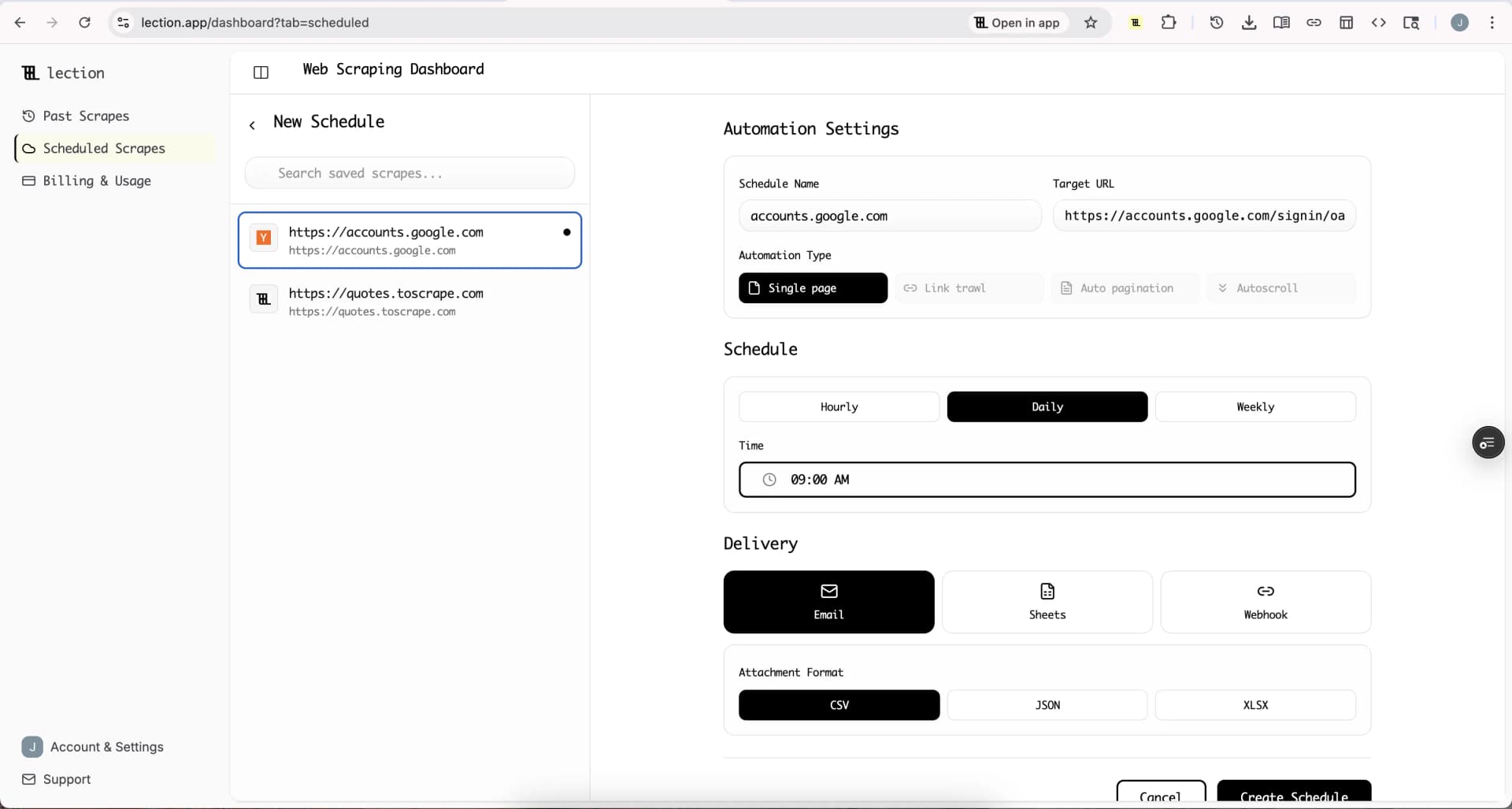
- Open Scheduled Scrapes and create a schedule for the saved scrape. Pick Daily or Weekly (Hourly is available on Standard) and your timezone.
- Under Delivery, select Sheets, click Connect Google Sheets and approve access.
- Choose an existing spreadsheet or create a new one.
- Pick how runs are written: append to one tab, or create a new tab on each run.
- Save, then click Run now to see the first rows arrive.
Scheduled runs happen in the cloud, so your computer can be off. The full walkthrough is on the Google Sheets integration page. Sheets delivery needs Standard, Professional or the 30-day Standard trial. The free plan runs daily and delivers by email.
Append or new tab?
Sheets delivery adds rows. It does not update an existing row by SKU. That shapes the setup:
- Append to one tab gives you a price history. Every run adds the full catalog again with a date, so you can filter by SKU and watch a price move over time. The tab grows with every run, so a weekly schedule is usually plenty for a large catalog.
- New tab per run gives you dated snapshots. Each tab is the catalog as it looked that day, which makes week-over-week comparison simple.
If you need exactly one row per SKU that updates in place, the free n8n Google Sheets template does that, and the Airtable and Supabase destinations support upserts. Standard and Professional also include change alerts, so a run can notify you when rows change instead of you checking the sheet.
Step 5: Make the sheet useful
Raw rows are only the start. A few formulas turn them into a buying tool.
Clean prices. If prices arrive as text with a currency sign, convert them in a helper column. With the price in C2:
=VALUE(REGEXREPLACE(C2, "[^0-9.]", ""))
This strips everything except digits and the decimal point. Check a few rows if the supplier uses a comma as the decimal separator.
Join to your own costing sheet. Keep your product list on its own tab with the supplier SKU in column A. Pull the latest scraped price with:
=XLOOKUP(A2, Catalog!B:B, Catalog!H:H, "not found", 0, -1)
The last argument searches from the bottom, so with an append tab you get the most recent price for that SKU.
Flag changes. On a snapshot setup, compare this week's tab with last week's and flag any SKU where the price differs. A conditional format that turns those cells orange is enough for a weekly review.
Watch stock. Filter the Stock status column for "Out of stock" or "Backorder" before you place an order.
Who this is for
- Retailers and ecommerce stores keeping cost prices and margins current across several suppliers.
- Purchasing and procurement teams comparing the same part across distributors.
- Resellers and dropshippers who need to know when a supplier item goes out of stock before a customer orders it.
- Contractors and trades pricing jobs from a wholesaler's current list.
Tracking competitors' retail prices is the mirror image of this job. Our competitor price tracking guide covers that side.
Honest limitations
- What you see is what you get. If prices only show after login, you need to be logged in for manual runs. Scheduled cloud runs work best on pages that do not require a login.
- Sites change. If the supplier redesigns their catalog, an extraction can stop matching. Open it, adjust the description and save again.
- Credits. Scheduled cloud runs use credits. The free plan includes 5 credits a month (about 500 rows), Standard 300 (about 30,000 rows) and Professional 1,500 (about 150,000 rows). A 2,000-item catalog scraped weekly is roughly 8,600 rows a month, well inside Standard. Scraped daily it is about 60,000, so check the numbers against pricing first, and note that opening detail pages uses more.
- Terms of use. Read the supplier's terms, and use the data for your own purchasing decisions rather than republishing their catalog. Our guide to scraping legality covers the broader picture.
Try it on your own supplier
Install the free extension, open one catalog page and preview the table. That takes a few minutes and costs nothing.
When you want the sheet to update itself, start the 30-day Standard trial. It is free for 30 days, then $29 per month, a card is required, and it is for first-time subscribers only. It unlocks Google Sheets delivery, hourly schedules, 20 URLs per run and change alerts.
FAQ
Can I scrape a supplier catalog for free? Yes. The free plan covers manual extractions with CSV or Excel download, plus one daily scheduled run delivered by email.
Will it update prices in place? Sheets delivery appends rows. Use a lookup that takes the latest row per SKU, or the n8n template for true one-row-per-SKU updates.
What if the supplier's site needs a login? Log in to the trade portal in Chrome first. Lection reads what your browser shows and does not get around logins.
Can I combine several suppliers in one sheet? Yes. Schedule one scrape per supplier and point them at different tabs of the same spreadsheet, then build a comparison tab with lookups.
Does it work in Excel? Download the CSV or Excel file. Scheduled delivery goes to Google Sheets, email, webhooks and other destinations.