A Google Maps search is a good lead list in disguise. Search "dentists in Austin" and you see names, ratings, addresses, phone numbers and websites, all on a map you cannot copy from. Most people end up clicking each result and retyping details into a sheet, one business at a time.
This guide shows how to export Google Maps search results to Google Sheets without code, using the free Google Maps Scraper from Lection and the free Chrome extension. It also covers keeping a lead sheet current on a schedule, and an honest note about what it cannot export.
What you get in the sheet
For each business in the search results, one row:
| Column | What it holds |
|---|---|
| Name | The business name |
| Category | The type of business Maps shows |
| Rating | The average star rating |
| Reviews | The number of reviews |
| Address | The street address |
| Phone | The phone number, when listed |
| Website | The business website, when listed |
| Google Maps URL | A link to the listing |
The tool's description also mentions coordinates. Some fields can be blank, because not every business lists a phone number or website.
What this does not export
Many searches for "export Google Maps to Google Sheets" are about your saved lists, your Timeline or a custom My Maps map. The Lection tool exports search results (a business type and a place). It does not read your private saved lists. For a saved list, Google Takeout is the route to try.
Why does copying from Maps fail?
The results panel loads as you scroll and mixes ratings, prices, opening hours and ads. There is no selectable table. IMPORTXML cannot read Maps, since the page is built in the browser. Google's own Places API returns structured data, but it needs a Cloud project, billing and code.
Before you start
- Desktop Chrome with the free Lection extension.
- A search phrase that combines type and place, such as "coffee shops in Brooklyn".
No Google login is required.
Step by step: Google Maps to Google Sheets
- Open the Google Maps Scraper and install the extension if asked.
- Enter the search, for example
plumbers in Denver. - Set Max Rows. The free tool exports up to 20 results per run.
- Click the scrape button and check the preview.
- Download CSV or Excel.
- In Google Sheets, choose File, then Import, then Upload. Pick "Insert new sheet(s)" to keep each search on its own tab.
Getting past 20 results
The free tool takes the first page of results for each search. To build a bigger list, narrow the search and run it several times: "plumbers in Denver" becomes "plumbers in Capitol Hill Denver", "plumbers in Highlands Denver" and so on. Import each into the same workbook and combine them on a master tab. Use Data, then Data cleanup, then Remove duplicates on the Google Maps URL column to drop businesses that showed up twice.
Turning rows into a lead list
- Sort by Reviews and Rating to separate established businesses from new ones.
- Filter for rows where Website is blank to find businesses without a site, if that is your service.
- Add Status and Notes columns for your follow-up.
- Visit the websites in the sheet before you contact anyone. Maps data is a starting point, and some entries are out of date.
If you use the list for outreach, send relevant, honest messages and include a clear way to opt out. Business contact data is still regulated in many places. See our guide to building local business directories and the GDPR checklist.
Keep it updated automatically
Businesses open, close and change numbers. If you want fresh search results arriving in a sheet, put the saved scrape on a schedule. Sheets delivery is part of the Standard plan and is included in the 30-day trial. The free plan delivers by email only.
- Run the scrape and save it.
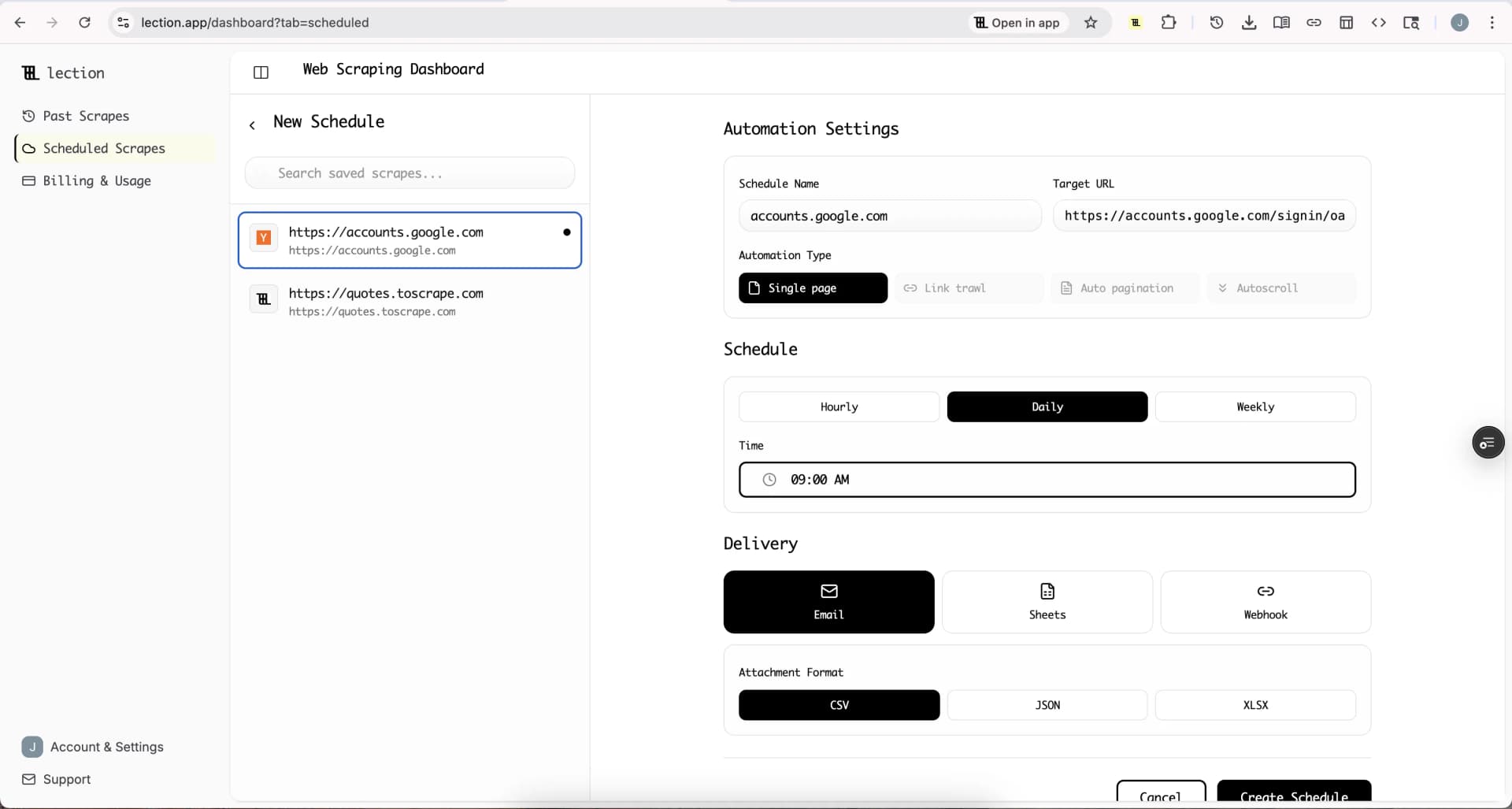
- In Scheduled Scrapes, create a schedule with an Hourly, Daily or Weekly cadence and your timezone.
- Under Delivery select Sheets, click Connect Google Sheets and approve access.
- Pick a spreadsheet, then choose to append to one tab or create a new tab each run.
- Save, then click Run now to check the first delivery.
This is a listed use case on the Google Sheets integration page: run a Maps search on a schedule and use a new tab on each run for dated snapshots. Sheets delivery appends and does not compare against existing rows, so use a new tab per run, then compare tabs by Google Maps URL to see which businesses are new.
Start the 30-day Standard trial. It is free for 30 days, then $29 per month, a card is required, and it is for first-time subscribers only.
Honest limitations
- 20 results per run on the free tool. Use narrower searches for more.
- Search results, not saved lists. See above.
- Blank fields happen. Phone and website depend on what the business lists.
- Accuracy. Hours and numbers change. Verify before you act.
- Terms. Check Google's terms for how you may use Maps data.
Troubleshooting
Few or no rows. Make the search more specific, and include a place name.
Duplicates across runs. Remove duplicates on the Google Maps URL column.
The extension prompt returns. Confirm the extension is enabled in your current Chrome profile.
FAQ
Can I export Google Maps to Google Sheets for free? Yes, up to 20 results per search, through CSV and File, Import.
Can I export my saved Google Maps list? Not with this tool.
Does it include emails? No. You get website links, which you can open to look for contact details.
Can I get reviews? The export has the review count and rating, not the review text.