Someone has to turn a few hundred Instagram comments into rows. Maybe it is a giveaway you need to audit, a launch post whose questions you want to sort, or a competitor's post you want to read in bulk. Instagram gives you a scrolling feed and no export button, so the usual answer is copy, paste, and hope you did not skip a comment.
This guide shows how to get the comments on any post into Google Sheets without code, using the free Instagram Comments Exporter from Lection and the free Lection Chrome extension. It also covers how to keep a sheet updated on a schedule, and where the approach stops working.
What you get in the sheet
The exporter reads the comments on a post or Reel and returns one row per top-level comment. The result table has these columns:
| Column | What it holds |
|---|---|
| Username | The commenter's handle |
| Comment | The comment text |
| Likes | Likes on the comment |
| Replies | How many replies the comment has |
The tool's own documentation also lists full name, timestamp, verification status and profile URL in the export. Replies themselves are not exported. You get the reply count, so you can spot which comments started a thread.
Why does copy and paste fail?
Instagram loads comments in pages as you scroll, and the page keeps no tidy table behind it. Selecting text across a long thread grabs usernames, timestamps and "Reply" buttons mixed together. On a post with a few hundred comments you will lose track of where you stopped, and you cannot tell afterward whether anything is missing.
Google Sheets formulas like IMPORTXML do not help either. Instagram requires a logged-in session to return comments, and a spreadsheet formula has no session. The exporter works because it runs in your own browser, using the session you are already signed in with.
Before you start
- A desktop Chrome browser with the free Lection extension.
- An Instagram login in that same browser. You can only export comments you can already see.
- The post or Reel URL, for example a link that looks like
https://instagram.com/p/ABC123/.
Step by step: Instagram comments to Google Sheets
- Open the Instagram Comments Exporter. If the extension is missing, the page prompts you to install it.
- Make sure you are logged in to Instagram in the same browser, then copy the post link from Instagram's share menu or the address bar.
- Paste the URL into the tool and run it. A first batch of comments appears in a preview table.
- Click Load More for the next batch, or use Export All to page through the whole thread. Large threads take a while, and Instagram can rate-limit long runs, so give it a few minutes before retrying.
- Download the result as CSV or Excel.
- In Google Sheets, open a new sheet and choose File, then Import, then Upload, and select the CSV. Pick "Replace spreadsheet" for a new file or "Insert new sheet(s)" to add the comments as a tab in an existing workbook.
That is the whole free path. The only manual step is the import, which takes a few clicks.
Clean-up that makes the sheet useful
Once the rows are in Sheets, a few built-in tools do most of the work:
- Sort by Likes to see which comments the audience agreed with.
- Use Data, then Data cleanup, then Remove duplicates on the Username column to count unique commenters.
- Filter the Comment column for a keyword, for example a product name or a question mark.
- For a giveaway, add a column with
=RAND()and sort by it, then read off the top rows. Check the rules of your own giveaway before using any selection method.
Keep it updated automatically
A one-time export is fine for a finished post. If a post is still collecting comments, you can put the same scrape on a schedule so new rows arrive in a sheet without you rerunning it.
Scheduled delivery to Google Sheets is part of the Standard plan, and you can try it with the 30-day trial. The free plan delivers scheduled results by email only. The steps, as described on the Google Sheets integration page:
- Run the scrape and save it.
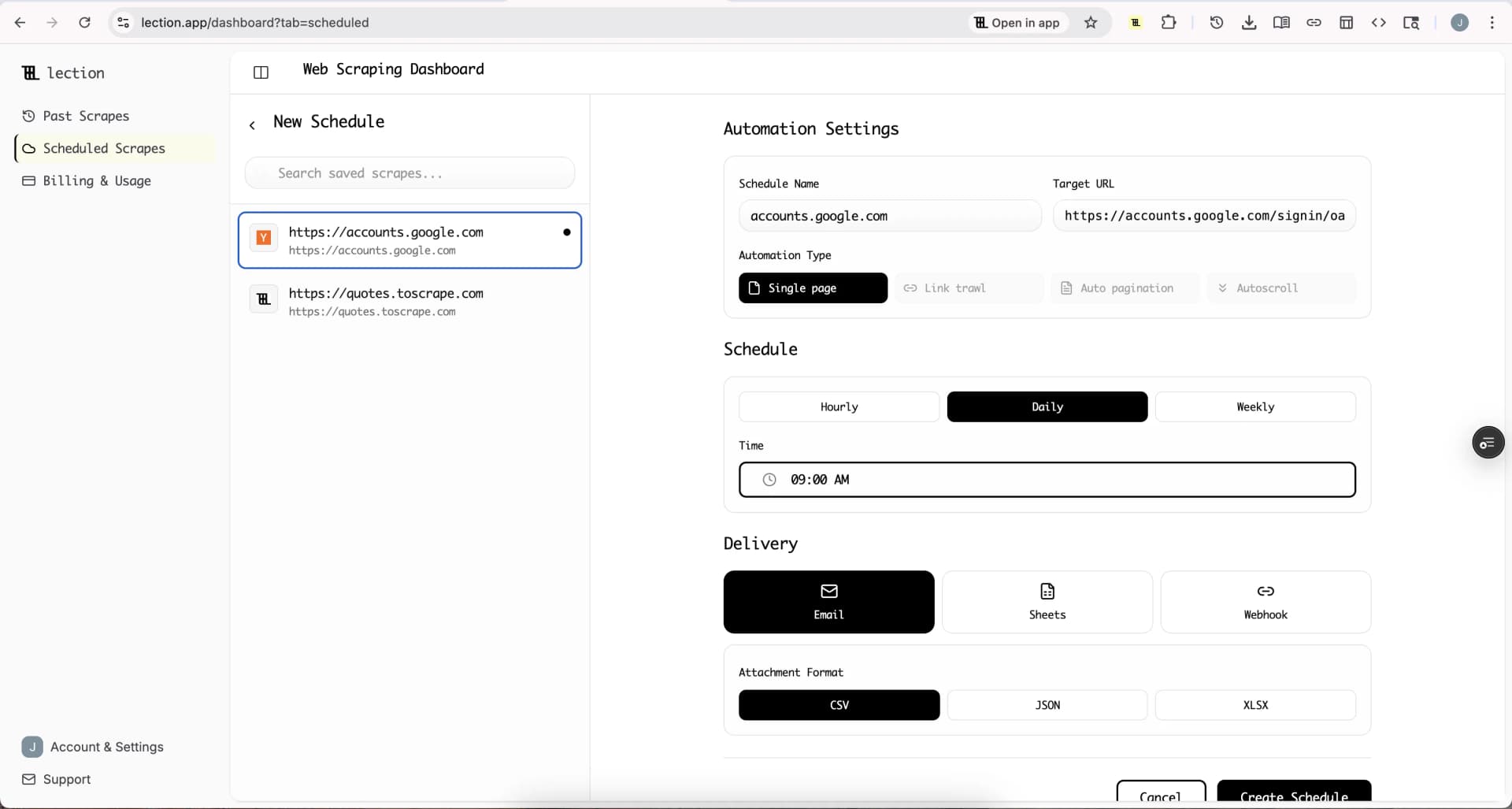
- Open Scheduled Scrapes and create a schedule for that saved scrape, choosing Hourly, Daily or Weekly and your timezone.
- Under Delivery, select Sheets, click Connect Google Sheets and approve access.
- Pick a spreadsheet, or create a new one, then choose "Append to existing tab" with a sheet name, or "Create new tab each run" with a tab prefix.
- Save the schedule and click Run now to see the first rows land.
Sheets delivery appends rows and does not match them against what is already there. A comment that appears in two runs will appear twice. Two simple ways around that: choose "Create new tab each run" and compare tabs, or append and clean with =UNIQUE() on a helper tab.
Start the 30-day Standard trial. It is free for 30 days, then $29 per month, a card is required, and it is for first-time subscribers only.
Limits to know about
- Top-level comments only. Replies are counted, not listed.
- You need to be logged in. Instagram does not return comments to anonymous requests, so this is not a way to read a private account you do not follow.
- Rate limits are Instagram's. Very large threads may stall. Export in batches and wait if you see an error.
- Scheduled runs can fail. The tool relies on your Instagram session, so if Instagram stops accepting it a run can fail. Check the run status in Scheduled Scrapes.
- Respect the data. Comments contain people's names and opinions. Use them for analysis you would be comfortable explaining to the commenters, and follow Instagram's terms and the privacy rules that apply to you. See our guide to scraping legality.
Troubleshooting
The tool says authentication is required. Open Instagram in the same Chrome profile, log in, and run it again.
The extension needs an update. Open chrome://extensions, click Update, and try again.
The URL is rejected. Copy the link of the post or Reel itself, not a profile or a tagged-photos page.
Fewer rows than the post shows. Instagram's displayed total can include replies and hidden comments, which the export does not list.
FAQ
Can I export Instagram comments to Google Sheets for free? Yes, through CSV. Export from the free tool, then use File, Import in Sheets. Direct delivery to a Google Sheet on a schedule needs Standard or the trial.
Does it work on Reels? The tool accepts post and Reel URLs.
Is there a comment limit? The tool does not impose one. Instagram may rate-limit long runs.
Can I export comments from someone else's account? Only posts your logged-in account can see.
Does it export replies? No, only top-level comments plus a reply count.
Want followers or posts too? See the Instagram Followers Exporter and the broader guide to scraping Instagram without code.