Your following list is a record of who you chose to keep up with, and Instagram makes it hard to work with. You cannot sort it, filter it, or hold it next to another list. If you are cleaning up an account, auditing a brand's follows, or checking who a competitor pays attention to, you want it as rows in a sheet.
Here is how to export an Instagram following list to Google Sheets with the free Instagram Following Exporter, no code required, plus how to refresh it and where the method falls short.
What you get in the sheet
One row per account that the profile follows:
| Column | What it holds |
|---|---|
| Username | The handle |
| Full Name | The profile name |
| Private | Whether the account is private |
| Verified | Whether the account is verified |
| Profile URL | A link to the profile |
The Private column is the main difference from the followers export, and it is handy for audits: you can filter for private accounts in seconds.
Why not just scroll?
The in-app list loads in small pages and lets you do nothing except scroll and tap. If an account follows 1,500 accounts, finding the dormant ones, the duplicates or the accounts that no longer exist means reading them one by one. Spreadsheet formulas cannot read it either, because Instagram will not answer without a logged-in session.
Before you start
- Desktop Chrome and the free Lection extension.
- A logged-in Instagram session in that browser.
- The username to export. Your own works, as does any public account, and a private account only if you are an approved follower.
Step by step: Instagram following to Google Sheets
- Open the Instagram Following Exporter and install the extension if asked.
- Confirm you are logged in to Instagram in this browser.
- Enter the username.
- Run the tool and review the first batch in the preview.
- Use Load More to continue paging. Instagram can rate-limit, so work in sensible batches and stop if it returns an error.
- Download CSV or Excel.
- In Google Sheets choose File, then Import, then Upload, and select the file.
Ways to use the list
- Account cleanup. Filter by Private or by missing full name to find accounts worth reviewing, then unfollow in the app.
- Brand audits. See which accounts a brand follows, whether partners or competitors appear, and how many are verified.
- Competitor research. A public competitor's following list shows the creators and suppliers they pay attention to. Use it as a prompt for research, not as a contact list.
- Followers versus following. Export both lists into two tabs, then use
=COUNTIF()to find accounts you follow that do not follow back. The same technique works in reverse.
Keep it updated automatically
If you want the list refreshed without repeating the steps, save the scrape and put it on a schedule. Sheets delivery is available on Standard and the 30-day trial. The free plan sends scheduled results by email instead.
- Save the scrape after running it.
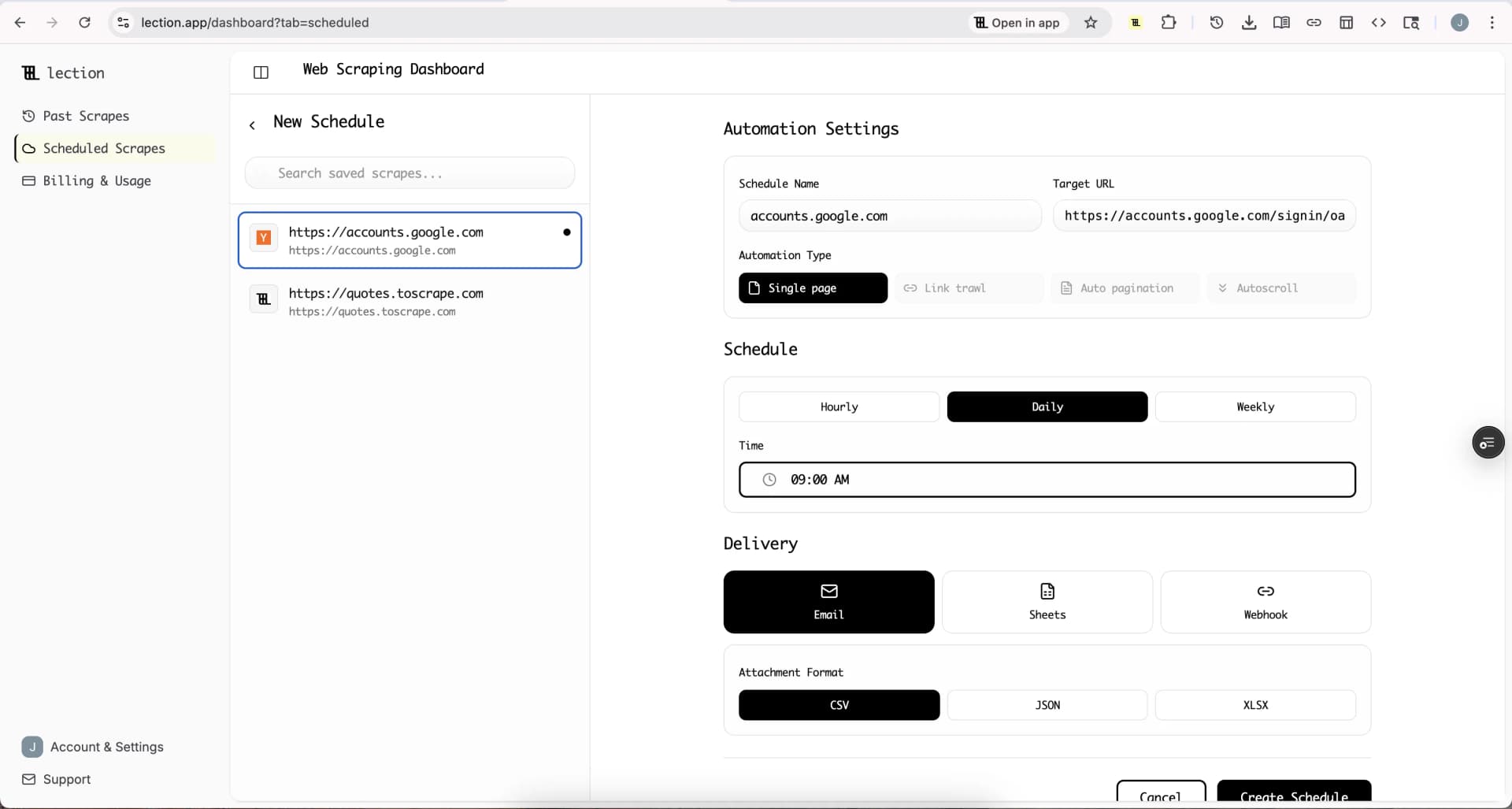
- In Scheduled Scrapes, create a schedule with a cadence (Hourly, Daily or Weekly) and your timezone.
- Under Delivery, choose Sheets, click Connect Google Sheets and approve access.
- Pick a spreadsheet, then either append to one tab or create a new tab each run.
- Save and click Run now.
Details are on the Google Sheets integration page. Because Sheets delivery appends rows and does not check for existing ones, a weekly run of a full list would repeat every account. Use "Create new tab each run" for snapshots, then compare tabs with a formula.
Start the 30-day Standard trial. It is free for 30 days, then $29 per month, a card is required, and it is for first-time subscribers only.
Honest limitations
- You must be logged in. The tool uses your existing session. Nothing works anonymously.
- Only what you can see. Private accounts are off limits unless you follow them and have been approved.
- Rate limits. The tool has no row cap of its own, but Instagram can slow or stop long sessions. Go in batches.
- Light on detail. There is no bio, follower count or email in the export.
- Scheduled runs depend on the session. If Instagram stops accepting it, the run can fail. Check status in Scheduled Scrapes.
- Personal data. Handle the list as you would any personal data, and read our note on scraping legality.
Troubleshooting
An authentication error appears. Log in to Instagram in the same Chrome profile and retry.
You get a rate-limit message. Wait several minutes, then load the next batch.
The count looks short. Large lists, restricted accounts and rate limits can reduce it. Compare the row count with the profile's number and load more.
FAQ
Can I export who I follow to Google Sheets for free? Yes. Download a CSV and import it with File, Import. Automatic delivery to Sheets is a Standard or trial feature.
Does it work for other accounts? Yes, for public accounts, or private ones you are approved to see.
Does it list followers too? Use the Instagram Followers Exporter for that, or read how to export Instagram followers to Google Sheets.
Can I mass-unfollow from the sheet? No. The sheet is for review. Unfollowing happens in Instagram.