Your X (formerly Twitter) followers list is a record of who pays attention to you, and the app gives you no way to take it with you. If you want to sort followers by their own follower count, find the verified ones, or compare your audience with a competitor's, you need the list as rows.
This guide shows how to export X followers to Google Sheets without code, using the free X (Twitter) Followers Exporter from Lection and the free Chrome extension. It also covers scheduling and the limits that apply.
What you get in the sheet
One row per follower:
| Column | What it holds |
|---|---|
| Username | The handle |
| Name | The display name |
| Profile URL | A link to the profile |
| Verified | Whether the account is verified |
| Protected | Whether the account is protected |
| Followers | Their follower count |
| Following | How many accounts they follow |
| Bio | The profile bio |
| Location | The location on the profile |
| Avatar URL | A link to their picture |
| User ID | X's numeric ID |
The follower counts and bios are what make this export more useful than a bare list of handles. They let you filter for accounts that have an audience of their own, or bios that mention a topic.
Why does the standard approach fail?
X shows followers in a list that loads in chunks and cuts off long lists. Copy and paste turns display names, handles, bios and "Follow" buttons into an unstructured block. Spreadsheet formulas cannot reach X, and the official API is paid and rate-limited for most uses.
Before you start
- Desktop Chrome and the free Lection extension.
- You must be logged in to X in the same browser. The tool uses your existing session.
- The handle you want, with or without the @. Any public handle works.
Step by step: X followers to Google Sheets
- Open the X Followers Exporter and install the extension if prompted.
- Confirm that you are logged in to X in this browser.
- Enter the username.
- Choose how many to fetch with Count, or switch on the option to export everything until X stops returning results or you reach a Max Rows limit. The default cap is 2,000.
- Run it and check the preview.
- Download as CSV or Excel.
- In Google Sheets, choose File, then Import, then Upload and select the file.
The Cursor field defaults to -1. That is X's way of saying "start at the beginning", and you only change it to continue a long export that stopped part way, using the cursor token from the last batch.
Using the sheet
- Find big accounts. Sort by Followers to see which followers have the largest audiences.
- Filter by bio. Use a filter condition on the Bio column, for example "text contains" a role or topic.
- Skip protected accounts. Filter Protected so that your outreach does not include accounts that chose to limit their visibility.
- Compare audiences. Export a competitor's followers into a second tab and use
=COUNTIF()or=MATCH()on the Username column to see the overlap. - Track growth. Keep a dated tab every month. The change in row count and the accounts that appeared are a simple growth log.
If you plan to contact people, do so sparingly and honestly. Bios and locations are personal data. Read the platform's terms and privacy rules that apply to scrapers first.
Keep it updated automatically
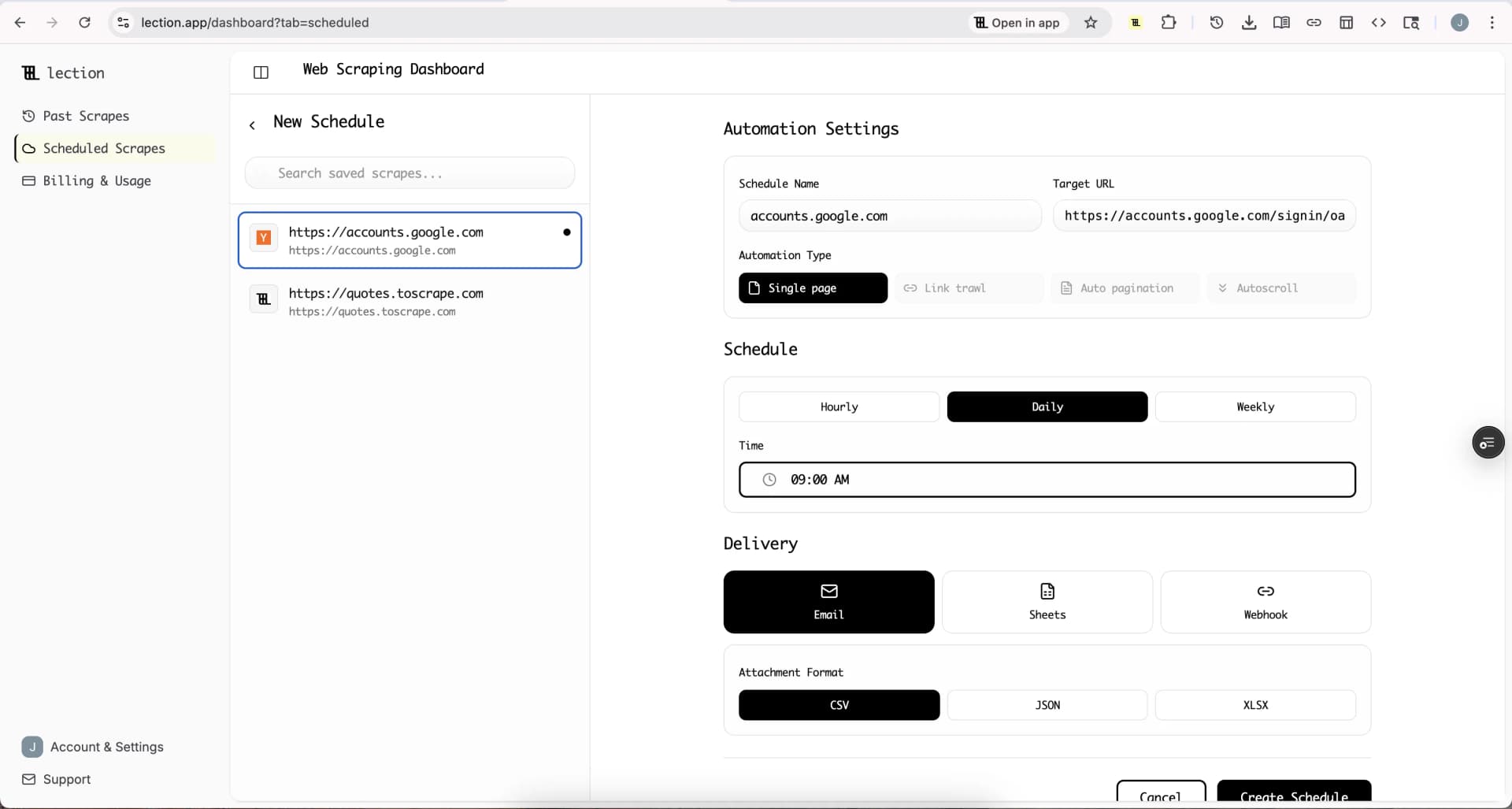
The followers list changes every day. To receive snapshots without repeating the steps, save the scrape and put it on a schedule. Sheets delivery is part of the Standard plan and the 30-day trial. The free plan sends scheduled results by email only.
- Run the scrape and save it.
- In Scheduled Scrapes, create a schedule with a cadence (Hourly, Daily or Weekly) and your timezone.
- Under Delivery select Sheets, connect Google and pick a spreadsheet.
- Choose "Create new tab each run" with a prefix for dated snapshots, or append to one tab.
- Save and click Run now.
The full steps are on the Google Sheets integration page. Appending a full list every run repeats every follower, because Sheets delivery does not look for existing rows. A new tab per run gives you clean snapshots to compare.
Start the 30-day Standard trial. It is free for 30 days, then $29 per month, a card is required, and it is for first-time subscribers only.
Honest limitations
- Login required. The tool uses your own X session, so it only reaches what your account can see.
- A 2,000-row default cap. The tool says you can contact Lection for higher limits.
- X sets the pace. Long exports can slow down or stop when X limits requests. Use the cursor to continue.
- Scheduled runs rely on the session. If X stops accepting it, a run can fail. Check run status in Scheduled Scrapes.
- Followers only. For who an account follows, or for posts, this tool is not the right fit.
- Terms. Check X's terms of service. Our scraping legality guide gives background.
Troubleshooting
The export stops early. X may have limited the requests. Wait a few minutes and continue from the last cursor.
A login error. Log in to X in the same Chrome profile and try again.
Fewer rows than the follower count. Suspended and deleted accounts drop out, and the count on the profile can be ahead of the list.
FAQ
Can I export X followers to Google Sheets for free? Yes, through CSV and File, Import. Direct scheduled delivery to Sheets needs Standard or the trial.
Does the export include emails? No.
Can I export another account's followers? Yes for public handles your logged-in account can view.
Is there a similar tool for Instagram? Yes, the Instagram Followers Exporter, and a matching guide on exporting Instagram followers to Google Sheets.