Job listings change faster than anyone can keep up with by hand. A recruiter wants to see which roles a competitor just opened. A job seeker wants every new "data analyst, remote" posting the day it appears. A sales team wants to know which target accounts are hiring for the role their product helps. In each case the data is public and sitting on a page, and in each case people end up with twenty browser tabs and a half-finished spreadsheet.
This guide shows how to turn a job board search or a company careers page into a Google Sheet with Lection, an AI web scraper for Chrome, and then refresh it on a schedule so new openings land in the sheet on their own.
What you end up with
One row per posting from the page you point it at. A typical sheet looks like this:
| Column | Example |
|---|---|
| Job title | Senior Data Analyst |
| Company | Northwind Freight |
| Location | Remote, US |
| Posted | 2 days ago |
| Salary (if shown) | $110k to $130k |
| Job URL | Link to the posting |
| Scraped at | Date of the run |
You choose the columns. If the page shows seniority, employment type, department or team, ask for those too. Lection extracts what the page shows, so a field the posting does not display (salary on many boards, for example) will come back blank rather than guessed.
Who this is for
- Job seekers watching a handful of searches or target companies for new openings.
- Recruiters and staffing agencies tracking which companies are hiring for a role they place.
- Sales and business development teams using hiring as a buying signal: a company posting three warehouse roles may be about to need what you sell.
- Market researchers watching hiring volume for a skill, a city or a competitor over weeks.
- Founders keeping an eye on where competitors are investing headcount. Our competitor job postings guide goes deeper on that angle.
Where to point it
Pick pages that list many postings at once:
- A company careers page. Often a plain list of openings with title, team and location. The simplest and most reliable place to start.
- Applicant tracking system pages. Many companies host their openings on a public job page from an ATS. These pages are usually clean lists.
- A job board search results page. Run your search with filters (role, location, remote, date posted) first, then scrape the results page. See our Indeed guide for a board-specific walkthrough.
- Niche boards and association job boards. Smaller sites tend to have simpler pages.
- Government and university job portals. Public listings, usually one long table.
If the openings are displayed as an HTML table, the free HTML Table Extractor can lift them straight out, and our website tables to Sheets guide shows how.
Before you start
- Desktop Chrome with the free Lection extension.
- The page you want: a search results page with your filters applied, or a careers page. If it needs a login, log in first in the same browser. Lection reads pages your browser can already show. It does not bypass logins, paywalls or CAPTCHAs.
- A Google account, if you want results delivered straight to Sheets.
Step 1: Open the page and describe the data
- Open the search results or careers page in Chrome and apply your filters.
- Open the Lection side panel.
- Describe what you want in plain English, for example: "For each job: title, company, location, posted date, salary if shown and the link to the posting." You can also click the elements on the page you need.
- Compare the preview table with the page. Spot-check a few postings, especially ones with no salary or location, so blanks show up as blanks rather than shifting the columns.
Job boards often show only some postings at first and load more as you scroll or click "next". If your preview has fewer rows than the page claims, tell Lection to keep going to the next page or load more results, then check the row count again.
Step 2: Add detail-page fields if you need them
Open each posting's detail page when you need fields that only appear there: the full description, required experience or the application link. Lection can follow each listing's link and pull the extra fields into the same row. It costs more credits than a list-only run, so use it when the detail matters. For simply tracking what is new, titles, locations and links from the list page are usually enough.
Step 3: Download or send to Sheets
For a one-off research sheet, download the result as CSV or Excel and import it into Google Sheets with File, then Import, then Upload. That may be all you need.
Step 4: Schedule it and deliver to Google Sheets
For tracking over time, save the extraction. A saved scrape is what a schedule re-runs.
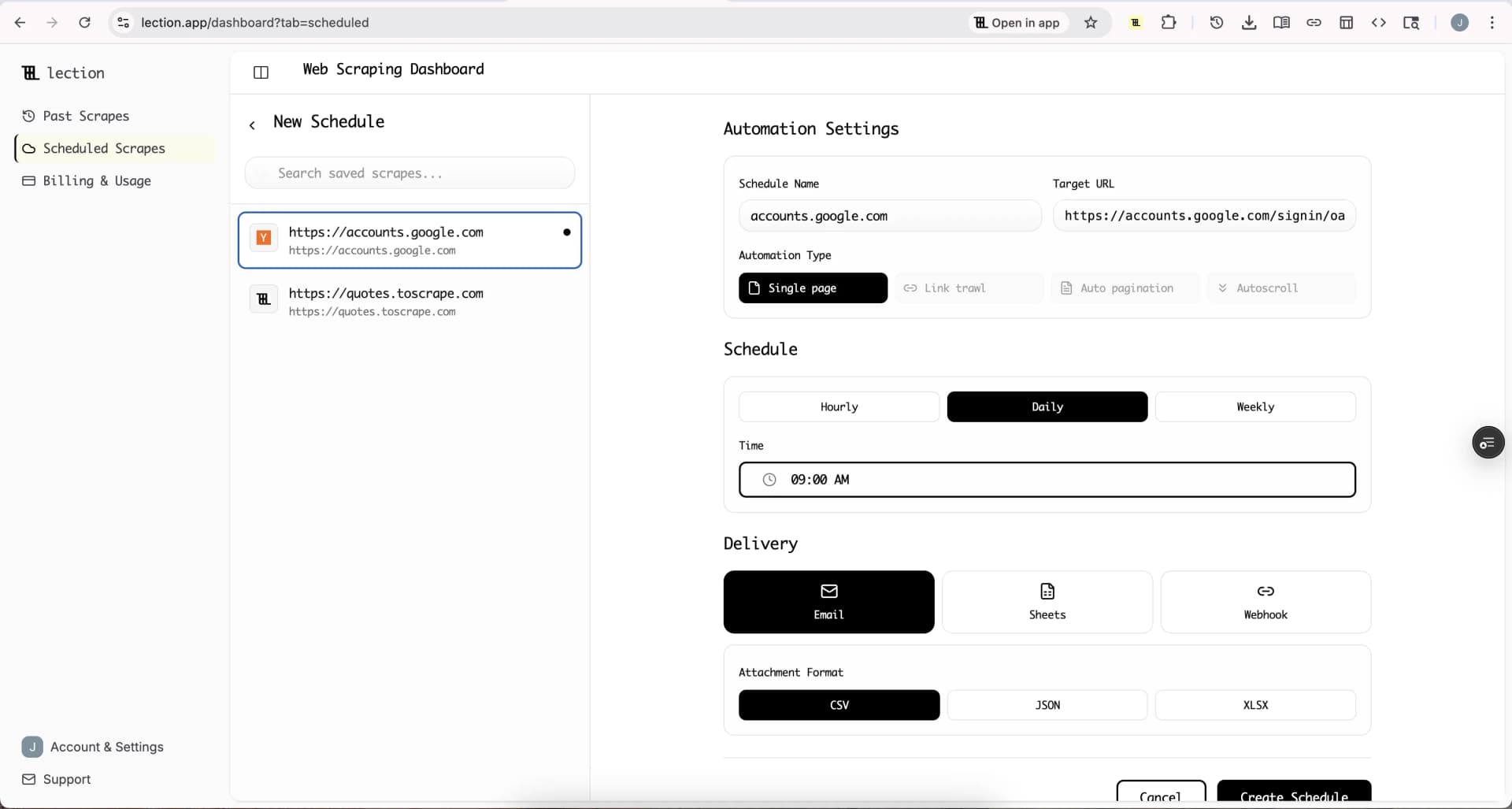
- Open Scheduled Scrapes and create a schedule for the saved scrape. Daily suits an active job search; weekly is plenty for watching a company's careers page.
- Under Delivery, select Sheets, click Connect Google Sheets and approve access.
- Choose an existing spreadsheet or create a new one.
- Pick how runs are written: append to one tab, or create a new tab on each run.
- Save, then click Run now to see the first rows arrive.
Scheduled runs happen in the cloud, so your computer can be off. The full walkthrough is on the Google Sheets integration page. Sheets delivery needs Standard, Professional or the 30-day Standard trial. The free plan runs one daily schedule and delivers by email.
Sheets delivery adds rows; it does not update an existing row in place. For job tracking that works well: append every run to one tab and the sheet becomes a dated history of what was open and when. Standard and Professional also include change alerts, so you can be told when a page changes instead of checking it yourself.
Step 5: Show only the new postings
An append tab holds every run, so the same job appears again each day it stays open. A helper column separates new postings from repeats.
Pick a stable key. The posting URL is the best choice. Titles repeat ("Account Executive" may appear many times) and locations change, so avoid them as the key. If a board puts a tracking parameter in the URL, key on the part before the question mark.
Flag first appearances. With the job URL in column F and rows in date order, put this in a helper column and fill down:
=IF(COUNTIF(F$2:F2, F2)=1, "new", "")
The first time a posting appears it is marked "new"; later runs of the same posting stay blank. On the first run everything is new, which is correct.
Pull the latest new postings onto their own tab. With the scrape date in column G and the flag in column H:
=FILTER(Jobs!A:H, Jobs!H:H="new", Jobs!G:G=MAX(Jobs!G:G))
That tab is your "new today" list. Keep a status column (applied, contacted, skip) on a separate tab keyed by the same URL so scheduled runs never overwrite your notes.
Spot closed postings. A job that was in last week's run and is missing from this week's has probably been filled or pulled. Comparing the latest run to the previous one with COUNTIFS on the URL column shows what disappeared, which is a useful signal in itself for a company you are watching.
Honest limitations
- What you see is what you get. Lection reads what the page displays. Salary, posting date and department are only there if the site shows them.
- Some job sites restrict automated access. Large boards often have terms of use that limit scraping and may block repeated requests. Read the terms, keep schedules modest and prefer a company's own careers page where one exists. Our guide to scraping legality covers the broader picture.
- Personal data. Postings are about roles, not people. If you also collect recruiter or hiring-manager names, handle them under the privacy rules that apply where you operate.
- Sites change. If a careers page is redesigned, an extraction can stop matching. Open it, adjust the description and save again.
- Credits. Scheduled cloud runs use credits. The free plan includes 5 credits a month (about 500 rows), Standard 300 (about 30,000 rows) and Professional 1,500 (about 150,000 rows). A 200-posting search scraped daily is roughly 6,000 rows a month, well inside Standard. Opening each posting's detail page uses more, so check against pricing.
Try it on one page
Install the free extension, open one job search or careers page and preview the table. It takes a few minutes and costs nothing.
When you want the list to refresh itself and land in Google Sheets, start the 30-day Standard trial. It is free for 30 days, then $29 per month, a card is required, and it is for first-time subscribers only. It unlocks Google Sheets delivery, 20 URLs per run, hourly to weekly schedules and change alerts.
FAQ
Can I track job listings in Google Sheets for free? For a one-off, yes: the free plan covers manual extractions with CSV or Excel download, plus one daily scheduled run delivered by email. Delivery straight into Google Sheets needs Standard, Professional or the trial.
How do I avoid duplicate jobs across runs? Append every run and flag first appearances by posting URL with COUNTIF, as in Step 5. Then filter for the latest run.
Can I watch several companies in one sheet? Yes. Schedule one scrape per careers page or search, send each to its own tab, and build a combined tab with a stack of FILTER ranges. Standard allows up to 20 URLs per run.
Will it find the hiring manager's email? No. Lection extracts what the page shows and does not look up or guess contact details.
Does it work with Excel? Download the CSV or Excel file. Scheduled delivery goes to Google Sheets, email, webhooks and other destinations.