Most good B2B lead lists already exist. They just live on someone else's website: a chamber of commerce member directory, a trade association's "find a member" page, an exhibitor list for a trade show, a marketplace of agencies or a state licensing board's search results. The people on those lists have already told you what they do and where they are.
The slow part is getting them into a spreadsheet you can work from, and keeping that sheet current as members join. This guide shows how to turn a directory into a Google Sheet with Lection, an AI web scraper for Chrome, and then refresh it on a schedule so new listings appear without anyone copying and pasting.
What you end up with
One row per listing from the directory pages you point it at. A typical sheet looks like this:
| Column | Example |
|---|---|
| Company or member name | Harbor Line Logistics |
| Category or industry | Freight forwarding |
| City and state | Savannah, GA |
| Website | Link from the listing |
| Phone | As shown on the listing |
| Listing URL | Link to the directory profile |
| Scraped at | Date of the run |
You choose the columns. If the directory shows membership level, year founded, specialties or a contact name, ask for those as well. Lection extracts what the page shows, so a field the directory does not display (a personal email, for example) will not appear in the sheet.
Good directories to start with
Pick a list where being listed already says something about fit:
- Industry and trade associations. A "find a member" page of a regional builders' association is a list of contractors who pay to be seen.
- Chambers of commerce and business improvement districts. Local businesses by category, often with websites and phone numbers.
- Trade show exhibitor lists. Companies spending money on your market this year.
- Agency and vendor marketplaces. Listings with service categories, locations and sometimes team size.
- Licensing and registration lookups. Public search results for licensed professionals in a state or city.
- Google Maps searches. For local businesses with no directory of their own, the free Google Maps Business Scraper covers this, and our Google Maps to Sheets guide walks through it.
Before you start
- Desktop Chrome with the free Lection extension.
- The directory page you want: a category, a filtered search or an "all members" listing. If the directory only shows details to logged-in members, log in first in the same browser. Lection reads pages your browser can already show. It does not bypass logins, paywalls or CAPTCHAs.
- A Google account, if you want results delivered straight to Sheets.
Step 1: Open the directory and describe the data
- Open the directory listing page in Chrome and apply any filters you want (category, region, membership type).
- Open the Lection side panel.
- Describe what you want in plain English, for example: "For each member: company name, category, city, state, website, phone and the profile link." You can also click the elements on the page you need.
- Compare the preview table with the page. Spot-check a few listings, especially ones with missing fields, so blanks show up as blanks rather than shifted columns.
If the directory is a single plain HTML table, the free HTML Table Extractor may do the job on its own, no extension required.
Step 2: Cover every page of the directory
Directories rarely fit on one page. There are three ways to get the rest.
Pagination. Lection can follow next-page links and collect many pages in one run. How many pages a run covers depends on your plan: 10 on the free plan, 50 on Standard and 200 on Professional (see pricing).
Several filtered URLs. If the directory is split by category or region, scheduled runs can take a list of URLs. Standard allows up to 20 URLs per run and Professional up to 50. Eight category pages of a trade association become one run that writes one sheet.
Profile pages. Some details (website, phone, specialties) appear only on each member's own profile. Lection can open those detail pages during a run. That costs more pages, so start with the listing and add profile pages only for fields you will use.
Step 3: Export once, or save it
For a one-off list, download the result as CSV or Excel and import it into Google Sheets with File, then Import, then Upload. That is often enough for a single campaign.
If you want to catch new members as they join, save the extraction. A saved scrape is what a schedule re-runs.
Step 4: Schedule it and deliver to Google Sheets
- Open Scheduled Scrapes and create a schedule for the saved scrape. Weekly suits most directories; members do not join by the hour. Daily is there if the list moves fast.
- Under Delivery, select Sheets, click Connect Google Sheets and approve access.
- Choose an existing spreadsheet or create a new one.
- Pick how runs are written: append to one tab, or create a new tab on each run.
- Save, then click Run now to see the first rows arrive.
Scheduled runs happen in the cloud, so your computer can be off. The full walkthrough is on the Google Sheets integration page. Sheets delivery needs Standard, Professional or the 30-day Standard trial. The free plan runs one daily schedule and delivers by email.
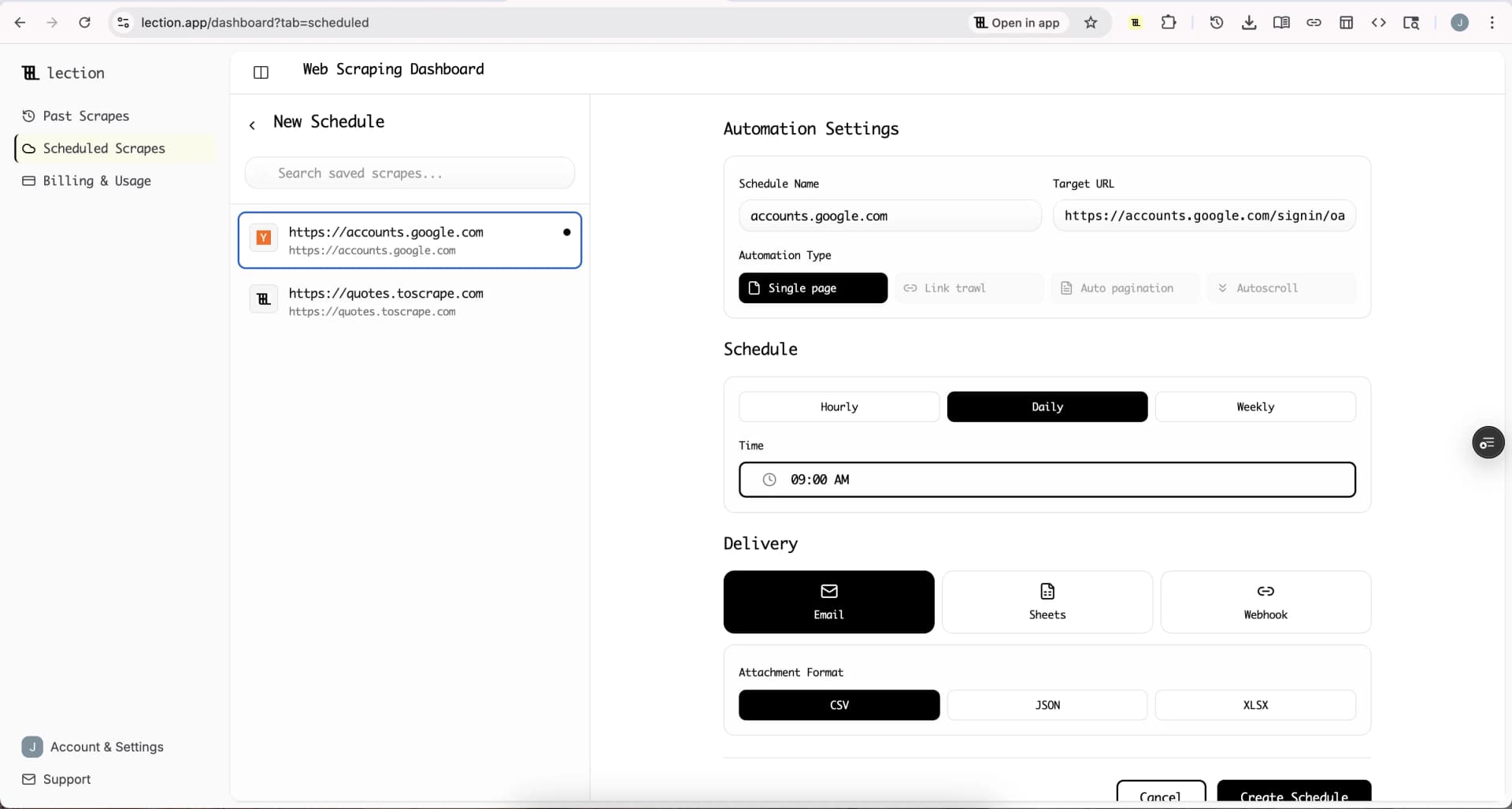
Sheets delivery adds rows; it does not update an existing row in place. For a lead list that is usually what you want: append to one tab, and every run adds the current directory with a date. Standard and Professional also include change alerts, so you can be told when the list changes instead of checking it yourself.
Step 5: Find the new leads each week
An append tab holds every run. A helper column turns it into a "new this week" list.
Pick a stable key. The profile URL is the best choice because it rarely changes. A website domain works too. Company names drift ("Harbor Line" vs "Harbor Line Logistics LLC"), so avoid them as the key.
Flag first appearances. With the profile URL in column F and rows in date order, put this in a helper column and fill down:
=IF(COUNTIF(F$2:F2, F2)=1, "new", "")
The first time a listing appears it is marked "new"; every later run of the same listing stays blank. On the first run everything is new, which is correct.
Pull this week's new leads onto their own tab. With the scrape date in column G and the flag in column H:
=FILTER(Directory!A:H, Directory!H:H="new", Directory!G:G=MAX(Directory!G:G))
That tab is your outreach list for the week: only the members who joined since the last run.
Keep your own notes separate. Put status, owner and notes on a CRM tab keyed by the same profile URL, and pull directory fields in with XLOOKUP. Scheduled runs keep adding rows to the directory tab and never overwrite your notes. If you would rather work in a CRM, our HubSpot guide covers sending scraped leads there.
Who this is for
- Agencies and freelancers prospecting a niche, such as every member of a regional dental association.
- B2B sales teams working a vertical where the trade association list is the market map.
- Event and sponsorship teams tracking exhibitor lists from one show to the next.
- Suppliers and distributors looking for new trade customers in a territory.
- Recruiters building lists of firms in a licensed profession.
Honest limitations
- What you see is what you get. If listings need a member login, manual runs need you logged in. Scheduled cloud runs work best on public directory pages.
- No hidden contact data. Lection does not look up emails or phone numbers that the directory does not show. Many listings link a company website; contacting the business from there is often the cleanest route.
- Sites change. If the directory is redesigned, an extraction can stop matching. Open it, adjust the description and save again.
- Credits. Scheduled cloud runs use credits. The free plan includes 5 credits a month (about 500 rows), Standard 300 (about 30,000 rows) and Professional 1,500 (about 150,000 rows). A 1,500-member directory scraped weekly is roughly 6,500 rows a month, well inside Standard. Opening profile pages uses more, so check against pricing.
- Terms and privacy. Read the directory's terms of use. Use the list for relevant, honest outreach, follow anti-spam rules where you send (CAN-SPAM, GDPR and similar), and honour opt-outs. Our guide to scraping legality covers the broader picture.
Try it on your own directory
Install the free extension, open one directory page and preview the table. It takes a few minutes and costs nothing.
When you want the list to refresh itself and land in Google Sheets, start the 30-day Standard trial. It is free for 30 days, then $29 per month, a card is required, and it is for first-time subscribers only. It unlocks Google Sheets delivery, 20 URLs per run, hourly to weekly schedules and change alerts.
FAQ
Can I scrape a directory into a lead list for free? Yes. The free plan covers manual extractions with CSV or Excel download, plus one daily scheduled run delivered by email.
Will it find email addresses? Only if the directory shows them. Lection extracts what is on the page and does not guess or enrich contact details.
How do I avoid duplicates across runs? Append every run and flag first appearances by profile URL with COUNTIF, as in Step 5. Then filter for the latest run.
Can I combine several directories in one sheet? Yes. Schedule one scrape per directory, send each to its own tab, and build a combined tab with a stack of FILTER ranges or a pivot.
Does it work with Excel? Download the CSV or Excel file. Scheduled delivery goes to Google Sheets, email, webhooks and other destinations.